On a Windows 10/11 dual screen, is it possible to have different backgrounds on each screen?
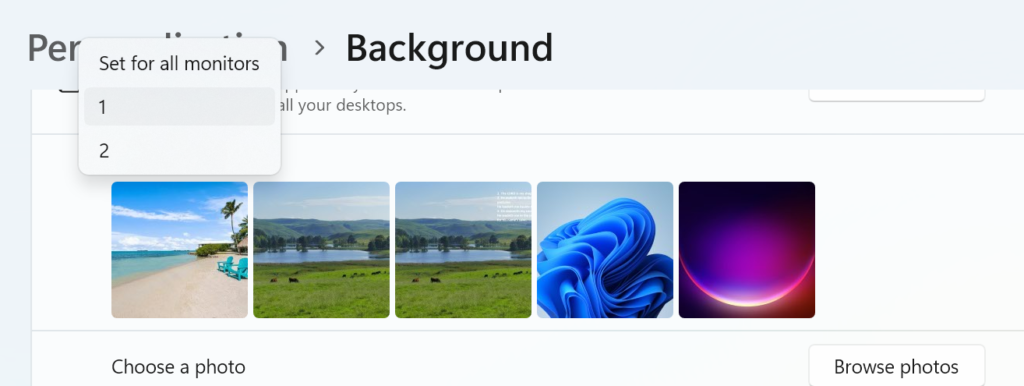
You can have two different backgrounds on an extended dual monitor setup in Windows 10/11. The easiest way is to go to Settings > Personalization > Background, right-click a recent image, and select “Set for monitor 1” or “Set for monitor 2”. Ensure your display is set to “Extend” in settings.
How to Set Different Backgrounds in Windows 10/11
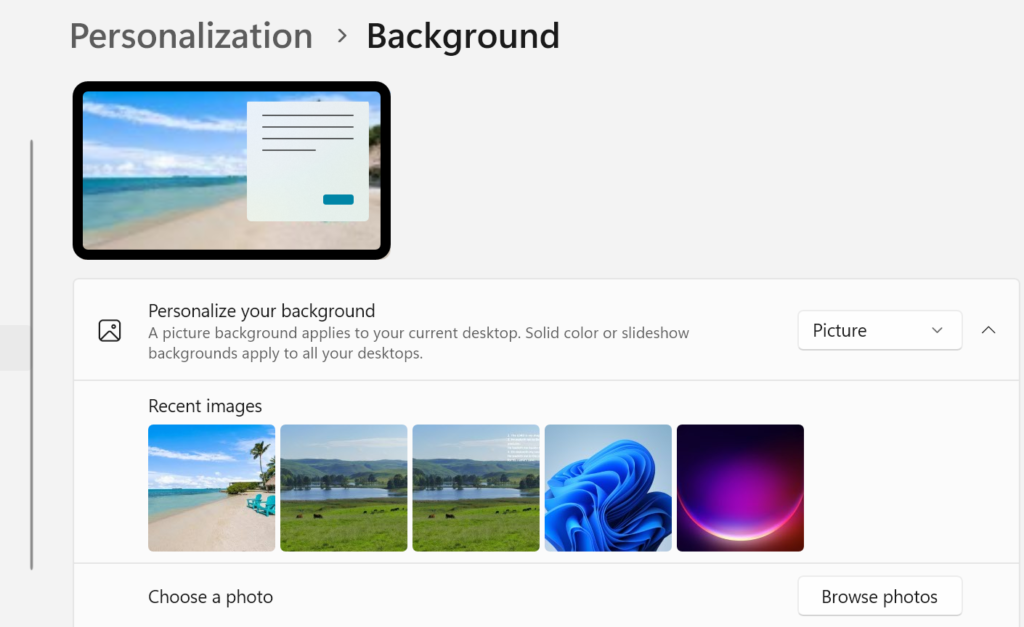
- Open Settings: Right-click your desktop and choose Personalize, then click Background.
- Ensure Extension: Make sure your displays are set to extend by navigating to System > Display and choosing “Extend these displays”.
- Choose Image: In the “Recent images” section, right-click the image you want for a specific monitor.
- Assign Monitor: Select Set for desktop 1 or Set for desktop 2.
- Alternative (File Explorer): Go to the folder with your images, right-click an image, and select “Set for monitor 1” or “Set for monitor 2”.
Tips for Customization
- Identify Monitors: If you are unsure which is monitor 1 or 2, go to Settings > System > Display and click Identify.
- Fit Options: Under “Choose a fit for your desktop image,” choose Fill or Span to make images look better, especially if they are different resolutions.
- Slideshow: You can set a slideshow, and Windows will treat each monitor independently, allowing them to cycle through different pictures independently