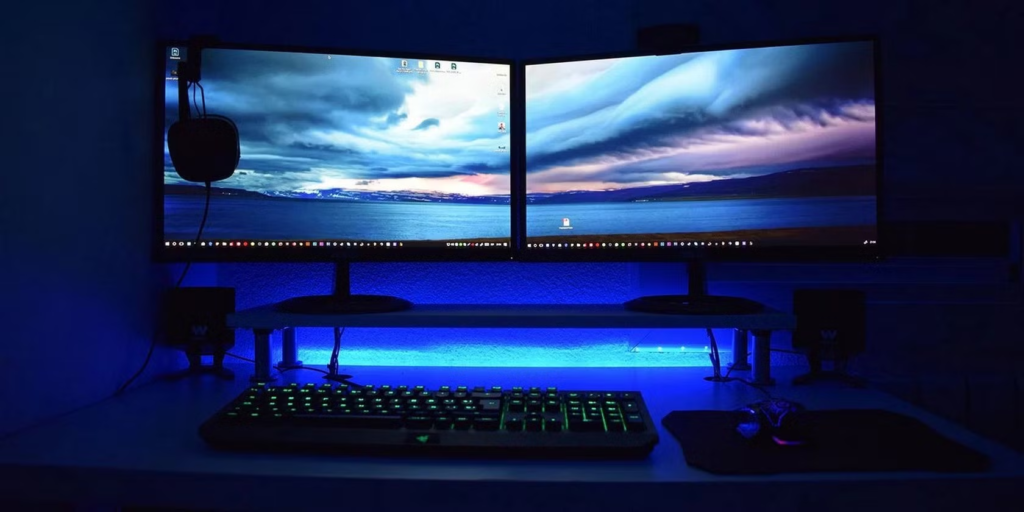
On a Windows 10/11 dual screen, is it possible to have different backgrounds on each screen?
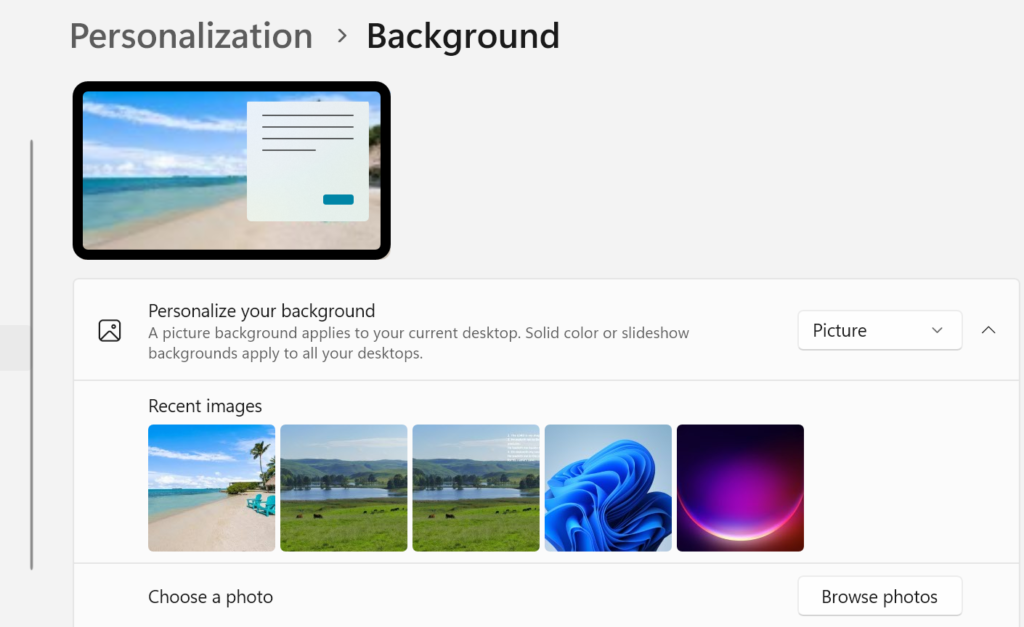
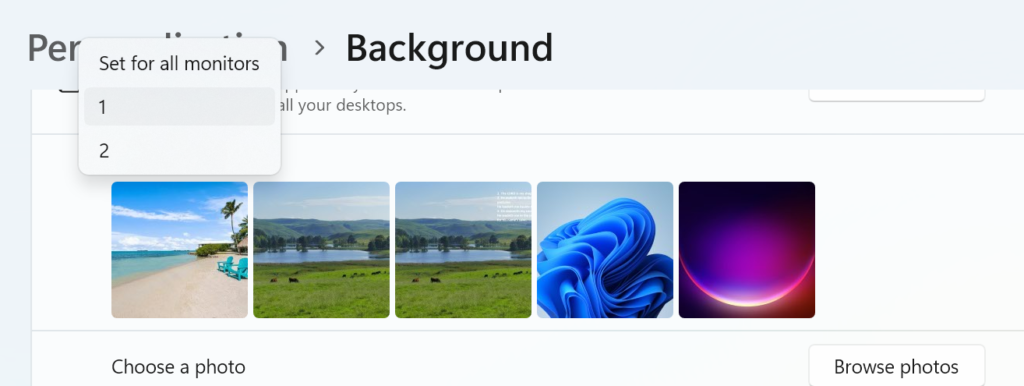
You can have two different backgrounds on an extended dual monitor setup in Windows 10/11. The easiest way is to go to Settings > Personalization > Background, right-click a recent image, and select “Set for monitor 1” or “Set for monitor 2”. Ensure your display is set to “Extend” in settings.
How to Set Different Backgrounds in Windows 10/11
Open Settings: Right-click your desktop and choose Personalize, then click Background.
Ensure Extension: Make sure your displays are set to extend by navigating to System > Display and choosing “Extend these displays”.
Choose Image: In the “Recent images” section, right-click the image you want for a specific monitor.
Assign Monitor: Select Set for desktop 1 or Set for desktop 2.
Alternative (File Explorer): Go to the folder with your images, right-click an image, and select “Set for monitor 1” or “Set for monitor 2”.
Tips for Customization
Identify Monitors: If you are unsure which is monitor 1 or 2, go to Settings > System > Display and click Identify.
Fit Options: Under “Choose a fit for your desktop image,” choose Fill or Span to make images look better, especially if they are different resolutions.
Slideshow: You can set a slideshow, and Windows will treat each monitor independently, allowing them to cycle through different pictures independently
Windows 11 offers several hidden productivity features to help users work more efficiently. ComputerWorld Contributing Editor Preston Gralla offers 8 tips to try out: Focus Sessions to minimize distractions, voice typing, Microsoft Copilot for tasks and settings, an enhanced Clipboard, PowerToys, virtual desktops, Snap Layouts and a secret Start menu for quick access to tools.
Most people spend a lot of time over the years gathering productivity tips for your favorite applications — after all, that’s where you get most of your work done. If you’re like most people, though, you’ve managed to find your way around Windows 11 but figured there’s not much you can do to improve your productivity in the OS itself.
1. Get focused with focus sessions
The biggest productivity-sapper for office workers is one that has been drastically worsened by technology: Many of us are unable to focus on one task at a time, constantly bedeviled by the distractions that are always at hand when you work on a computer. If you find yourself unable to focus on a single task on your PC, join the club. We’re all prone to it.
Windows 11’s Focus sessions feature can help. It enables Windows 11’s Do Not Disturb mode, which turns off all Windows notifications. In addition, apps in the taskbar won’t flash at you if they require a response. Badge notifications on apps in the taskbar are turned off as well.
A focus session uses Windows Clock to let you set a time limit for the session. That way, you won’t be distracted by worrying about how long you want the do-not-disturb session to last. And if background music helps you work, you can also have Spotify play music you specify for the length of the session.
To use Focus sessions:
Run the Windows 11 Clock app. The simplest way is to type clock in the Search box and then click the Clock app that appears.
Click Focus sessions. If it’s the first time you’re using it, click Get started.
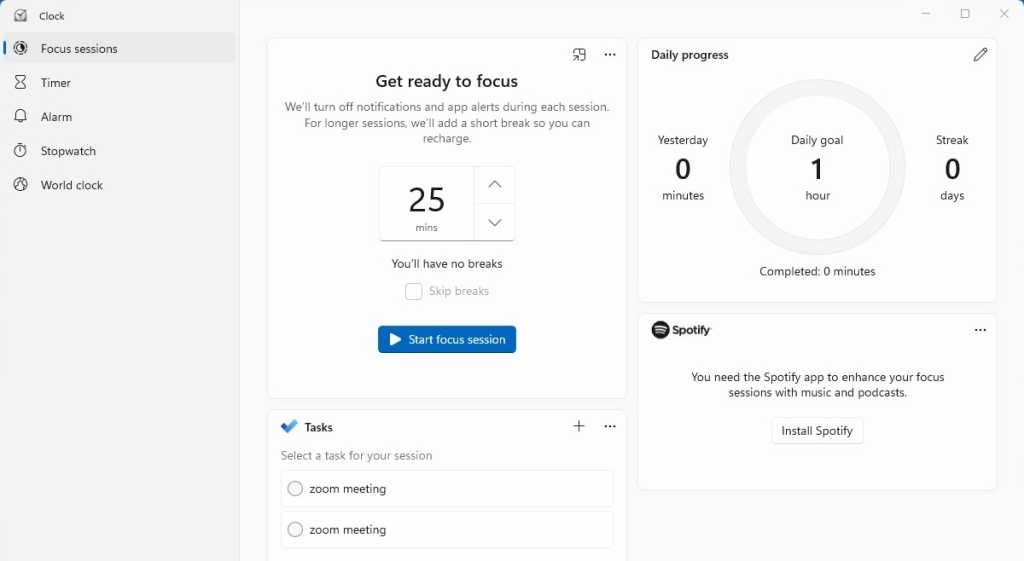
The Focus session page appears. In the “Get ready to focus” area, select how long you want the session to last. If you choose less than 30 minutes, the session won’t have a break. If you choose 30 minutes or longer, you’ll be given short breaks. If you don’t want breaks, check the Skip breaks checkbox.
Here’s command central for setting up a focus session.
If you want to use Microsoft To Do and choose tasks from your to do list, make sure you’re signed into your Microsoft account, right-click the three-dot menu in the Tasks area, and click Open in To Do. You’ll be connected to your tasks list.
If you want to play music during your focus session, click Link your Spotify and follow the instructions for linking to your Spotify account and playing music. (If you don’t have Spotify installed, click “Install Spotify” first.)
When you’re done, click Start focus session and get to work. If you want to set a daily goal for how long to use focus sessions, pencil icon in the “Daily progress” area. From now on, whenever you start a Focus session, you’ll see how often you’ve met your daily goal.
2. Type with your voice
How fast a typist are you? No matter how fast you are, it’s unlikely you can type at the speed of thought — or at the speed of speech. And the faster you type, the more mistakes you’re going to make.
A great way to get more productive at the keyboard is to have your computer do your typing for you by using Windows 11’s voice typing feature. Hold down the Windows key + H to summon Windows’ built-in voice typist. Click the microphone icon that appears and start talking. Note that the first time you use it, Windows will install speech-recognition software to improve its performance.
You’ll be surprised at how fast and accurate it is if you speak in a clear voice. However, there are a few things to keep in mind when using it. One is that there’s sometimes a lag between your speech and when your words are typed in. So if you don’t see the words instantly onscreen, don’t repeat yourself — if you do, your words will be typed twice.
Also, if you try to make edits to the text during the session, by doing things such as deleting text or inserting paragraphs, the session will automatically end. You’ll have to turn voice typing back on.
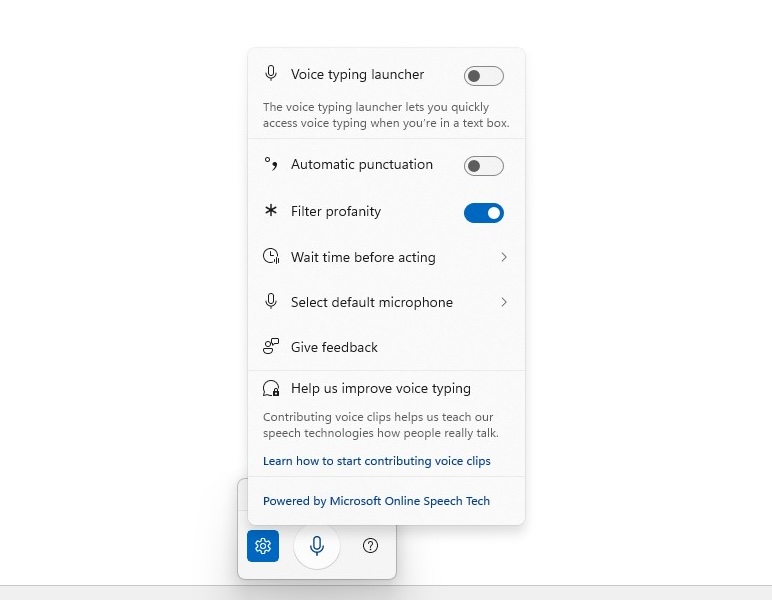
It also won’t automatically use punctuation. It won’t put a period at the end of a sentence, or commas in the middle of sentences. There’s a way to have it type punctuation, however. Click the settings icon to the left of the microphone and move the slider to on in the “Automatic punctuation” section. You can then say “period” to voice-type a period; “comma” to voice type a comma, and so on.
If you want to use voice typing in text boxes within Windows (such as inside a dialog box), turn on the slider toggle next to “Voice typing launcher.”
Here’s how to customize Windows 11 speech recognition.
3. Use Copilot to speed up both creative and Windows interface tasks
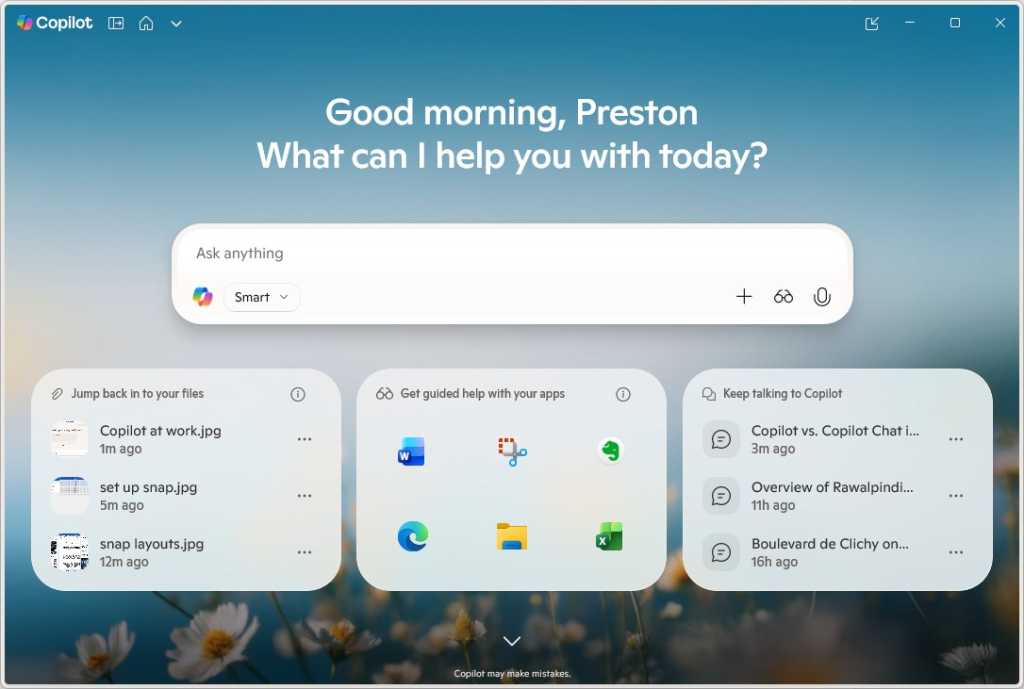
Microsoft’s generative AI tool, Copilot, is front and center in Windows 11 — its icon is right in the middle of the taskbar. Copilot is available in many forms in various Microsoft products, and the heart of it is a chatbot that can perform a wide variety of tasks, such as answering questions, drafting documents, analyzing data, and so on.
In addition to integrating with Microsoft 365 apps like Word, Outlook, and Excel (which requires a paid subscription), Copilot is available for free in a built-in Windows app. You can use it to help with research, write first drafts, create images, and more. Simply click the Copilot icon in the taskbar and type in your question or prompt. You can also type follow-up prompts for more information.
Click the Copiloticon on the taskbar and here’s what you get.
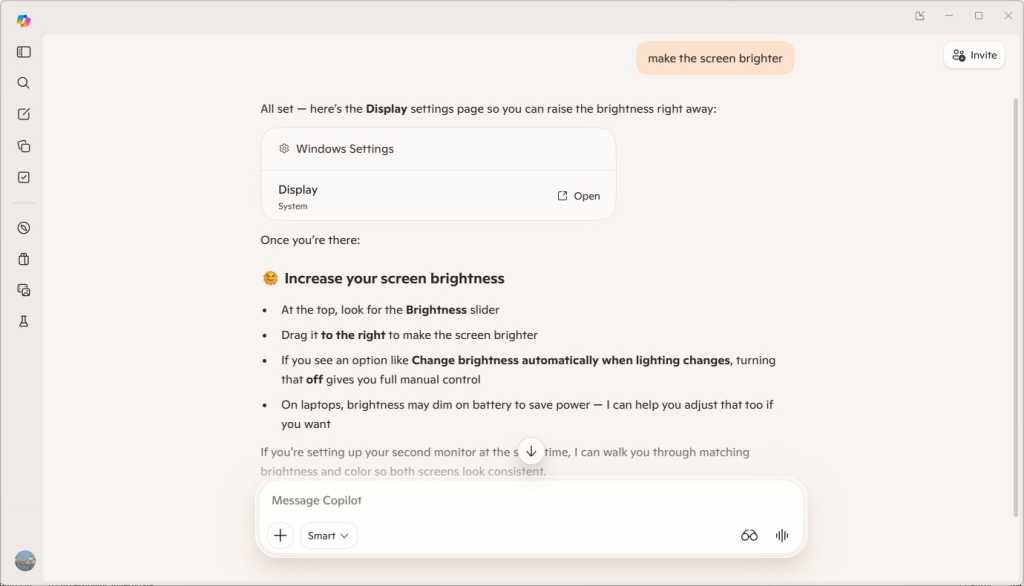
In addition, Copilot can help you quickly do a wide range of tasks in Windows itself, such as making your screen brighter, improving your laptop’s battery life, customizing Bluetooth, stopping apps from starting automatically at startup, and much more. Instead of hunting around in the Quick Settings pane, the Settings app, the Control Panel, and elsewhere in Windows, you just type a prompt telling Copilot what you want to do.
It helps with that in two ways. First, it offers advice, including step-by-step instructions, on how to accomplish something you want to do in Windows 11. Second, it will link directly to the exact Settings page you want to use or customize. Note that it won’t actually send you to the page on its own. Instead, it creates what it calls a “clickable card” with the name of the setting you want to use. Click Open on the card and you’ll be sent straight to the setting. You can then change the setting in the way that Copilot advised.
Copilot can help you quickly get to the right Windows 11 system setting with a click.
Note that Microsoft is constantly improving what Copilot can do, so if it doesn’t provide a helpful response when you ask it for help with a Windows task, you might want to try again at a later date.
4. Copy and paste like a pro
For decades, the Windows Clipboard had been brain-dead. You copied something into it, pasted that clip into an application, and that was that. The next time you copied a clip into it, the old one disappeared.
Not these days, though. Microsoft has smartened it up. Now it stores multiple clips and lets you preview those clips and choose which one you’d like to paste into a document. You can also store clips permanently, a great way to keep boilerplate text around that you can paste into documents or emails, or store a graphic of your signature to help digitally sign documents.
You can even sync your Clipboard history across multiple Windows devices: Go to Settings > System > Clipboard. In the “Clipboard history” section, make sure the slider is on. In the “Sync across devices” section, turn the slider from off to on.
Copy items to the Clipboard in all the myriad ways you’re used to, such as pressing Ctrl + C, right-clicking an image on the web and selecting Copy image from the menu that appears, and so on. You can keep on copying items, and the Clipboard will keep saving them as individual clips. There’s no hard limit on the number of clips you can save and how large each clip can be — it’s based on how much memory you have and the amount of total data in all your saved clips.
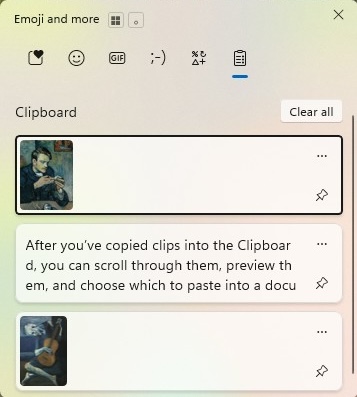
After you’ve copied clips into the Clipboard, you can scroll through them, preview them, and choose which to paste into a document. To see them, press Windows key + V. A small window appears with the clips you’ve pasted to the Clipboard. Scroll through, and when you find the clip you want to paste, click it. If you only want to paste your most recent clip into a document, just press Ctrl + V.
The powered-up Windows Clipboard.
If you’ve chosen to sync the clips, they’ll be available on the Clipboard of all other Windows 11 or 10 devices you choose to sync.
The Clipboard has a few other tricks up its sleeve, with icons across its top for pasting emoji, kaomoji, popular GIFs from the internet, and symbols.
Your clips are deleted when you turn off your PC. But you can save some permanently. Press Windows key + V to launch the Clipboard, click the three-dot icon at the top right of any clip, and select Pin. That pins the clip to the Clipboard permanently until you unpin it.
You can also manually clean out your Clipboard by deleting individual clips or by deleting them all at once. To delete an individual clip, click the three-dot icon at its top right and select Delete. To delete all the clips in the Clipboard, click the three-dot icon at the top right of any clip and select Clear all. Pinned clips won’t be deleted unless you delete them individually.
5. Power up Windows 11 with PowerToys
Longtime Windows tinkerers and productivity-seekers will likely remember Windows PowerToys, first released for Windows 95 several years before the turn of the century. PowerToys were small, free utilities from Microsoft that let you tweak, customize, and power up Windows in countless ways. Used incorrectly, they could waste many non-productive but pleasant hours tinkering away. Used correctly, they could be a great Windows productivity booster, mainly for small tasks that can take up large chunks of your time.
After updating PowerToys for Windows XP, Microsoft unaccountably abandoned them in Windows Vista, Windows 7, and Windows 8/8.1. It wasn’t until September 2019, four years after the release of Windows 10, that they were updated for Windows 10, and then for Windows 11 when it was released.
These days it’s hard to know whether to refer to PowerToys as singular or plural; in its current incarnation, PowerToys is a single app that contains many handy mini tools. The PowerToys app doesn’t come installed in Windows 11; you instead download it for free. As I write this, PowerToys includes more than two dozen tools, and Microsoft regularly adds new ones.
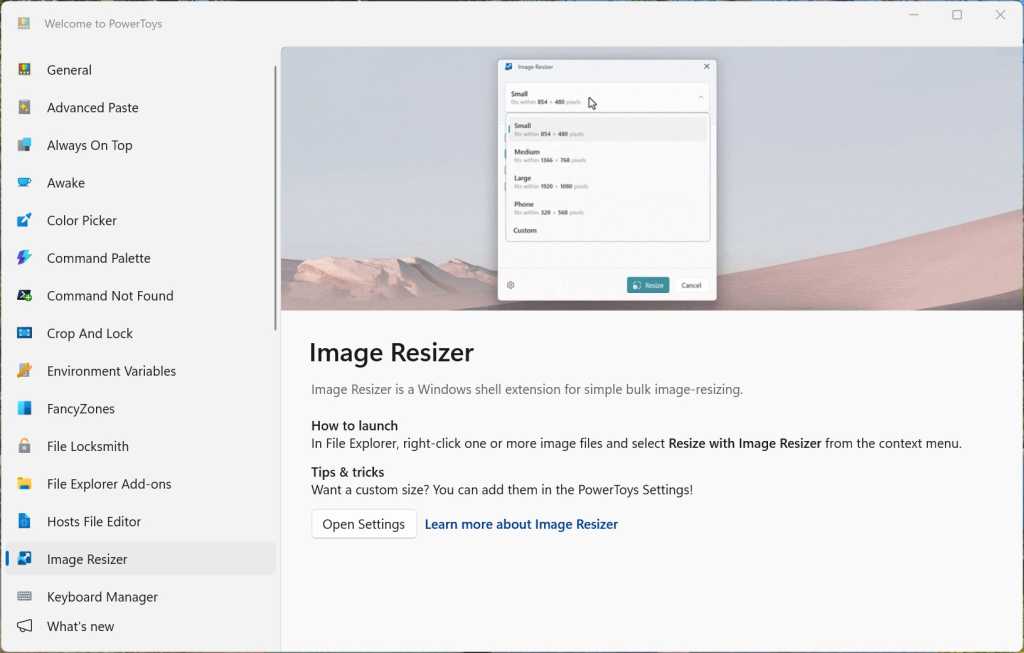
Microsoft’s free PowerToys app offers more than two dozen productivity boosters, including one for doing bulk resizing of images.
There isn’t room in this article to delve into every tool, but it’s worth trying several out to see if they’re useful for you. Here are my favorite five:
Image Resizer: Need to resize multiple photos or images in the same way in one fell swoop? With this utility, just select the images, choose how you want them resized, and click.
Always on Top: Are you driven crazy when you’re using a productivity app like Word and Excel, you temporarily move your focus to another window, and the app gets hidden? No more. Always on Top keeps your productivity app in front, even when you switch focus.
Keyboard Manager: Keyboard shortcuts are among the greatest productivity boosters for getting things done quickly. If there’s not enough of them for you in Windows 11, this tool lets you remap your keyboard and create keyboard shortcuts.
Light Switch: This lets you switch between Windows’ light and dark modes according to a schedule you set or synced to sunrise and sunset times in your area.
Mouse Utilities: Master your mouse with these utilities — you’ll be able to do things like shake your mouse to focus its pointer, draw crosshairs centered around the pointer, make the pointer jump to anywhere on your screen, and more.
You use your PC for many different purposes. You might, for example, use one set of apps for creating presentations, another for making videos, and another when researching and writing. Or you may have a set of apps you typically use when working at the office and a somewhat different set when working remotely. And, let’s face it, occasionally you might even want to do something non-work-related on your PC. So you may waste time hunting for the right apps for each situation.
Virtual desktops make it easier to use your PC for different purposes. You can create multiple desktops with different apps running on each one for different reasons, such as one for working at home, one for working at the office, another for gaming, etc.
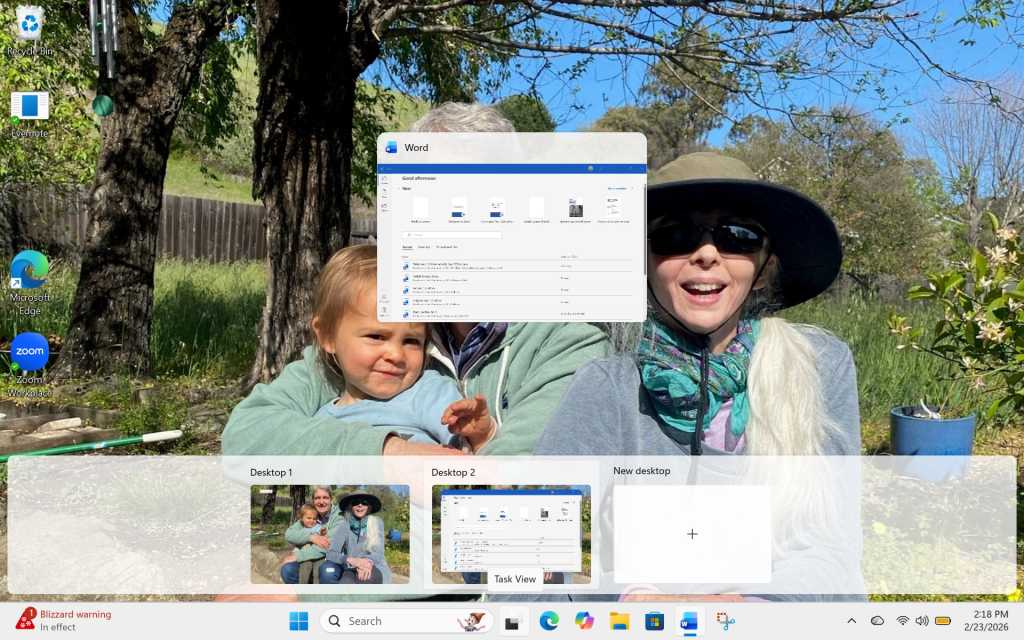
Creating virtual desktops in Windows 11.
It’s simple to do. Click the overlapping windows icon to the right of the search box on the taskbar. If you haven’t created any virtual desktops yet, the top part of your screen will show all the open windows on your desktop, and the bottom of the screen will display “Desktop 1” (which is your existing desktop) and “New Desktop” with a + sign under it. To create a new desktop, click the + sign. A new desktop appears, titled “Desktop 2.” Click it to make it your active desktop, and set it up however you want.
You can keep making new desktops this way. To switch among them, click the overlapping windows icon and select the one you want to use. You can set up each desktop any way you want — for example, by putting all the icons for in-office related apps within easy reach in one, and all the icons for working at home in another.
To make it easier to differentiate between them, you can rename each desktop. Simply click its name (Desktop 1, for example) and type in the new name you want.
7. Organize your apps with Snap Layouts
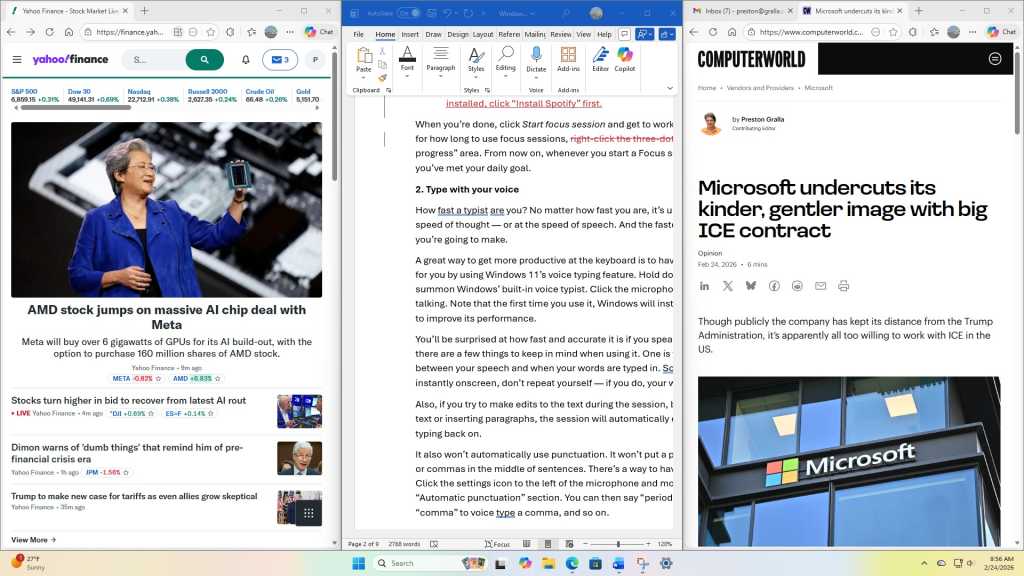
There’s another way to keep all apps related to a task in one place — by using Windows 11’s Snap Layouts feature. With it, you can group your open windows into one of a half-dozen pre-built screen layouts. You can have two apps side by side, each taking up half the screen, for example. Or you might have one app on the left and two stacked vertically on the right, or four apps in a grid.
Snap Layouts in action.
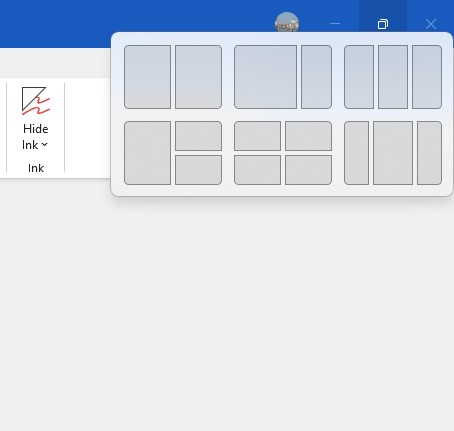
To use Snap Layouts, first open the applications you want to be in a layout. Then hover your mouse over an application’s maximize icon on the upper right of the window, between the minimize and close icons. A panel appears with layout options. Choose the layout you want and which position you want the application to be in, and the app window snaps into that position.
Choosing a layout.
When you do that, all your other open apps will display inside a new window. Click any of those apps to fill in spots in the rest of the layout. The grouping is saved as a Snap Group that you can to return to if you’ve opened other apps or minimized any of the group’s app windows. To return to the group, hover your mouse over the taskbar icon of any of the applications in a Snap Group. You’ll see thumbnails of all the apps in the group. Click the thumbnail to return to the group.
For more details about Snap Layouts and related features, see “Make multitasking a Snap on your Windows PC.”
8. Use the secret Start menu
Hidden in the bowels of Windows 11 are many powerful tools that can make you more productive, such as Network Connections for viewing and managing your internet connections; Device Manager for managing your devices; Terminal, an interface for powerful command-line tools, especially for IT pros; Task Manager for helping make your PC more efficient; and many others.
That’s all well and good, but unless you use them all the time, it’s easy to forget that they exist. And even if you do remember they exist, it’s often not easy to find them. Some are buried deep in the Settings app. Others require that you launch them from a command line. And yet others may be squirrelled away in a place you’ll never find.
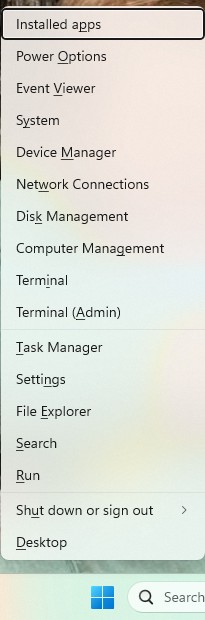
There’s a trick for getting to them quickly — use what some people call the secret Start menu. To launch it, right-click the Start icon to the left of the search box on the taskbar, or press the Windows key + X. A menu appears with a long list of these tools. Click whatever tool you want to use and get going with it.
Here’s what some people call the “secret Start menu” for getting quick access to productivity-boosters.
Saving a SharePoint site as a template in Microsoft 365 allows you to reuse site structures, settings, lists, libraries, and content across your organization, ensuring consistency and saving time. However, this feature is not enabled by default, especially for modern sites, and requires administrator permissions and configuration changes to unlock. The process varies slightly depending on whether you’re working with classic, communication, or modern team sites.
Prerequisites
You must have Global Administrator or SharePoint Administrator privileges.
Custom scripting must be enabled on the site collection (this may take up to 24 hours to take effect unless PowerShell is used).
For modern team sites with Microsoft 365 groups, use PowerShell instead of the classic UI method.
Ensure you’re using SharePoint Online Management Shell or PnP PowerShell for script-based approaches.
Step-by-step instructions
Method 1: Using the Classic UI (Classic and Communication Sites)
Enable custom script in the SharePoint Admin Center:
Go to SharePoint Admin Center.
Click on Settings > Custom Script.
Enable both:
Allow users to run custom script on personal sites
Allow users to run custom script on self-service created sites
Click OK (note: changes may take up to 24 hours).
Navigate to your target site (e.g., https://yourdomain.sharepoint.com/sites/yoursite).
Append the following to the URL and press Enter:/_layouts/15/savetmpl.aspxThis will open the “Save Site as Template” page.
Fill in the required fields:
File Name: A unique name for the .wsp template file.
Template Name: Display name for the template.
Description: Optional description.
Include Content: Check this box if you want to include existing lists, libraries, and data.
Click OK to save.
The template is now stored in the Solution Gallery of the site collection and can be used when creating new subsites under the Custom tab.
⚠️ If the “Save Site as Template” option doesn’t appear, use PowerShell to enable scripting immediately (see below).
Method 2: Using PowerShell (All Site Types, Recommended for Modern Team Sites)
Install SharePoint Online Management Shell (if not already installed).
Open PowerShell as administrator and run:# Connect to SharePoint Admin Center Connect-SPOService -Url https://<your-tenant>-admin.sharepoint.com
Enable custom scripting on the target site (bypass 24-hour delay):Set-SPOSite -Identity https://<your-tenant>.sharepoint.com/sites/yoursite -DenyAddAndCustomizePages $False
For modern team or communication sites, use Get-SPOSiteScriptFromWeb to capture the site structure:$SiteURL = "https://<your-tenant>.sharepoint.com/sites/yoursite" # Extract site schema including branding, pages, and settings $SiteSchema = Get-SPOSiteScriptFromWeb -WebUrl $SiteURL -IncludeBranding -IncludeTheme -IncludeRegionalSettings -IncludeSiteExternalSharingCapability -IncludedLists "SitePages" # Save as a reusable site script $SiteScript = Add-SPOSiteScript -Title "My Site Template" -Description "Template from existing site" -Content $SiteSchema # Create a site design based on the script Add-SPOSiteDesign -Title "My Site Design" -WebTemplate 64 -SiteScripts $SiteScript.Id -Description "Reusable team site design"
The new site design will appear in the Templates section when creating new sites and can be applied organization-wide.
✅ Use this method for modern sites where the classic template option is unavailable.
On Nov. 6 Global Knowledge welcomes cybersecurity authorities from CompTIA, EC-Council and CQURE to a webinar on critical missteps that lead to breaches and proactive strategies to lower risk in the future. Speakers will break down what really happened in major cyber incidents and what every team can learn about prevention, response and resilience.
The Office of the National Cyber Director has begun developing a new strategy to address threats from China and other adversaries. The strategy will involve collaborating with the private sector, focusing on harmonizing regulations and setting minimum cybersecurity standards, said Director Sean Cairncross who has cited the need for a clear message to deter attacks. Full Story: Federal News Network/WFED-AM (Washington, D.C.) (10/31)
This new strategy may eventually be adopted on a Global scale, as we follow the goings on around the World.
Microsoft Word now autosaves new documents to the cloud
Microsoft is updating Word for Windows to automatically save new documents to the cloud, eliminating the need for users to enable AutoSave manually. While users can set default cloud locations or disable the feature, some have expressed frustration over the added steps to save files locally. Full Story: PCWorld (8/28)
In my opinion this is a really sad state of affairs, not giving people a choice, is an infringement of our rights.
Researchers from SquareX said they were able to compromise passkeys through browser #vulnerabilities. The researchers presented their findings at Def Con 33, showing attackers can use #malicious extensions or scripts to intercept passkey workflows, making fraudulent passkey prompts appear legitimate. But security experts have criticized the research, saying it demonstrates a misunderstanding of the FIDO specifications and security principles.
Need to open Task Manager? You can press CTRL + Shift + Esc to quickly open it whenever you want to monitor what’s going on with your system. Learn more keyboard shortcuts❯
Wish that system tray icon wasn’t hidden? Rather than going to Settings > Personalization > Taskbar to show or hide the icon, you can also just drag and drop it out of the hidden icons menu. Learn more taskbar options❯
Want to know the time, down to the exact second? In Settings > Time & Language > Date & Time,under Show time and date in the system tray, you can set seconds to show in the taskbar. We’re working on more options too❯
The new agent in Settings rolling out for AMD and Intel®-powered Copilot+ PCs An experience designed to help solve one of the most common frustrations: finding and changing settings on your PC. With this update to Settings, simply describe what you need help with, and the agent will recommend the right steps to address the issue. This experience started rolling out to Insiders with AMD and Intel®-powered Copilot+ PCs in the Dev Channel and Beta Channel with their primary display language set to English. Discover the new agent in Settings
New describe image action in Click to Do The new “describe image” action in Click to Do gives detailed descriptions of images, charts and graphs on Copilot+ PCs. Designed to improve accessibility, it can be used by everyone in scenarios like getting a quick overview of a graph or a chart, generating alt text, and more. This feature is rolling out to Insiders in the Dev Channel and Beta Channel. Learn more about the new describe image action in Click to Do