Command prompt shortcuts

Use the following keyboard shortcuts to work more efficiently.

  • Ctrl + A  –  Select all content of the current line.
  • Ctrl + C (or Ctrl + Insert)  –  Copy selected items to clipboard.
  • Ctrl + Down arrow key  –  Move screen down one line.
  • Ctrl + End  –  Scroll to the bottom of the console.
  • Ctrl + F  –  Open search for Command Prompt.
  • Ctrl + Home  –  Scroll to the top of the console.
  • Ctrl + M  –  Starts mark mode.
  • Ctrl + Up arrow key  –  Move the screen up one line.
  • Ctrl + V (or Shift + Insert)  –  Paste content from clipboard.
  • Left or right arrow keys  –  Move the cursor left or right in the current line.
  • Page Down  –  Move cursor one page down.
  • Page Up  –  Move cursor one page up.
  • Up or down arrow keys  –  Cycle through the command history of the current session.

Windows Settings page shortcuts

Utilize the below shortcuts to navigate quickly on the Windows Settings page.

  • Alt + underline letter  –  Actions the setting identified by the letter.
  • Arrow keys  –  Select a button of the active setting.
  • Backspace  –  Opens the folder one-level app in the Open or Save As dialog.
  • Ctrl + number of tab  –  Jumps to tab position.
  • Ctrl + Shift + Tab  –  Cycles back through the tabs.
  • Ctrl + Tab  –  Cycles forward through the tabs.
  • Shift + Tab  –  Moves back through the settings.
  • Spacebar  –  Checks or clears the option in focus.
  • Tab  –  Moves forward through the settings.

File Explorer shortcuts

The following list of File Explorer shortcuts allows you access folders, navigation pane, search bar, address bars and more.

  • Alt + D  –  Select address bar.
  • Alt + Enter  –  Open Properties settings for the selected item.
  • Alt + Left arrow key (or Backspace)  –  View previous folder.
  • Alt + P  –  Display preview panel.
  • Alt + Right arrow key  –  View next folder.
  • Alt + Up arrow  –  Move up a level in the folder path.
  • Ctrl + E (or F)  –  Select search box.
  • Ctrl + F (or F3)  –  Start search.
  • Ctrl + L  –  Focus on the address bar.
  • Ctrl + Mouse scroll wheel  –  Change view file and folder.
  • Ctrl + N  –  Open new window.
  • Ctrl + Shift + E  –  Expands all folders from the tree in the navigation pane.
  • Ctrl + Shift + N  –  Creates a new folder on desktop or File Explorer.
  • Ctrl + Shift + Number (1-8)  –  Changes folder view.
  • Ctrl + W  –  Close active window.
  • End  –  Scroll to the bottom of the window.
  • F11  –  Switch active window full-screen mode.
  • F2  –  Rename selected item.
  • F4  –  Switch focus to address bar.
  • F5  –  Refresh File Explorer’s current view.
  • F6  –  Cycle through elements on the screen.
  • Home  –  Scroll to the top of the window.
  • Windows key  + E  –  Open File Explorer.

Desktop shortcuts

The following desktop keyboard shortcuts allows you to efficiently open, close, navigate, and perform tasks across the desktop environment, including the Start menu, Taskbar, Settings, and more.

  • Alt + Esc  –  Cycle through open windows.
  • Alt + F4  –  Close active window. (If no active window is present, a shutdown box appears.)
  • Alt + F8  –  Reveals typed password in Sign-in screen.
  • Alt + Left arrow key  –  Go back.
  • Alt + Page Down  –  Move down one screen.
  • Alt + Page Up  –  Move up one screen.
  • Alt + Right arrow key  –  Go forward.
  • Alt + Spacebar  –  Open context menu for the active window.
  • Alt + Tab  –  Switch between open apps while pressing Tab multiple times.
  • Alt + Underlined letter  –  Runs command for the underlined letter in apps.
  • Ctrl + Alt + Tab  –  View open apps.
  • Ctrl + Arrow keys  –  Change Start menu size.
  • Ctrl + Arrow keys (to select) + Spacebar  –  Select multiple items on desktop or File Explorer.
  • Ctrl + Click a grouped app button  –  Cycle through windows in the group from the Taskbar.
  • Ctrl + Down arrow key  –  Move the cursor to the beginning of the next paragraph.
  • Ctrl + F5 (or) Ctrl + R  –  Refresh current window.
  • Ctrl + Left arrow key  –  Move the cursor to the beginning of the previous word.
  • Ctrl + Right arrow key  –  Move the cursor to the beginning of the next word.
  • Ctrl + Shift  –  Switch keyboard layout.
  • Ctrl + Shift + Arrow key  –  Select block of text.
  • Ctrl + Shift + Click app button  –  Run app as administrator from the Taskbar.
  • Ctrl + Shift + Esc  –  Open Task Manager.
  • Ctrl + Spacebar  –  Enable or disable Chinese IME.
  • Ctrl + Up arrow key  –  Move the cursor to the beginning of the previous paragraph
  • Shift + Arrow keys  –  Select multiple items.
  • Shift + Click app button  –  Open another instance of an app from the Taskbar.
  • Shift + F10  –  Open context menu for selected item.
  • Shift + Right-click app button  –  Show window menu for the app from the Taskbar.
  • Shift + Right-click grouped app button  –  Show window menu for the group from the Taskbar.

Windows Key Options

The “Windows key,” when used with other keys, enables you to execute numerous handy tasks such as launching Settings, File Explorer, the Run command, and apps pinned to the Taskbar, as well as open specific features like Narrator or Magnifier. Additionally, you can manage windows and virtual desktops, take screenshots, lock the computer, and more.

Here is a list of the most common keyboard shortcuts utilizing the Windows key.

  • Windows Key   –  Open Start menu.
  • Windows Key  + A  –  Open Action center.
  • Windows Key  + Alt + D  –  Open date and time in the Taskbar.
  • Windows Key  + Alt + Number (0-9)  –  Open Jump List of the app in number position in the Taskbar.
  • Windows Key  + B  –  Set focus notification area in the Taskbar.
  • ​​​​​​​Windows Key  + Comma (,)  –  Temporarily peek at the desktop.
  • Windows Key  + Ctrl + D  –  Create a virtual desktop.
  • Windows Key  + Ctrl + Enter  –  Open Narrator.
  • Windows Key  + Ctrl + F  –  Open search for the device on a domain network.
  • Windows Key  + Ctrl + F4  –  Close active virtual desktop.
  • Windows Key  + Ctrl + Left arrow  –  Switch to the virtual desktop on the left.
  • Windows Key  + Ctrl + Number (0-9)  –  Switch to the last active window of the app in the number position in the Taskbar.
  • Windows Key  + Ctrl + Q  –  Open Quick Assist.
  • Windows Key  + Ctrl + Right arrow  –  Switch to the virtual desktop on the right.
  • Windows Key  + Ctrl + Shift + B  –  Wake up the device when black or a blank screen.
  • Windows Key  + Ctrl + Shift + Number (0-9)  –  Open another instance as an administrator of the app in the number position in the Taskbar.
  • Windows Key  + Ctrl + Spacebar  –  Change previous selected input option.
  • Windows Key  + D  –  Display and hide the desktop.
  • Windows Key  + Down arrow key  –  Minimize app windows.
  • Windows Key  + E  –  Open File Explorer.
  • Windows Key  + Esc  –  Exit magnifier.
  • Windows Key  + F  –  Launch Feedback Hub app.
  • Windows Key  + Forward-slash (/)  –  Start IME reconversion.
  • Windows Key  + G  –  Launch Game bar app.
  • Windows Key  + H  –  Open dictation feature.
  • Windows Key  + Home  –  Minimize or maximize all but the active desktop window.
  • Windows Key  + I  –  Open Settings.
  • Windows Key  + J  –  Set focus on a tip for Windows 10 when applicable.
  • Windows Key  + K  –  Open Connect settings.
  • Windows Key  + L  –  Locks computer.
  • Windows Key  + Left arrow key  –  Snap app or window left.
  • Windows Key  + M  –  Minimize all windows.
  • Windows Key  + Minus (-)  –  Zoom out using the magnifier.
  • Windows Key  + Number (0-9)  –  Open the app in number position in the Taskbar.
  • Windows Key  + O  –  Lock device orientation.
  • Windows Key  + P  –  Open Project settings.
  • Windows Key  + Pause  –  Show System Properties dialog box.
  • Windows Key  + Period (.) or Semicolon (;)  –  Open emoji panel.
  • Windows Key  + Plus (+)  –  Zoom in using the magnifier.
  • Windows Key  + PrtScn  –  Capture a full screenshot in the “Screenshots” folder.
  • Windows Key  + R  –  Open Run command.
  • Windows Key  + Right arrow key  –  Snap app or window right.
  • Windows Key  + S (or Q)  –  Open Search.
  • Windows Key  + Shift + Down arrow key  –  Windows 11: Restore the window if it is snapped or maximized. Windows 10: Maximize or minimize active windows vertically while maintaining width.
  • Windows Key  + Shift + Left arrow key  –  Move active window to monitor on the left.
  • Windows Key  + Shift + M  –  Restore minimized windows on the desktop.
  • Windows Key  + Shift + Number (0-9)  –  Open another app instance in the number position in the Taskbar.
  • Windows Key  + Shift + Right arrow key  –  Move active window to monitor on the right.
  • Windows Key  + Shift + S  –  Create part of the screen screenshot.
  • Windows Key  + Shift + Up arrow key  –  Stretch desktop window to the top and bottom of the screen.
  • Windows Key  + Shift + V  –  Cycle through notifications.
  • Windows Key  + Spacebar  –  Change keyboard layout and input language.
  • Windows Key  + T  –  Cycle through apps in the Taskbar.
  • Windows Key  + Tab  –  Open Task View.
  • Windows Key  + U  –  Open Ease of Access settings.
  • Windows Key  + Up arrow key  –  Maximize app windows.
  • Windows Key  + V  –  Open Clipboard bin.
  • Windows Key  + W  –  Open the Windows Ink Workspace.
  • Windows Key  + X  –  Open Quick Link menu.
  • Windows Key  + Y  –  Change input between desktop and Mixed Reality.
  • Windows Key  + Z  –  Switch input between the desktop experience and Windows Mixed Reality.

Surface Screen Problems

How to Restart Video Driver in Windows 10

Windows 10 comes with a special keyboard shortcut which allows restarting graphics drivers without ending your user session. The method supports NVIDIA, AMD, and Intel drivers.

To restart a video driver in Windows 10, do the following.

  1. Press the Win + Ctrl +Shift + B keys.
  2. The screen will go blank for a second and you will hear a beep.
  3. Everything will go back to normal immediately.

Let’s troubleshoot and isolate this issue together.

  • Will you confirm the Surface device do you have? a Surface Laptop or a Surface Pro?
  • May I know what version of Windows your device is currently running?

Here are some steps you can try:

1. Show Hidden Devices in Device Manager:

  • Open device manager.
  • Go to the View tab and select Show hidden devices.
  • Then, go to the Actions tab and choose Scan for hardware changes.
  • Check if the HID-compliant touch screen appears under Human Interface Devices now.

2. Boot to UEFI and test touch functionality. Unified Extensible Firmware Interface (UEFI) is a type of software that helps Windows communicate with your Surface’s hardware. Because UEFI operates independently of Windows, testing hardware in UEFI will work if you have a hardware issue.

  • Follow these steps to boot to UEFI and test touch functionality:
    1. Go to Start > Power > Shut down.
    2. When Surface is off, press and hold the volume up button and press the power button until a Microsoft or Surface logo appears onscreen.
    3. Once you are in UEFI, touch your Surface screen and see if it responds normally. Try to navigate in UEFI by tapping various menu items

Surface Touch Pad

Surface Touchpad Not Working

Here are some potential causes and solutions for a non-functional Surface touchpad:

  1. Dust or dirt on the touchpad: Check the touchpad for any debris or obstructions. Clean it gently with a soft cloth or a can of compressed air to ensure proper functionality.
  2. Outdated drivers or firmware: Ensure your Surface is running the latest Windows updates and Surface drivers. You can check for updates in Settings > Update & Security > Windows Update (Windows 10) or Settings > Update & Security > Windows Update > Optional updates (Windows 11).
  3. Touchpad settings: Adjust the touchpad settings to see if it resolves the issue. On Windows 10, go to Start > Settings > Devices > Touchpad. On Windows 11, go to Start > Settings > Bluetooth & devices > Touchpad. You can toggle settings like tap delay, gesture recognition, or disable accidental touches.
  4. Connection issues: If your touchpad connects via Bluetooth, try disconnecting and reconnecting it. For Surface devices with a Type Cover, ensure it’s properly attached and detached.
  5. Battery depletion: If your touchpad connects via Bluetooth and stops working, it might be due to low battery power. Check the battery level and recharge or replace the batteries as needed.

Additional Tips

  • If you’re experiencing issues with text selection, try using an external mouse to see if it functions correctly. This can help isolate the problem.
  • If none of the above solutions work, you can try resetting the touchpad settings to their default values or seeking further assistance from Microsoft Support.

Remember to always refer to the official Microsoft documentation and support resources for the latest information and guidance on troubleshooting and maintaining your Surface device.

Fix touchpad problems in Windows 10

If your touchpad isn’t working, it may be a result of a missing or out-of-date driver.

  • On Start Windows logo Start button, search for Device Manager, and select it from the list of results. Under Mice and other pointing devices, select your touchpad, open it, select the Driver tab, and select Update Driver. If Windows doesn’t find a new driver, look for one on the device manufacturer’s website and follow their instructions.
  • If those steps didn’t work, try uninstalling your touchpad driver: open Device Manager, right-click (or press and hold) the touchpad driver, and select Uninstall. Restart your device and Windows will attempt to reinstall the driver.
  • If that didn’t work, try using the generic driver that comes with Windows. Here’s how: in Device Manager, right-click (or press and hold) your touchpad driver > Update driver software… Browse my computer for driver software > Let me pick from a list of device drivers on my computer, select HID compliant mouse, select Next, and follow the instructions to install it.
  • If changing your driver doesn’t help, there may be a problem with the touchpad itself. Contact your PC’s manufacturer for help.

Windows Server Boot

In older versions of server the boot process was controlled by the Boot.ini file, this however was done away with due to some security problems and was replaced with the Boot Configuration Data (BCD) file. This file is hidden and not as easy to edit if things go wrong.

The real purpose of this file is to assist administrators restart an Operating System (OS) when a windows based mirror fails. This file has no affect if the C drive is mirrored within the computer hardware, many motherboards have the option to create RAID systems. Most new boards have the option to create either R0 (combines multiple drives into a single logical unit) but has no redundancy or R1 (disk mirroring) having redundancy.

If this R1 is configured from within Windows “Disk Management” console the new BCD file is configured and used in case of a “Mirror” failure.

The way to change the boot order is done in one of two ways, however to actually modify the visual options can only be done using the second method.

  1. Using the System properties
  2. Using the BCDEdit program and the switches related to it.

Method 1

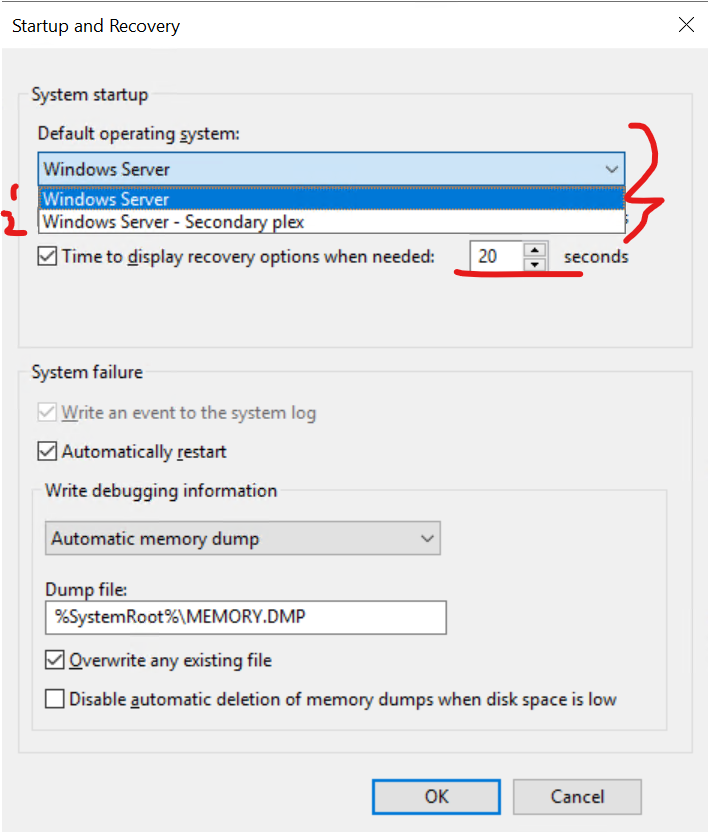
Right click the Computer Icon and choose properties > Advanced System Settings > Startup and Recovery Settings.

Choose the Default OS. (“Windows Server” or “Windows Server – Secondary Plex”.

This is the only option here. If the primary member of the Raid 1 fails, you can change it here by selecting the Plex OS which is on the second drive, before re starting the server.

Method 2

This second method uses an elevated command prompt and the BCDEdit program

  • Right click the CMD icon, and select run as Administrator.
  • Change to the root of the C: drive
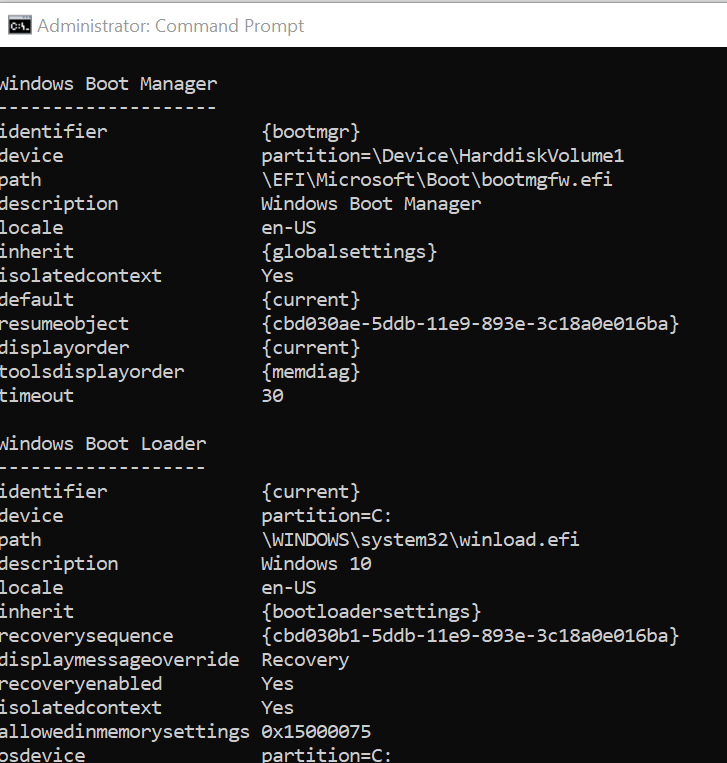
  • Type “BCDEdit” and enter to get a printout of the current configuration
  • Type “BCDEdit /?” to get assistance with the command to show the options available
  • Type “BCDEdit /? set” to get additional help with the “set” option.
    • /set (Sets an entry option value).
    • /deletevalue (Deletes a specified element from a boot entry).

As can be seen from this Command Prompt screen shot, there are two or more sections.

Windows Boot Manager

  • Identifier
  • Device
  • path

Windows Boot Loader x2 or more

  • Identifier ({current})
  • Device
  • Path
  • Description
  • Locale
  • More

Typical Command structure

  • BCDEdit [/store ,filename] /set [{identifier}] ID, DataType <Value>
  • Where DataType: = Device, path, description, locale inherit, recoverysequence…….
  • bcdedit /set {ID} description “The new description”
  • bcdedit /set {802d5e32-0784-11da-bd33-000476eba25f} description “Windows 10 NullModem”

Rename User Profile Directory

How to Rename User Profile Directory in Windows 11, 10, 8 and 7

Renaming a user account in Windows won’t automatically rename the associated user profile folder. In this tutorial we’ll show you how to manually rename user profile directory in Windows 11, 10, 8 and 7, if the name of your user account folder is not what you want.

How to Rename User Profile Directory in Windows 11, 10, 8 and 7?

To make sure your renaming of user profile folder is consistent across the entire installation of your Windows and does not break anything, follow these steps:

  1. Log on to another Administrator account that is not the account being renamed.
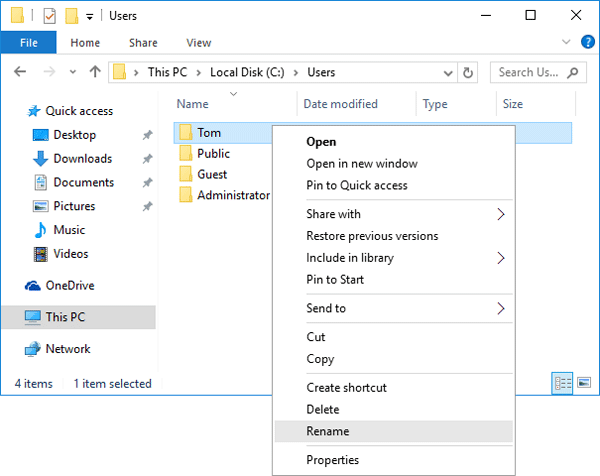
  2. Open the Windows Explorer and browse to the C:\Users folder. Right-click on your user account folder and rename it to whatever you like.rename-user-profile
  3. Press the Windows key + R to open the Run box. Type regedit and hit Enter.
  4. When the Registry Editor opens, navigate to the following registry location:
    HKEY_LOCAL_MACHINE\SOFTWARE\Microsoft\Windows NT\CurrentVersion\ProfileList\
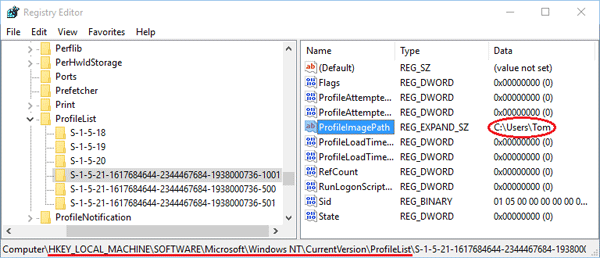
  5. Under the ProfileList subkey you will find a few subfolders (starting with ‘S-1-5-‘) that are named with the SID of Windows user accounts. Find the SID for your user account whose profile folder you just renamed. You can simply open each subfolder and check the ProfileImagePath path for the correct one.profile-image-path
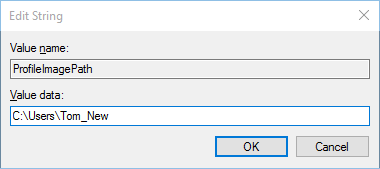
  6. In the right-pane, double-click the ProfileImagePath value and change the user profile path to your desired name. In my example, I renamed the account folder from C:\Users\Tom to C:\Users\Tom_New.change-profile-path
  7. Close the Registry Editor window. Logout of the Administrator account and log in with your user account. Everything should work fine – all your apps and files should be intact and your user folder should have been renamed.

Quitting your job

The bottom line on how to quit your job

Thinking about quitting your job? Although you might have dreams of making an epic exit, you can quit a job with class and take the right steps to secure your references and maintain professional relationships before you move in a new direction. There’s some science behind how to quit your job, and there are things you can do to make your next career move easier and increase your chances of a smooth transition.

Quit When You Have Other Options

  1. Do: Have something lined up, such as a new job, training program or school.
  2. Do: Quit with a plan in mind for your future career.
  3. Don’t: Rage quit and hope for the best.
  4. Don’t: Quit, take a trip to the Bahamas and use up all of your savings.

You’ve probably heard that you should never quit your job unless you have another job lined up. It’s a fact that hiring managers are more likely to recruit candidates who are actively employed elsewhere rather than those who have been unemployed for a while. Ideally, it is best to secure a new position before you quit, but that doesn’t mean you absolutely can’t jump ship until you have a job offer in hand. If you have some money saved up to keep you afloat while you attend a training program or additional schooling, quitting your job can be a viable option. The biggest key to acquiring a new job is proving to hiring managers that you’re qualified, and educational programs that get you the skills you need for the position you want can be your ticket to success.

Bottom line: It’s best to wait to quit your job until you have options or a concrete plan to make yourself a more suitable candidate for a new position.

Give Enough Notice

  1. Do: Leave on a good note.
  2. Do: Try to finish major projects before you leave.
  3. Don’t: Give your boss 24 hours’ notice.
  4. Don’t: Completely ghost your employer and just stop showing up.

It’s usually a good idea to give your supervisor at least two weeks’ notice before you pack up your desk. If you have a decent rapport with the higher-ups and time allows for you to give a month’s or three weeks’ notice, you may decide that’s the best course of action, particularly if you know your company needs more time for you to tie up any loose ends or hit benchmarks on major projects. Even if you’re completely fed up with your job, you probably don’t want to leave your employer in the lurch. Some companies have policies about how much notice is required – or that they escort employees out upon giving notice – so make sure you understand the protocol to prepare yourself and maintain your status as a respectable employee.

Bottom line: Be considerate.

Be Diplomatic (and Reasonably Honest) with Your Boss

  1. Do: Note that you’re quitting because of your career aspirations.
  2. Do: Express gratitude for the opportunities you’ve been given at work.
  3. Don’t: Burn bridges by delving into all of your personal grievances.
  4. Don’t: Make a scene/take a bat to the copy machine.

Leaving your job on good terms is always preferable to the alternative. You may not have the most stellar relationship with your boss, but that doesn’t mean you should air all of your grievances or make a scene when you quit. Try to be diplomatic when you resign from your position, providing your supervisor with some honest reasons why a career change aligns with your future career goals. If you believe the company could do some things to improve employee retention, you may also want to cautiously provide your boss or HR with constructive feedback when you meet to discuss your resignation. Be careful not to go overboard with criticism, though, and remember that you’re on your way out, headed for bigger and better things.

Bottom line: Even if you hate your job or boss, keep in mind that you’re on your way out.

In Most Cases, Put It in Writing

  1. Do: Check your company’s policy regarding resignation.
  2. Do: Provide your employer with pertinent information in writing.
  3. Don’t: Go into excessive detail about why you’re quitting.
  4. Don’t: Write a 10-page manifesto.

Twenty years ago, formal resignation letters were standard protocol, but nowadays, it can feel a bit stilted or antiquated to hand in a printed formal letter. Still, it’s best to put it in writing in some fashion, unless you have a particularly casual and warm relationship with your boss and feel comfortable forgoing the letter and opting for a phone call or in-person announcement. You should also make sure you’re aware of any company policies regarding how employees should give notice. Make sure you go back to the paperwork you signed when you were hired to remind yourself of any required protocol and see if you signed a non-disclosure or non-compete agreement.

It’s becoming more and more common for employees to resign via email, and this might be a possibility for you, depending on your company culture. If your company is forward-thinking and tech-savvy, an email probably suffices in terms of how to quit your job in the beginning stages of the process. If you know it’s more typical for employees to quit using a typed and printed letter, you may want to go that route. Gauge the company culture and standard practices before you decide how you want to deliver the news.

Whether you’re writing an email or a formal letter, you’ll probably want to include:

  • The date of your official last day.
  • A statement or statements of appreciation for what you’ve gained as an employee of the company.
  • An offer to help the company however possible during your final weeks as they transition to find your replacement or assign your responsibilities to current or new employees.
  • Any other pertinent information you feel comfortable sharing.

Don’t be afraid to keep your letter simple. It doesn’t have to be longer than a few short paragraphs. And don’t feel obligated to go into great detail about why you’re leaving. If you want, you can discuss that further when you meet with higher-ups about your departure. And, of course, be professional. No need to write “I hate my job!” in your letter, even if that’s how you feel.

Bottom line: Even if you hate your job or boss, keep in mind that you’re on your way out.

Share the News with Coworkers Carefully

  1. Do: Be aware of company culture.
  2. Do: Be open with coworkers you trust.
  3. Don’t: Badmouth your boss to coworkers.
  4. Don’t: Badmouth your coworkers.

If you’ve formed close relationships with some of the people you work with, you may decide to tell them about your resignation before you tell your supervisors. There’s no harm in telling coworkers you trust about your professional transition before anyone else knows, as long as you know they’ll be able to keep it under wraps until you make an official announcement. Typically, your supervisor will inform the rest of your company or team (if you work at a large corporation) that you’re quitting after you formally meet with them to discuss it.

If your company culture is hostile, you may want to keep your plans to yourself until you officially put in your notice. You may also want to be careful about how much you discuss your new position or career path at the water cooler. If almost everyone at your company or on your team is hoping to quit soon, being too enthusiastic about your good news could cause some ripples of resentment or bitterness, which will ultimately make the work environment even more hostile.

Bottom line: Don’t stir the pot.

Get Your Paperwork in Order

  1. Do: Review employment agreements.
  2. Do: Understand how your benefits will change.
  3. Don’t: Take a trip to the shredder and destroy the paperwork you need.
  4. Don’t: Ignore legal clauses regarding disclosure and competition.

Make sure you double-check all your paperwork regarding compensation for your last weeks at the company. Additionally, you should read all the fine print on your health insurance and 401(k) documentation to make sure you’re aware of how your benefits will transition after your last day. If you signed any sort of non-disclosure or non-competition form when you started your job, it’s best to understand what you can and cannot legally disclose or do at your next job that would conflict with your agreements. If you’re leaving one job for another one, make sure the offer is official and that any related paperwork has been signed before you make any announcements. You don’t want to lose both jobs on a technicality.

Bottom line: Know what you’ve signed.

Secure Your References

  1. Do: Reach out to colleagues you’d like to use as references in the future.
  2. Do: Ask for endorsements on LinkedIn.
  3. Don’t: Assume that you won’t need references in the future.
  4. Don’t: Be afraid to ask for favors.

If you know your boss or coworkers think highly of you, ask if you can use them as references in the future. You never know when you might need them to put in a good word for you. Also, it’s an excellent idea to ask for endorsements of your skills and recommendations on LinkedIn before you leave. Even if you’re moving directly to a new position, it’s not a bad idea to cover all your bases and prepare for the possibility that in the future you’ll be looking for another new job. Good references, recommendations and endorsements of your qualifications can go a long way in terms of establishing your professional credibility.