In older versions of server the boot process was controlled by the Boot.ini file, this however was done away with due to some security problems and was replaced with the Boot Configuration Data (BCD) file. This file is hidden and not as easy to edit if things go wrong.
The real purpose of this file is to assist administrators restart an Operating System (OS) when a windows based mirror fails. This file has no affect if the C drive is mirrored within the computer hardware, many motherboards have the option to create RAID systems. Most new boards have the option to create either R0 (combines multiple drives into a single logical unit) but has no redundancy or R1 (disk mirroring) having redundancy.
If this R1 is configured from within Windows “Disk Management” console the new BCD file is configured and used in case of a “Mirror” failure.
The way to change the boot order is done in one of two ways, however to actually modify the visual options can only be done using the second method.
- Using the System properties
- Using the BCDEdit program and the switches related to it.
Method 1
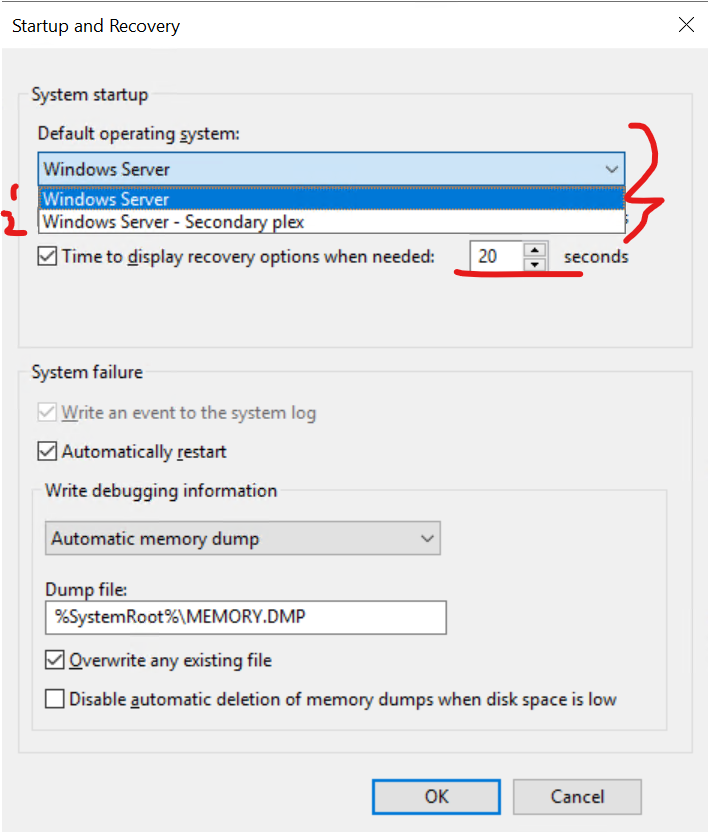
Right click the Computer Icon and choose properties > Advanced System Settings > Startup and Recovery Settings.
Choose the Default OS. (“Windows Server” or “Windows Server – Secondary Plex”.
This is the only option here. If the primary member of the Raid 1 fails, you can change it here by selecting the Plex OS which is on the second drive, before re starting the server.

Method 2
This second method uses an elevated command prompt and the BCDEdit program
- Right click the CMD icon, and select run as Administrator.
- Change to the root of the C: drive
- Type “BCDEdit” and enter to get a printout of the current configuration
- Type “BCDEdit /?” to get assistance with the command to show the options available
- Type “BCDEdit /? set” to get additional help with the “set” option.
- /set (Sets an entry option value).
- /deletevalue (Deletes a specified element from a boot entry).
As can be seen from this Command Prompt screen shot, there are two or more sections.
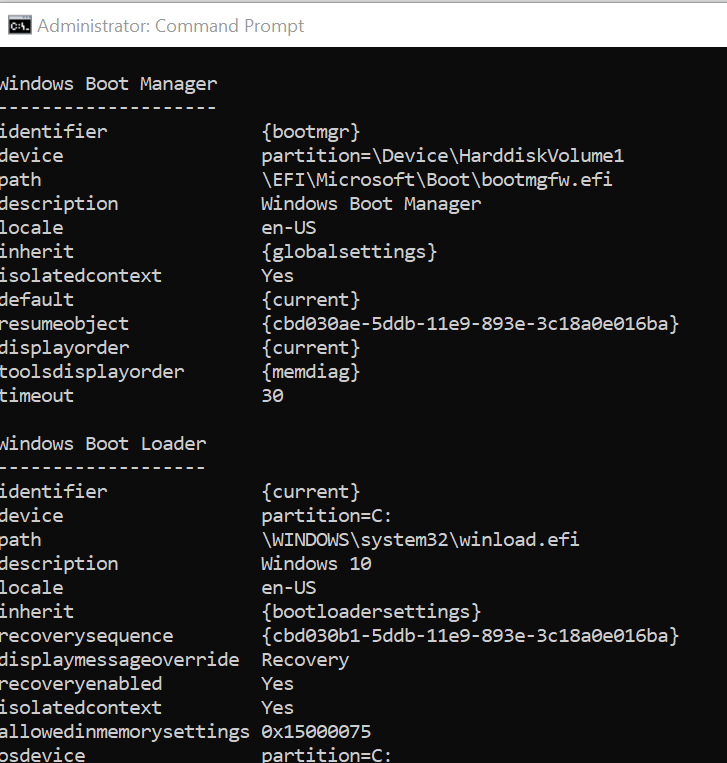
Windows Boot Manager
- Identifier
- Device
- path
Windows Boot Loader x2 or more
- Identifier ({current})
- Device
- Path
- Description
- Locale
- More
Typical Command structure
- BCDEdit [/store ,filename] /set [{identifier}] ID, DataType <Value>
- Where DataType: = Device, path, description, locale inherit, recoverysequence…….
- bcdedit /set {ID} description “The new description”
- bcdedit /set {802d5e32-0784-11da-bd33-000476eba25f} description “Windows 10 NullModem”