Turn Off Windows Copilot

Remove Copilot using GPEdit snappin.

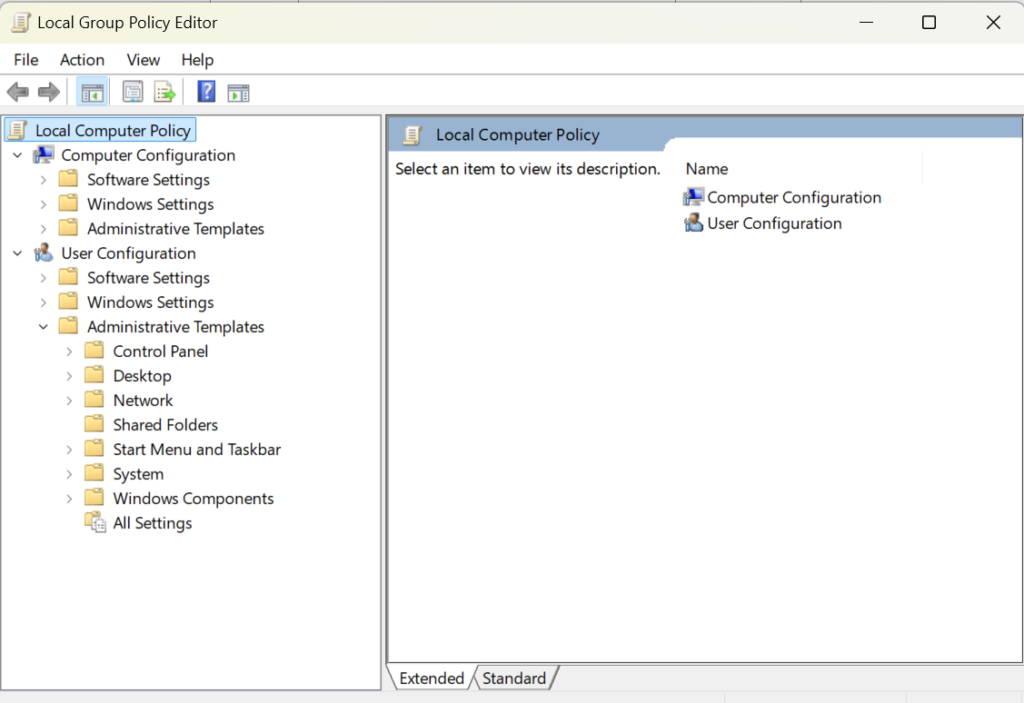
Remove Copilot using the Group Policy Editor, you will need to have Windows 11 Pro, Enterprise, or Education editions. The Group Policy Editor is a tool that allows you to configure various policies and settings for your computer and user accounts. To access the Group Policy Editor, type gpedit.msc in the Start menu or the Run command and hit Enter. Then, navigate to the following folder using the left panel:

  • User Configuration > Administrative Templates > Windows Components > Windows Copilot.
  • On the right-side pane, double-click on the policy ‘Turn off Windows Copilot’ and select ‘Enabled’. Then, click ‘Apply’ and ‘OK’.
  • This will disable Copilot entirely and remove it from the Settings app as well.

Brother HL-4040

I have an older Brother HL-4040CDN that is showing a Print Unable 32 error

I found this video on the tube about the repair process

Windows Disk Management

Windows 10 Disk Management via Prompt

There are several ways to open Disk Management from the Command Prompt in Windows 10:

There are two primary tools available to manage disks on a Windows computer.

  • Disk Management Console (a graphical interface using the Microsoft Management Console framework .msc)
    • There are many ways of accessing this tool
  • DiskPart, a command line tool
    • Doth should be opened with administrative privileges.

Using the diskmgmt.msc command:

  • Open the Command Prompt as an administrator (right-click the Start button and select “Run as administrator” or search for “Command Prompt” in the Start menu and right-click it to select “Run as administrator”).
  • Type diskmgmt.msc and press Enter.
  1. Using the diskpart command:
    • Open the Command Prompt as an administrator (as described above).
    • Type diskpart and press Enter to launch the DiskPart utility.
    • At the DISKPART> prompt, type list disk to display all disks, then select the disk you want to manage using the select disk <disk_number> command.

Additional Tips

  • Make sure you’re logged in as an administrator before opening Disk Management or DiskPart from the Command Prompt.
  • You can also use the powershell command to open Disk Management: powershell -Command "Start-Process -FilePath 'diskmgmt.msc' -Verb RunAs".
  • If you need to perform multiple operations, consider creating a text file script with DiskPart commands and running it from the Command Prompt.

Common DiskPart Commands

  • help or ?: Displays all commands available.
  • <command> ? (or help) displays options available for the command
  • list disk: Displays a list of all disks on the system.
  • select disk <disk_number>: Selects the specified disk for management.
  • list volume: Displays a list of all volumes on the selected disk.
  • select volume <volume_number>: Selects the specified volume for management.
  • format <volume>: Formats the selected volume.
  • delete volume <volume_number>: Deletes the specified volume.

There is a huge difference between “Disk Management” and DiskPart: There are many more options available in DiskPart, it is however a tool where knowledge of what is required and what commands are available is required.

Remember to use caution when using DiskPart commands, as they can modify your disk configuration permanently. Always make sure to back up your data before making significant changes.
Teams update

Microsoft Teams new chat and channels AMA (Ask Microsoft Anything)

Streamlined to help you collaborate more effectively

Stay on top of what matters
Bring your chat, teams, and channels into one place. Catch up without switching contexts, integrating both chat and channels into your critical workflows.

Triage efficiently
Filter to unread messages to catch up on conversations across chat and channels or use the new @mention view to access messages directed at you in one interactive list.

Organize your way
A new Favorites section contains your prioritized chat and channels. Create custom sections to organize conversations by projects and topics.

Customize your experience
Choose whether you want chat and channels combined or separate, how to sort conversations, and more. You can optimize with different settings on desktop and mobile.

More Shortcuts

Taskbar Keyboard shortcuts

The below shortcuts allow you to navigate to the taskbar options quickly. 

  • Ctrl + Shift + click a taskbar button  –  Open an app as an administrator.
  • Ctrl + click a grouped taskbar button  –  Cycle through the windows of the group
  • Shift + click a taskbar button  –  Open an app or quickly open another instance of an app.
  • Shift + right-click a grouped taskbar button  –  Show the window menu for the group.
  • Shift + right-click a taskbar button  –  Show the window menu for the app.
Dialog box shortcuts

The following list of shortcuts helps you perform an action within the dialog box.

  • Alt + underlined letter  –  Perform the command (or select the option) that is used with that letter.
  • Arrow keys  –  Select a button if the active option is a group of option buttons.
  • Backspace  –  Open a folder one level up if a folder is selected in the Save As or Open dialog box.
  • Ctrl + 1, 2, 3,…  –  Move to that tab number.
  • Ctrl + Shift + Tab  –  Move back through tabs.
  • Ctrl + Tab  –  Move forward through tabs.
  • F4  –  Display the items in the active list.
  • Shift + Tab  –  Move back through options.
  • Spacebar  –  Select or clear the check box if the active option is a check box.
  • Tab  –  Move forward through options.
Copy, paste and other general keyboard shortcuts
  • Alt + A  –   Set focus to the first icon in the Suggested actions menu.
  • Alt + Shift + arrow keys  –  When a group or tile is in focus on the Start menu, move it in the direction specified.
  • Ctrl + A  –  Select all items in a document or window.
  • Ctrl + arrow keys  –  Resize the Start menu when it’s open.
  • Ctrl + C (or) Ctrl + Insert  –  Copy the selected item.
  • Ctrl + D (or) Delete  –  Delete the selected item and move it to the Recycle Bin.
  • Ctrl + E  –  Open Search (in most apps).
  • Ctrl + Esc  –  Open Start.
  • Ctrl + F4  –  Close the active document (in apps that are full-screen and let you have multiple documents open at the same time).
  • Ctrl + Shift + arrow keys  –  When a tile is in focus on the Start menu, move it into another tile to create a folder.
  • Ctrl + Shift + V  –  Paste as plain text
  • Ctrl + Shift with an arrow key  –  Select a block of text.
  • Ctrl + Shift  –  Switch the keyboard layout when multiple keyboard layouts are available.
  • Ctrl + Up arrow  –  Move the cursor to the beginning of the previous paragraph.
  • Ctrl + V (or) Shift + Insert  –  Paste the selected item.
  • Ctrl + X  –  Cut the selected item.
  • Ctrl + Y  –  Redo an action.
  • Ctrl + Z  –  Undo an action.
  • Esc  –  Stop or leave the current task.
  • F2  –  Rename the selected item.
  • F3  –  Search for a file or folder in File Explorer.
  • F4  –  Display the address bar list in File Explorer.
  • F5  –  Refresh the active window.
  • F6  –  Cycle through screen elements in a window or on the desktop.
  • F10  –  Activate the Menu bar in the active app.
  • Left arrow  –  Open the next menu to the left, or close a submenu.
  • Right arrow  –  Open the next menu to the right, or open a submenu.
  • Shift + Delete  –  Delete the selected item without moving it to the Recycle Bin first.
  • Shift with any arrow key  –  Select more than one item in a window or on the desktop, or select text in a document.
  • PrtScn  –  Take a screenshot of your whole screen and copy it to the clipboard.

Text editing shortcuts

Use the following list of shortcuts to edit the text more quickly and efficiently.

  • Backspace  –  Delete characters to the left
  • Ctrl + =  –  Make selected text subscript
  • Ctrl + A  –  Select all text
  • Ctrl + B  –  Make selected text bold
  • Ctrl + Backspace  –  Delete words to the left
  • Ctrl + C  –  Copy text
  • Ctrl + Del  –  Delete words to the right
  • Ctrl + Down Arrow  –  Go to end of line break
  • Ctrl + End  –  Go to the end of the document
  • Ctrl + F  –  Find text
  • Ctrl + H  –  Find and replace text
  • Ctrl + Home  –  Go to the beginning of the document
  • Ctrl + I  –  Make selected text italic
  • Ctrl + Left Arrow  –  Go to beginning of previous word
  • Ctrl + Right Arrow  –  Go to beginning of next word
  • Ctrl + Shift + =  –  Make selected text superscript
  • Ctrl + U  –  Underline selected text
  • Ctrl + Up Arrow  –  Go to beginning of line break
  • Ctrl + V  –  Paste text
  • Ctrl + X  –  Cut text
  • Ctrl + Y  –  Redo text
  • Ctrl + Z  –  Undo text
  • Delete  –  Delete characters to the right
  • Down Arrow  –  Go down one row
  • End  –  Go to the end of the current line
  • Home  –  Go to the beginning of the current line
  • Left Arrow  –  Go to the left or to the end of previous line break
  • Page Down  –  Move down one frame
  • Page Up  –  Move up one frame
  • Right Arrow  –  Go to the right or to the beginning of next line break
  • Shift + Ctrl + Down  –  Select paragraphs to the right
  • Shift + Ctrl + End  –  Select text between the cursor and the end of the document
  • Shift + Ctrl + Home  –  Select text between the cursor and the beginning of the document
  • Shift + Ctrl + Left  –  Select words to the left
  • Shift + Ctrl + Right  –  Select words to the right
  • Shift + Ctrl + Up  –  Select paragraphs to the left
  • Shift + Down Arrow  –  Select lines downwards
  • Shift + End  –  Select text between the cursor and the end of the current line
  • Shift + Home  –  Select text between the cursor and the beginning of the current line
  • Shift + Left Arrow  –  Select characters to the left
  • Shift + Page Down  –  Select one frame at a time of text below the cursor
  • Shift + Page Up  –  Select one frame at a time of text above the cursor
  • Shift + Right Arrow  –  Select characters to the right
  • Shift + Tab  –  Outdent
  • Shift + Up Arrow  –  Select lines upwards
  • Tab  –  Indent
  • Up Arrow  –  Go up one row

Command prompt shortcuts

Use the following keyboard shortcuts to work more efficiently.

  • Ctrl + A  –  Select all content of the current line.
  • Ctrl + C (or Ctrl + Insert)  –  Copy selected items to clipboard.
  • Ctrl + Down arrow key  –  Move screen down one line.
  • Ctrl + End  –  Scroll to the bottom of the console.
  • Ctrl + F  –  Open search for Command Prompt.
  • Ctrl + Home  –  Scroll to the top of the console.
  • Ctrl + M  –  Starts mark mode.
  • Ctrl + Up arrow key  –  Move the screen up one line.
  • Ctrl + V (or Shift + Insert)  –  Paste content from clipboard.
  • Left or right arrow keys  –  Move the cursor left or right in the current line.
  • Page Down  –  Move cursor one page down.
  • Page Up  –  Move cursor one page up.
  • Up or down arrow keys  –  Cycle through the command history of the current session.

Windows Settings page shortcuts

Utilize the below shortcuts to navigate quickly on the Windows Settings page.

  • Alt + underline letter  –  Actions the setting identified by the letter.
  • Arrow keys  –  Select a button of the active setting.
  • Backspace  –  Opens the folder one-level app in the Open or Save As dialog.
  • Ctrl + number of tab  –  Jumps to tab position.
  • Ctrl + Shift + Tab  –  Cycles back through the tabs.
  • Ctrl + Tab  –  Cycles forward through the tabs.
  • Shift + Tab  –  Moves back through the settings.
  • Spacebar  –  Checks or clears the option in focus.
  • Tab  –  Moves forward through the settings.

File Explorer shortcuts

The following list of File Explorer shortcuts allows you access folders, navigation pane, search bar, address bars and more.

  • Alt + D  –  Select address bar.
  • Alt + Enter  –  Open Properties settings for the selected item.
  • Alt + Left arrow key (or Backspace)  –  View previous folder.
  • Alt + P  –  Display preview panel.
  • Alt + Right arrow key  –  View next folder.
  • Alt + Up arrow  –  Move up a level in the folder path.
  • Ctrl + E (or F)  –  Select search box.
  • Ctrl + F (or F3)  –  Start search.
  • Ctrl + L  –  Focus on the address bar.
  • Ctrl + Mouse scroll wheel  –  Change view file and folder.
  • Ctrl + N  –  Open new window.
  • Ctrl + Shift + E  –  Expands all folders from the tree in the navigation pane.
  • Ctrl + Shift + N  –  Creates a new folder on desktop or File Explorer.
  • Ctrl + Shift + Number (1-8)  –  Changes folder view.
  • Ctrl + W  –  Close active window.
  • End  –  Scroll to the bottom of the window.
  • F11  –  Switch active window full-screen mode.
  • F2  –  Rename selected item.
  • F4  –  Switch focus to address bar.
  • F5  –  Refresh File Explorer’s current view.
  • F6  –  Cycle through elements on the screen.
  • Home  –  Scroll to the top of the window.
  • Windows key  + E  –  Open File Explorer.

Desktop shortcuts

The following desktop keyboard shortcuts allows you to efficiently open, close, navigate, and perform tasks across the desktop environment, including the Start menu, Taskbar, Settings, and more.

  • Alt + Esc  –  Cycle through open windows.
  • Alt + F4  –  Close active window. (If no active window is present, a shutdown box appears.)
  • Alt + F8  –  Reveals typed password in Sign-in screen.
  • Alt + Left arrow key  –  Go back.
  • Alt + Page Down  –  Move down one screen.
  • Alt + Page Up  –  Move up one screen.
  • Alt + Right arrow key  –  Go forward.
  • Alt + Spacebar  –  Open context menu for the active window.
  • Alt + Tab  –  Switch between open apps while pressing Tab multiple times.
  • Alt + Underlined letter  –  Runs command for the underlined letter in apps.
  • Ctrl + Alt + Tab  –  View open apps.
  • Ctrl + Arrow keys  –  Change Start menu size.
  • Ctrl + Arrow keys (to select) + Spacebar  –  Select multiple items on desktop or File Explorer.
  • Ctrl + Click a grouped app button  –  Cycle through windows in the group from the Taskbar.
  • Ctrl + Down arrow key  –  Move the cursor to the beginning of the next paragraph.
  • Ctrl + F5 (or) Ctrl + R  –  Refresh current window.
  • Ctrl + Left arrow key  –  Move the cursor to the beginning of the previous word.
  • Ctrl + Right arrow key  –  Move the cursor to the beginning of the next word.
  • Ctrl + Shift  –  Switch keyboard layout.
  • Ctrl + Shift + Arrow key  –  Select block of text.
  • Ctrl + Shift + Click app button  –  Run app as administrator from the Taskbar.
  • Ctrl + Shift + Esc  –  Open Task Manager.
  • Ctrl + Spacebar  –  Enable or disable Chinese IME.
  • Ctrl + Up arrow key  –  Move the cursor to the beginning of the previous paragraph
  • Shift + Arrow keys  –  Select multiple items.
  • Shift + Click app button  –  Open another instance of an app from the Taskbar.
  • Shift + F10  –  Open context menu for selected item.
  • Shift + Right-click app button  –  Show window menu for the app from the Taskbar.
  • Shift + Right-click grouped app button  –  Show window menu for the group from the Taskbar.