Remove Search from Task bar

Not everyone want to take up the space on the task bar with the search box. Thankfully, there is a way for those that no longer want it, to disable the search bar and return to a more minimalist taskbar. The process is simple, and the best part is that the search function still works.

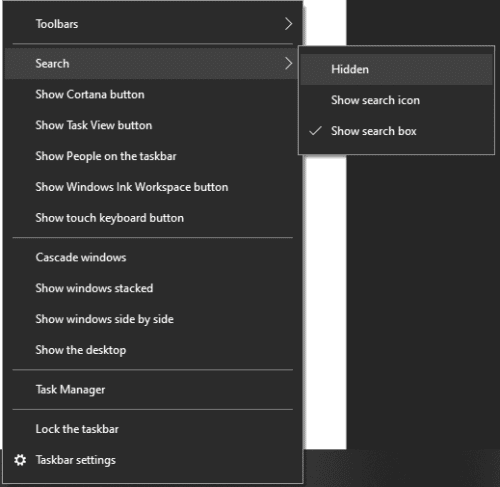
To disable the search bar, right-click on the taskbar, hover your mouse over the “Search” in the context menu, and then click “Hidden”. Bingo, this hides the search bar from the taskbar.

Right-click on the taskbar, then select “Hidden” under “Search” to hide the search bar.

Display a Code snippet in Word

This short post will help you display code snippets in MS Word preserving format and syntax highlighting?

There are more ways, but this is the best way for me to add a code snippet:

Go to Insert tab, Text section, click Object button (it’s on the right side)
Choose OpenDocument Text which will open a new embedded word document
Copy and paste your code from Visual Studio / Eclipse inside this embedded word page
Save and close

Advantages

The result looks very nice. Here are the advantages of this method:
The code keeps its original layout and colors
The code is separated from the rest of the document, as if it was a picture or a chart
Spelling errors won’t be highlighted in the code (this is cool !)

Leaders and Leadership

Leaders are not infallible, they are men and women who choose to be the support for a team of dedicated individuals to achieve their goals. Teaching, Coaching and guiding the team to great height’s.

Leadership, Mentorship and Support

Leaders, must be aware of any risks that they are taking and reconstruct the scenario in their own heads to be able to use any setbacks or challenges as opportunities to grow. This is the shift that can transform their emotions and outcome experience to overcome pre-performance issues by viewing them as a positive or as an exciting challenge to learn rather than a failure. They have to consider that there is no failure as long as they use any experience to learn and continue to grow, to keep trying again in their quest to achieve not only their personal goals, but also their companies goals. Leaders have to be prepared to take chances and to accept any setbacks based on their choices. It is their responsibility, no matter who dropped the ball. A leader is the end of the line as far as responsibility goes.

Reset the video driver

1.

To reset the video driver on Windows 10, you can use the keyboard shortcut Win + Ctrl + Shift + B.

This will cause the screen to flicker for a few seconds or go black for a second, and then everything will return to normal.

This method is safe and won’t affect running apps and opened documents. If the driver is misbehaving a lot, chances are that it has gone corrupt. Another way to restart the driver is by disabling and re-enabling the Display adapter from Device Manager. It is important to check if the Windows Key is not disabled as it can accidentally shift the focus.

2.

Reset the Graphics Card Driver Using Device Manager

If you are still facing display issues even after applying the keyboard shortcut to refresh your graphics card driver, you can try resetting it with the Device Manager.

Device Manager is available on all Windows versions and provides a list of all the hardware components connected to your PC. Here, you can find the graphics card driver as well, which can be reset if needed.

Here are the steps to use the Device Manager to reset the graphics card driver:

  1. First, open the Device Manager by searching for it in the Windows search box and clicking on the Device Manager icon from the Start menu.launch device manager from start menu
  2. Then, locate and expand the Display adapters section in the Device Manager window.
  3. Right-click on your graphics card driver and select Properties from the context menu.graphics card properties
  4. Under the Properties window, switch to the Driver tab and click on the Disable Device button.disable graphics card driver
  5. Confirm the disable action and wait for a few moments.
  6. After the driver is disabled, again right-click on your graphics card driver, and select Properties from the menu that appears.
  7. Switch to the Driver tab, and click on the Enable Device button.enable device driver
  8. Wait for the driver to be re-enabled.

This action will reset your graphics card driver and may clear up any display issues you were having.

3. Uninstall and Reinstall the Graphics Driver to Reset It

If nothing else works, you can try uninstalling and reinstalling the graphics driver. Uninstalling the driver will remove it from your system completely, which should resolve any possible glitches or compatibility issues that might have been causing the display problems.

To uninstall and then reinstall the graphics card driver on Windows, follow these steps:

  1. First, open the Device Manager by searching for it in the Windows search box and clicking on the Device Manager icon from the Start menu.
  2. Then, locate and expand the Display adapters section.
  3. Right-click on your graphics card driver and select Uninstall device from the context menu.uninstall graphics driver
  4. Confirm the uninstall action to remove all its files completely.
  5. After the driver is removed, reboot your device.
  6. Windows will detect a missing driver and prompt you to install it automatically. If not, head to your graphics card manufacturer’s website and download the suitable drivers for your device.
More blank page tricks

Word for Microsoft 365, Word 20XX

Page breaks tell Word where to start a new page. A manual page break might be making an unwanted blank page in your document.

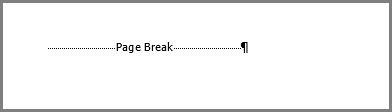
  1. To see manual page breaks, switch to showing paragraph marks: Press Ctrl+Shift+8.
  2. Now you can select the page break and delete it.

A page break at the bottom of a Word page

Section break problems

In the middle of a document, deleting section breaks can cause formatting problems. In these cases, try changing the section break to one that doesn’t generate a new page. Here’s how:

  1. Double select the section break.
  2. On the Layout tab of the Page Setup dialog box, select the Section start drop down and select Continuous.
  3. Select OK.

Odd, Even, and Next cause blank pages
Next Page, Odd Page, and Even Page section breaks may create a blank page in your document. If the blank page occurs at the end of your document and you have a section break there, place your cursor directly before the section break and press Delete.

Tip: To more easily find section breaks, try switching to Draft on the View tab.

Word Delete Blank Page

Word for Microsoft 365 Word for Microsoft 365 for Mac Word 2021

Word includes a non-deleteable end-paragraph that sometimes gets pushed out to a new, blank page at the end of a document. The way to delete the page is to make the end-paragraph fit onto the preceding page. The most sure-fire way is to make the end-paragraph very small (1 point):

  1. Press Ctrl+Shift+8 to show paragraph marks.
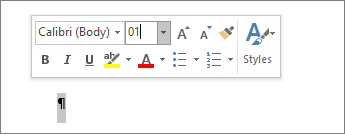
  2. Select the paragraph mark.
  3. Select inside the Font size box, type 01, and then press Enter .Setting font size to 1
  4. The paragraph now fits on the preceding page, removing the unwanted blank page.
  5. Press Ctrl+Shift+8 again to hide the paragraph marks (⌘+8 on a Mac).

If that paragraph still doesn’t fit on the preceding page, you can make the bottom margin smaller (Layout tab > Margins Custom Margins, and set the bottom margin to something small, like 0.3 inches).

Tip: If the paragraph mark has a square bullet next to it, the paragraph might have the Page break before option turned on. To turn it off, right-select the empty paragraph, select Paragraph Settings (Home tab), and on the Lines and Page Breaks tab of the dialog box, uncheck Page break before.

Word – Delete a page

Word for Microsoft 365 Word for Microsoft 365 for Mac Word 2021

To delete a page that contains text, graphics, or empty paragraphs, select the content to delete, and press Delete. You can also do this:

  1. Click or tap anywhere in the page you want to delete, press Ctrl+G.
  2. In the Enter page number box, type \page.
  3. Press Enter on your keyboard, and then select Close.
  4. Verify that a page of content is selected, and then press Delete on your keyboard.

To remove blank pages in the middle or at the end of your document, see Delete a blank page.

App Launch

Did You Know

You can launch apps on your on the “TaskBar” by pressing:

  • WIN + 1 (to Launch the first app on your “TaskBar”)
  • WIN +2 (to launch the second App on your “TaskBar“)
  • WIN + X (for additional apps)

Stay tuned for more tips.

Windows Explorer

Today again I had the top section of my windows explorer just disappeared and I was not able to close the program using the x at the top right section of the header.

I was able to recover it by resetting the screen resolution and magnification, then later I found this trick that seems to force a screen reset. I was able to move it to my second screen an there is was just fine, so as long as I did not move it back to the surface primary screen it was just dandy.

The Ctrl+Shift+Win+B key sequence will restart your graphics driver.

Microsoft VTS

Join the Microsoft Virtual Training series

Enhance your technical skills with interactive webinars for core customer technical scenarios.

Local training and events

Take advantage of the latest Canadian Microsoft training and events to help you develop your team’s talent.

Let’s get started

Find your role, select a product or solution and pick the learning path for your skill level to begin the recommended training for Microsoft products and solutions.