Hackers want your PII

PII = Personal identifiable information examples below.

  • Name: Full name, nickname, alias, or initials
  • Date of Birth: Birthdate, age, or age range
  • Biometrics: Fingerprints, facial recognition data, iris scans, or voiceprints
  • Social Security Number: SIN, taxpayer identification number, or other government-issued identification numbers
  • Identity Number: Some countries use this instead of the SIN number above
  • Financial Information: Bank account numbers, credit card numbers, financial account numbers, or payment processing information
  • Medical Records: Health records, medical history, or insurance information
  • IP Addresses: Internet Protocol addresses, which can be used to identify a device or individual
  • Email Addresses: Personal email addresses or login credentials
  • Phone Numbers: Home, work, or mobile phone numbers
  • Physical Addresses: Home, work, or mailing addresses
  • Passport Number: Passport identification number or travel documents
  • Driver’s License Number: Driver’s license or state ID number
  • Taxpayer Identification Number: Employer Identification Number (EIN) or Individual Taxpayer Identification Number (ITIN)

Here are some of the means that Hackers use to get this information from you.

1. Spoofing

Does caller ID show the same area code and prefix as yours? That incoming call could be from anywhere — even a foreign country. Spoofing is falsifying data on caller ID to disguise who’s on the line. In a bid for authenticity, the spoofed number could belong to a legitimate government agency or a business known to you.

2. Phishing

So-called “phishing” emails, calls, texts and letters try to trick you into sending cash or disclosing personal information. Or, the correspondence aims to allow a bad actor to infiltrate your computer device and steal sensitive information. Microsoft, for example, has warned that cybercrooks send phishing emails from rnicrosoft.com—note the “r” and “n” were combined to appear at a glance as an “m.” The word phishing — which dates to 1996 — combines “fishing” and “phreaking,” the latter a term for using an electronic device to avoid paying for phone calls, says Merriam-Webster. Phreaking likely was born from the marriage of the words “phone” and “freak.”

3. Fake profiles

Anybody can disguise his or her identity on social media, dating platforms or other sites. In 2019, the Pentagon warned about an increasing number of impersonator accounts on Twitter that hijacked the identity of Marine Gen. Joseph Dunford, then chairman of the Joint Chiefs of Staff. That prompted the Air Force chief of staff to chime in: “The same goes for me — I won’t ask for money, your email account or other personal information. Please continue to report impostor pages.”

4. Fake photos:

Images can be copied or stolen from the internet — or altered — to lend credence to a bogus profile or website.

5. Fake entities

Phony businesses, charities, political action committees and the like — they’re sheep’s clothing for the wolves at your door.

6. Fake claims

Bad actors use a variety of scripts to persuade you to open your wallet and drain your financial accounts. Examples: “You’ll be arrested if you don’t …” or “You’ve won a prize, but first must pay ….”

7. Fake names, credentials and badge numbers

Names, titles and such may suggest authority, but in reality be phony baloney.

8. Computer pop-ups

Pop-up warnings can show up on your computer. Alarms may sound. Click on a suspicious link or open an attachment and malware — that’s software used for malicious purposes — can compromise your computer system and steal your data. Never call the phone number that appears on a computer pop-up.

9. Robocalls

About 58.5 billion robocalls — a record — bombarded phones in the U.S. in 2019, and 25.9 billion, or 44 percent, were scam calls, according to an industry estimate. Huge numbers of internet-based calls can be made every day at very little cost to con artists, even those overseas.

10. Lead lists

These are rosters of people who have fallen victim to cons and, as such, potentially are soft targets for more mischief. Criminals swap and sell what they callously call “sucker lists.”

11. Secrecy

Crooks often insist their targets keep silent about what they’re being instructed to do. They’re trying to prevent a family member or friend from stopping a scam in its tracks.

12. Persuasion

Criminals excel at blarney and use flattery and charm to ingratiate themselves and gain your trust. Alternatively, they may threaten violence to frighten you to act. The goal is the same: to compel you to cough up cash and or sensitive data. And the perpetrators are nothing if not persistent.
Copilot learning

Microsoft Learn

Copilot learning hub

Copilot is an AI assistant powered by language models, which offers innovative solutions across the Microsoft Cloud. Find what you, a technical professional, need to enhance your productivity, creativity, and data accessibility, and make the most of the enterprise-grade data security and privacy features for your organization.

Start your Copilot learning journey

Latest Security Issues

Adding Stat Holiday to Outlook

1. Log in to Outlook.com

2. On the Outlook desktop app, click on the “File” tab.

3. Click on “Options.” 

How to add holidays to Outlook calendar 1
You can find this link in the left navigation bar in Outlook.

4. Click on “Calendar” in the pop-up window, then click on the button labeled “Add Holidays.”

How to add holidays to Outlook calendar 2
The Calendar menu is the third option down in the Outlook Options window. 

5. Scroll through the list until you find the country that observes the holidays you wish to add. 5. Click on that country’s name so that the box next to it shows a checkmark.

How to add holidays to Outlook calendar 3
You can choose more than one country if you wish.

6. Click “OK” when you are done. 

7. Click “OK” again to confirm and close out of the pop-up windows.

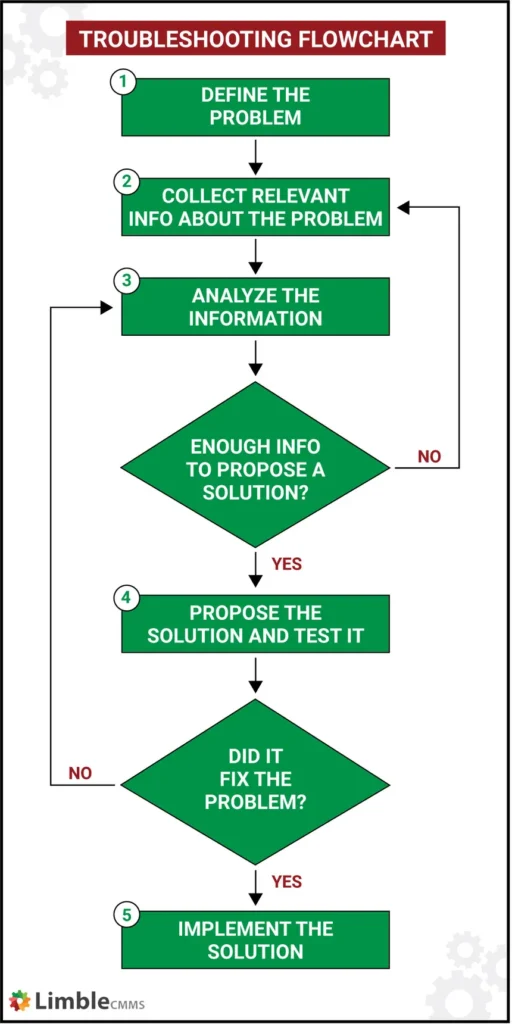
Troubleshooting methodology

CompTIA troubleshooting methodology:

    • Identify the problem. (1. Define the Problem)
    • Establish a theory of probable cause. (2. Collect Relevant information)
    • Test the theory to determine cause. (3. Analyse the information)
    • Establish a plan of action to resolve the problem and implement the solution. (4. Propose the Solution)
    • Verify full system functionality and if applicable implement preventative measures. (did it fix the problem?)
    • Document findings, actions, and outcomes. (5. Document the solution)

    Quote for Today

    “Working hard for something we don’t care about is called stressed; working hard for something we love is called passion.” -Simon Sinek

    Replace a Classic Root Site M365

    Replacing root site with a new modern site is a two-step process. Make sure you have the latest PowerShell module for SharePoint Online installed (16.0.8812.1200 or later). To get the installed PowerShell module version, use the following:

    1(Get-Module-NameMicrosoft.Online.SharePoint.PowerShell).Version.ToString()

    Step 1: 

    Create a new modern SharePoint site collection using a communication site template and customize it as per your requirements, such as adding necessary resources like document libraries, navigation, etc. You can also use any existing modern communication site in your SharePoint environment. This will be your new top-level site.

    Step 2:

    Execute the Invoke-SiteSwap cmdlet to start replacing the old site with the new One
    Here is the SharePoint Online PowerShell script to swap a new SharePoint site in place of the old site collection. As its name suggests, the Invoke-SPOSiteSwap PowerShell command swaps a site collection with another one, while taking a backup of the source site collection. Also, it creates a site redirect from the source location to the target location (unless you disable it with -DisableRedirection switch!).

    The Root site swap process may take a moment to complete. Please note that the source and target sites can’t connect to an Office 365 group. They also can’t be hub sites or associated with a hub (Remove the Hub site association before swapping and re-associate). Typically, it takes a few minutes to complete. All subsites contained with the source and target sites will be swapped, and this cmdlet takes the following parameters:

    • SourceURL – New site collection that you want to swap with your old site. The source site must be an existing classic team site (STS#0), Modern Team Site (STS#3), or Communication Site (SITEPAGEPUBLISHING#0)
    • TargetURL – This is your existing Classic site in the Office 365 tenant.
    • ArchiveURL – Archival URL is the location to archive an existing site. It must not currently exist (even as a deleted site in Recycle bin). This allows you to roll back your changes if required.

    The Invoke-SPOSiteSwap cmdlet doesn’t convert your classic site collection into a modern one. Instead, it replaces the current site collection with another existing one! Moreover, any static link must be fixed manually.

    Summary

    In conclusion, replacing the classic root site collection with a modern site in SharePoint Online can be accomplished using either SharePoint Admin Center or PowerShell. This process can be useful when you’re looking to modernize your SharePoint Online environment and take advantage of the new features and functionalities available on modern sites. Overall, replacing the classic root site collection with a modern communication site that offers a modern user interface that is more visually appealing, Mobile-Friendly, advanced web parts, and intuitive, responsive user experience helps to increase productivity and collaboration.

    Microsoft 365

    Replacing a Classic SharePoint root site with a Modern Communications site

    SharePoint Online: How to Replace a Classic Root Site Collection with a Modern Site?

    Requirement: Convert SharePoint Online Root site collection from a classic to a modern site! Our requirement is, We have built a new Intranet based on a Modern SharePoint Communication site and want to replace it with the root site.

    SharePoint Online root site collections are created as a classic experience by default, in the past we had no options to convert from classic to modern (and we couldn’t delete and re-create the root site in the past!). We now have a way to replace the classic root with a modern Communications site! We can do this from the Admin center or from a PowerShell prompt or the new SharePoint Online Management Shell and then using the Invoke-SPOSiteSwap cmdlet. The newly introduced Invoke-SPOSiteSwap cmdlet can be used to migrate the SharePoint Online site from classic to modern. In this guide, I will show you how to replace a classic SharePoint Online root site with a modern communication site. I will cover the PowerShell option in a future post.

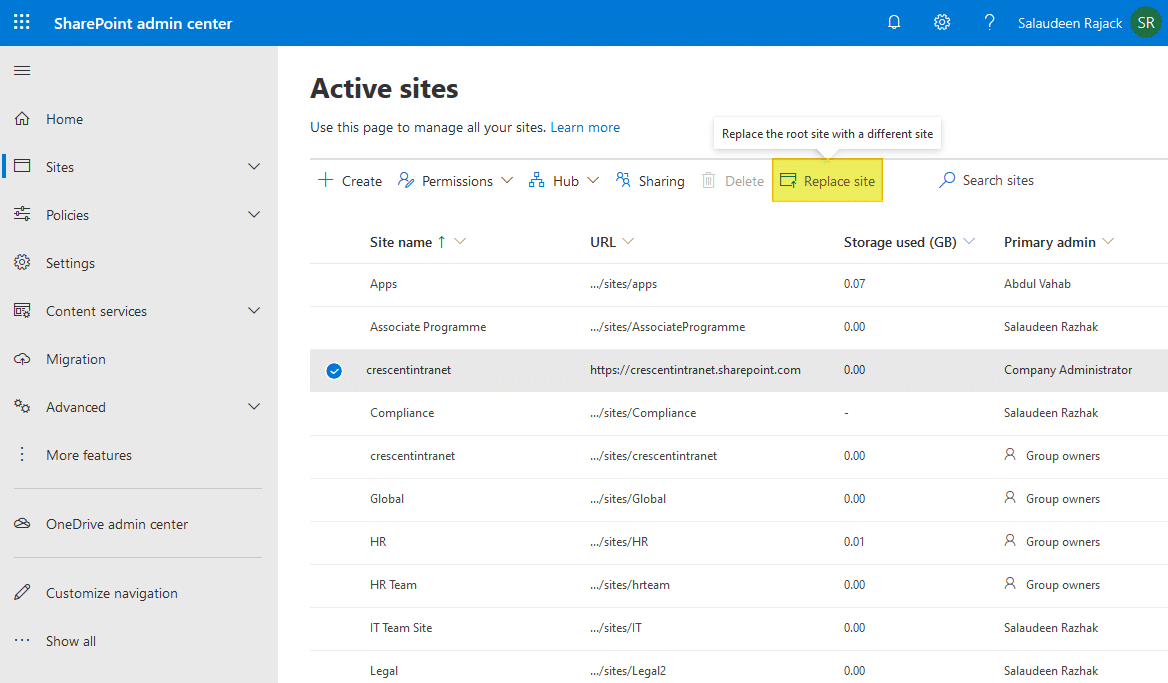
    The process of changing the root site in SharePoint Online Admin Center:

    1. Login to SharePoint Admin Center >> Expand Sites and then Active Sites.
    2. Create a new communication site or modern Team site without Office 365 group. E.g., https://crescent.sharepoint.com/sites/intranet.
    3. Now, from the sites list, select the existing root site, and click on the “Replace site” button in the toolbar.

    Both Source and Destination Sites must exist. Past the URL of the new site to be used into the “Site you want to Use”. The checker will verify that it is a valid URL and that it is a Communications site.

    4. Click Save “Save”.

    This will replace the root site with the new site you’ve entered. The existing root site will also be saved as an archive.

    phishing kit

    New sophisticated phishing kit skyrockets in use

    A new phishing kit called Tycoon 2FA has quickly become one of the most used adversary-in-the-middle kits, with more than 1,100 domain names reported from October 2023 to February 2024, Sekoia ApS’ “Threat Detection & Research” team reports. Aside from its sophisticated techniques and ability to bypass multifactor authentication, Tycoon 2FA poses a significant threat to the cybersecurity landscape due to its potential link with other known phishing platforms, the researchers say.

    Full Story: SiliconAngle (3/25) 

    Do you really think that you are safe? I have been talking about this for a while now and telling people that every device is compromised and somewhere and somehow a hacker will get your data. Spyware has been build in to each and every device available. This is why we will soon be switching over to a new OS called a Quantum device. I suspect that it will be pushed to every device and the switch will be handled within a 10 day period.

    In the meanwhile stay safe.