Trend Micro has identified Earth Preta, also known as Mustang Panda, as the Chinese hacking group using Microsoft’s Application Virtualization Injector to bypass antivirus defenses by injecting malicious code into legitimate processes. Earth Preta has been focusing most of its attacks on systems in Taiwan, Malaysia and Vietnam.
Creating a cyber risk communication document involves several steps to ensure that all stakeholders are informed effectively about potential risks and how to mitigate them.
Here’s a structured approach based on the provided context:
Identify the Audience: Determine who the document is for, such as executives, board members, employees, or clients. Tailor the language and level of detail to suit each audience’s needs and understanding.
Gather Information: Collect data on current risks, threat landscapes, and any ongoing or past incidents. Include details on the organization’s cybersecurity posture and any existing controls or measures in place.
Structure the Document: Organize the information logically. Start with an executive summary that highlights key risks and recommendations. Follow with detailed sections on each risk, including its potential impact, likelihood, and proposed mitigation strategies.
Use Clear and Concise Language: Avoid technical jargon that might confuse non-technical stakeholders. Present information in a way that is easy to understand and actionable.
Include Visual Aids: Use graphs, charts, and other visual aids to make complex information more accessible. For example, a proximity resilience graph can help illustrate the organization’s resilience against specific threats and risk impacts.
Provide Context: Explain why each risk is significant and how it could affect the organization. This helps stakeholders understand the urgency and importance of addressing the risks.
Recommend Mitigation Strategies: Offer specific steps that can be taken to reduce the likelihood or impact of identified risks. Include both immediate actions and long-term strategies.
Review and Update Regularly: Cyber threats evolve rapidly, so the document should be reviewed and updated regularly to reflect new risks and changes in the threat landscape.
Communicate Proactively and Reactively: In addition to the document, maintain regular communication channels to keep stakeholders informed about ongoing risks and any new developments. This could include regular updates, incident alerts, and educational content.
Test the Plan: Conduct regular drills and simulations to test the effectiveness of the communication plan and make necessary adjustments.
Creating a GRC (Governance, Risk, and Compliance) template involves several steps to ensure it aligns with organizational goals and needs. Here’s a guide based on the provided context:
Define Objectives and Scope: Clearly define the objectives and scope of your GRC framework. This includes understanding the potential benefits of a successful GRC framework, such as better alignment between departments and broader business goals, ensuring all types of risk have mitigating processes in place, and faster decision-making surrounding business processes and procedures.3
Identify Stakeholders: Engage all relevant stakeholders to ensure their needs and concerns are addressed. This includes aligning executive team members with vital factors such as budget and roll-out timelines.3
Assess Existing GRC Processes: Evaluate your current GRC processes to identify what is working and what needs improvement. This helps in pinpointing what processes should be retained and which should be removed to streamline the framework.3
Design the Template: Use a template that includes the three main components of GRC: governance, risk management, and compliance. Ensure the template is easy to understand and use. A template with a circular theme, presenting four nodes and their interactions, can be effective.24
Customize the Template: Customize the template to fit the specific needs of your organization. This may involve modifying text areas, shapes, and colors to better represent your GRC strategy.2
Implement and Communicate: Implement the GRC framework and communicate the changes to all relevant teams. Provide regular updates and a transparent process for feedback to ensure smooth adoption.3
Review and Refine: Continuously review and refine the GRC framework based on feedback and changing organizational needs. This ensures the framework remains effective and relevant.3
By following these steps, you can create a comprehensive and effective GRC template that aligns with your organization’s goals and enhances its governance, risk management, and compliance efforts.
Want to type using your voice? Just select WIN + H to open voice typing — great for long form text, or just if you have a word you can’t spell. Learn more about how to use it ❯
With voice typing, you can enter text on your PC by speaking. Voice typing uses online speech recognition, which is powered by Azure Speech services.
How to start Voice Typing
To use voice typing, you’ll need to be connected to the internet, have a working microphone, and have your cursor in a text box.
Once you turn on voice typing, it will start listening automatically. Wait for the “Listening…” alert before you start speaking.
To turn on voice typing:
Press Windows logo key + H on a hardware keyboard
Press the microphone key next to the Spacebar on the touch keyboard
To stop voice typing:
Say a voice typing command like “Stop listening”
Press the microphone button on the voice typing menu
Note: Press Windows logo key + Alt + H to navigate through the voice typing menu with your keyboard.
Install a Language
You can use a voice typing language that’s different than the one you’ve chosen for Windows. Here’s how:
Select Start > Settings > Time & language > Language & region.
Find Preferred languages in the list and select Add a language.
Search for the language you’d like to install, then select Next.
Select Next or install any optional language features you’d like to use. These features, including speech recognition, aren’t required for voice typing to work.
You may think of PowerShell as the command-line interface and scripting language on Windows, did you know that you can use it on Linux? Here’s how to take advantage of cross-platform commands and scripting
PowerShell is a command and scripting language created by Microsoft to replace the old Command Prompt. While it’s primarily associated with Windows, as part of the company’s continuing attempts to make pigs fly, they’ve made it available for Linux.
PowerShell can be used like any other shell in Linux to launch commands and to write scripts. While it has verbose commands by default, it understands common aliases like “ls” in Linux and “dir” in Windows to list a directory. It’s also object-oriented instead of relying on text streams. This makes it more complicated than the traditional Unix Philosophy solution of redirecting text input and output.
Why Install PowerShell on Linux?
The reason you might want to install PowerShell on Linux is that it gives you options. Linux already has lots of scripting languages, including the classic shells like Bash as well as more advanced languages like Perl and Python.
If you primarily use Linux but might have to administer a Windows server, you might benefit from having PowerShell installed on your Linux system. Or maybe you’re more familiar with Windows. The PowerShell command line could give you an anchor while you start exploring Linux.
Installing PowerShell
How you install Powershell will depend on what Linux distro you use.
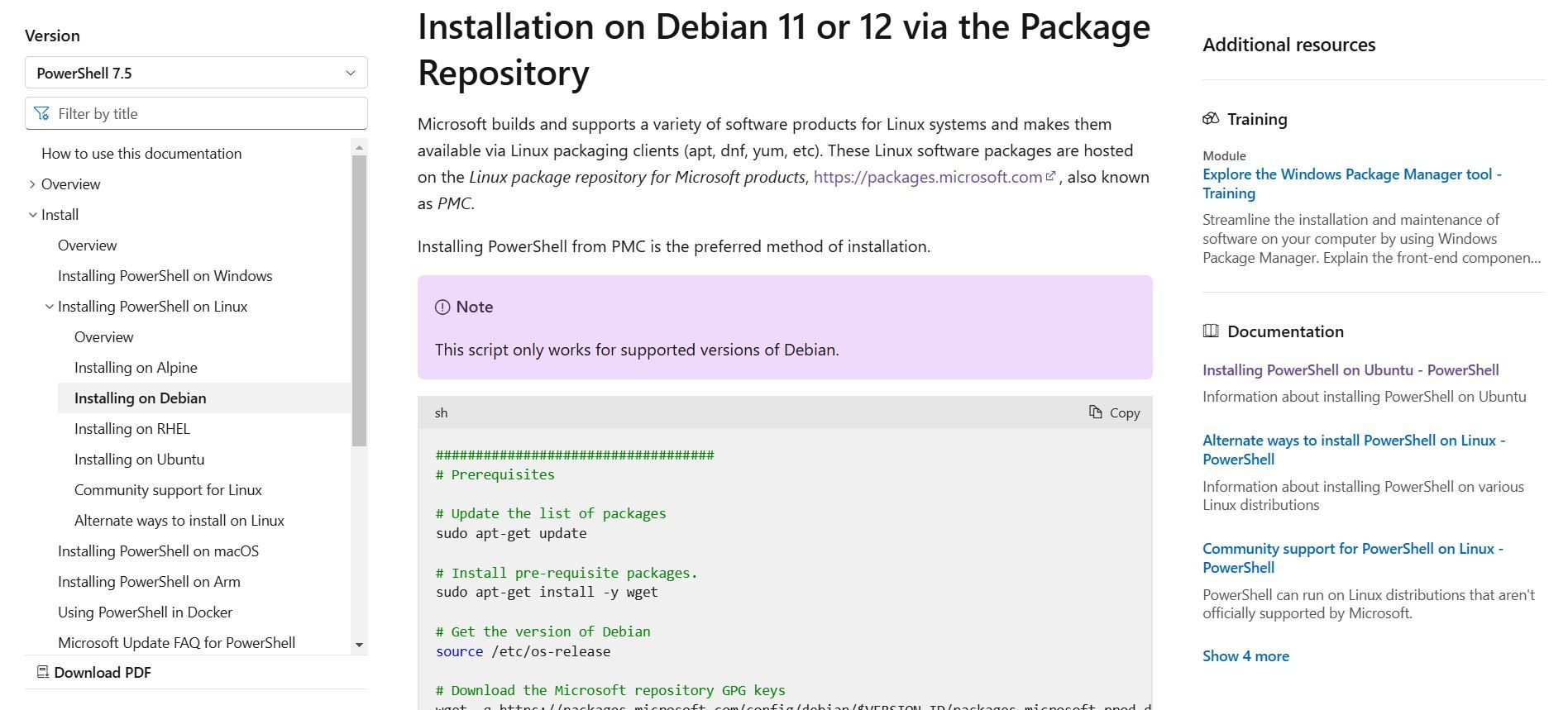
Microsoft provides its own repositories for many popular distros, including the Red Hat Enterprise Linux Family and Debian/Ubuntu
Let’s install it for Debian. Microsoft helpfully provides a script you can copy and paste. They even have a button you can click to copy it into your clipboard.
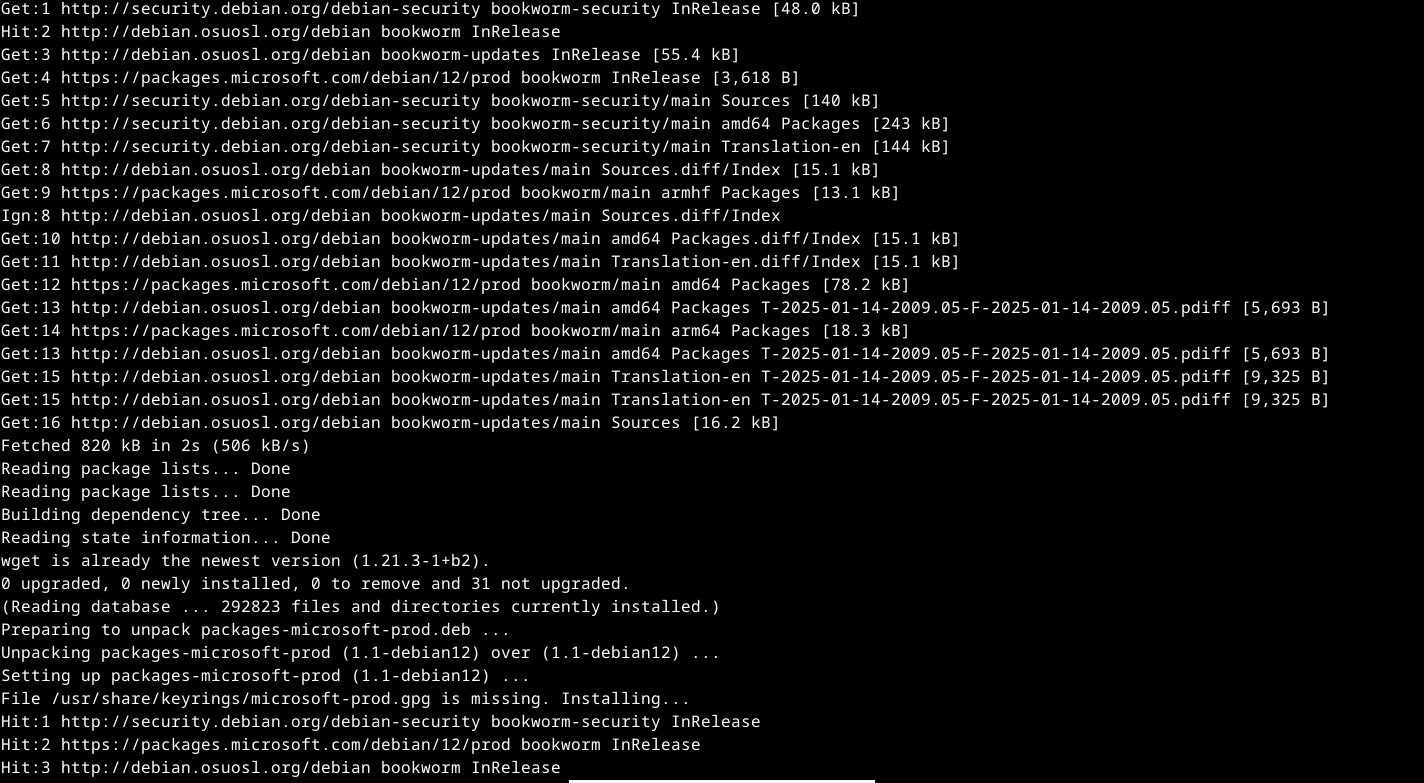
Paste the script into your terminal emulator, and it will install and run PowerShell.
Once you’ve gotten PowerShell installed you can run it. To do that, use this command:
pwsh
You’ll be using PowerShell interactively, as you would for your login shell. You can type regular commands into it.
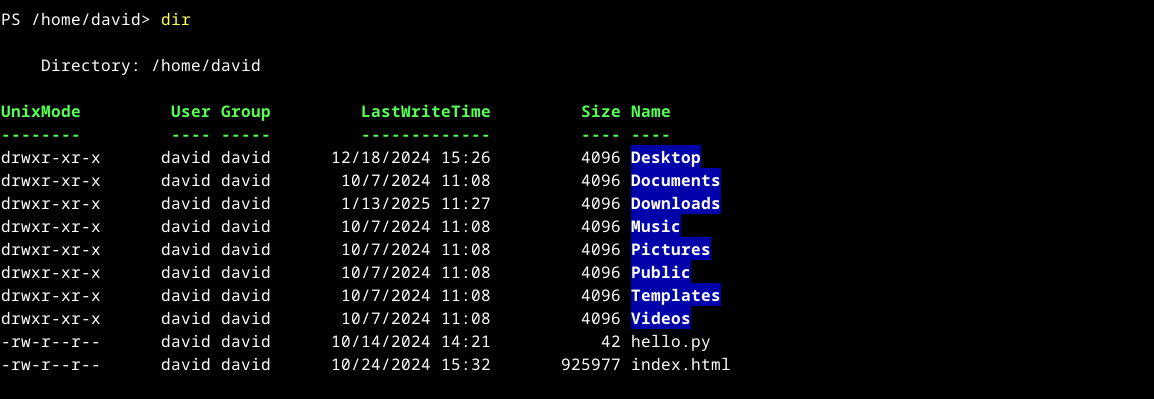
The ls command works as usual, but try using the “dir” command. You’ll see something different. You’ll see something similar to the output of the ls -l option, with the Linux permissions of the files in the left-hand column, user and group information, the last modified time, and finally the name of the files.
When you’ve finished with PowerShell, type “exit” or press Ctrl+d to end your session. If PowerShell is your login shell, this will close the window. If you’re running it from another shell, this will return you to the shell you called it from.
Changing Shells to PowerShell
If you want to change the Linux shell you use when you open a terminal window to PowerShell, it’s easy to do.
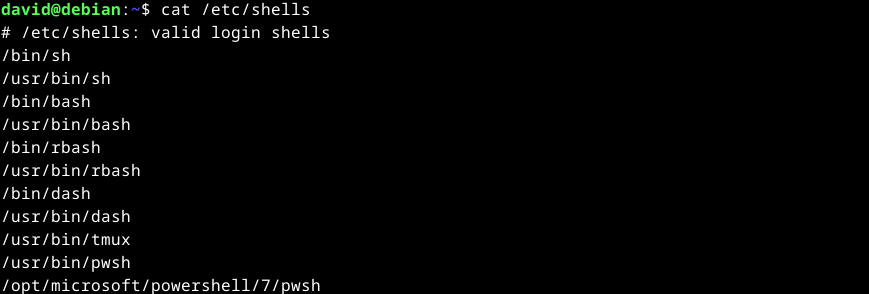
Powershell will have to be in the list of shells in the file /etc/shells. To see the list, use cat:
cat /etc/shells
You should see a line that contains “pwsh.” On this system, there are two of them: /usr/bin/pwsh and /opt/microsoft/powershell/7/pwsh. The first one seems like a better bet, since it doesn’t reference any version numbers and is less likely to break with updates.
Use the chsh command to change your login shell. You’ll need to enter your password when prompted. At the prompt, enter the pathname you want to use, in this case, /usr/bin/pwsh.
Press the Enter key and if it’s a valid shell in /etc/shells, you’ve just changed your login shell.
Log out and log back in, and start up a terminal window or virtual terminal, and you should be logged into PowerShell by default now.
If you’re writing PowerShell scripts, you can also specify Powershell by using the same paths with a shebang line. This is named because a shebang line starts with two characters: a hash (#) and an exclamation point (!), also known as a “bang.”
To call PowerShell from a script, we’ll use the same path we did earlier at the very first line in the script:
#!/usr/bin/pwsh
This should ensure that the script is run with PowerShell. You’re now ready to explore PowerShell in Linux.
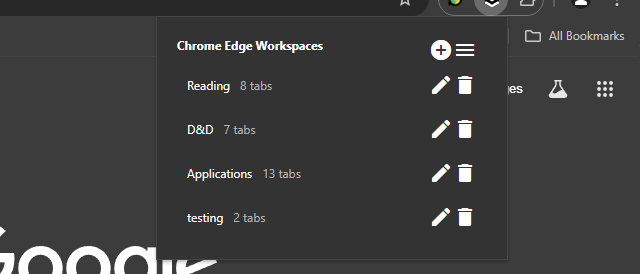
Microsoft Edge Workspaces are natively available in Microsoft Edge, but you can use a third-party extension to replicate this feature in Google Chrome. One such extension is “Edge Workspaces,” which is available on the Chrome Web Store. This extension allows you to organize and manage multiple projects or tasks by saving and restoring entire browsing sessions.
To use Edge Workspaces in Chrome:
Install the extension from the Chrome Web Store.
Open the extension popup by clicking the icon in the toolbar.
Click the “+” icon to open the new workspace modal.
Select either “New workspace” or “New workspace from window.”
A new Chrome window will open with the New Tab page.
As you work, all tabs in the current window will be saved to the workspace.
Close the window when finished.
The extension also supports managing workspaces, such as renaming or deleting them, and saving workspaces as bookmarks. However, it’s important to note that changes to the bookmarks will not be reflected in the workspaces themselves, as they are just a copy.
Effortlessly organize and manage multiple projects or tasks by saving and restoring entire browsing sessions.
Edge Workspaces empowers Chrome users with advanced tab management: * Preserve context: Save and restore entire browsing sessions * Reduce clutter: Keep your browser organized by project or task * Improve focus: Easily switch between different work contexts * Automatic saving: Never lose your place with continuous workspace updates * Keep in sync: Your workspaces stay in sync across computers via Google sync Install Edge Workspaces to take control of your tabs and boost your productivity. Ad-free and free to use, forever!
This extension is open source. Check out the GitHub repository: https://github.com/Elec0/chrome-edge-workspaces
## How to Use ##
## Creating a Workspace ##
1. Open the extension popup by clicking the icon in the toolbar (pinning the extension is recommended).
2. Click the “+” icon to open the new workspace modal.
3. Select either “New workspace” or “New workspace from window”.
4. Enter a name for the workspace.
5. Click “OK”.
6. A new Chrome window will open with the New Tab page.
7. All tabs in the current window will be saved to the workspace as you work.
8. Close the window when finished.
## Opening a Workspace ##
1. Open the extension popup.
2. Click on a workspace to open it.
3. The saved tabs will be opened in a new Chrome window.
## Managing Workspaces ## – Click the trashcan icon to delete a workspace. – Click the pencil icon to rename a workspace.
## Saving Workspaces as Bookmarks ##
– Ensure “Save workspaces to bookmarks” option is checked in Settings. – Workspaces will now be copied to “Other bookmarks -> Edge Workspaces (read-only) -> [Workspace Name]”. – Note that changes to the bookmarks will **not** be reflected in the workspaces themselves, as they are just a copy. – When installing a new version, make sure to open old workspaces at least once to allow for them to be saved as bookmarks.
## Importing/Exporting Workspaces ##
1. Open the extension popup.
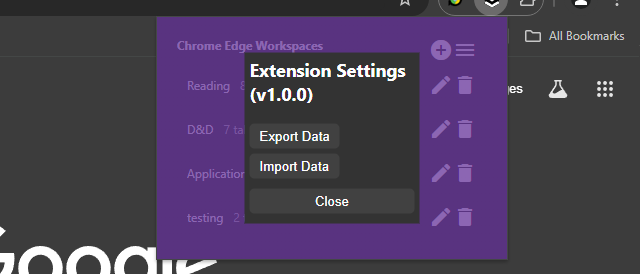
2. Click the hamburger icon to open the settings window.
3. Click “Export” to save all workspaces to a file.
4. Click “Import” to load workspaces from a file.
### Changelog ###
## v1.2.0 ##
– Add syncing of workspaces across computers, when signed in to Google sync
## v1.1.0 ## – Add ability to save a copy of workspaces as bookmarks
Determine whether the Autodiscover service is working, and check access to the Offline Address Book
Check whether Outlook and the computer can access the Offline Address Book file on the server. This action is typically done by Outlook in the background. It also happens when you force a download of the Offline Address Book in Outlook. To do this check, sign in to the Microsoft 365 portal, and then follow these steps:
Start Outlook.
Hold down the CTRL key, right-click the Outlook icon in the notification area on the right side of the taskbar, and then click Test E-mail AutoConfiguration.
Click to clear the Use Guessmart check box, and then click to clear the Secure Guessmart Authentication check box.
Click to select the Use AutoDiscover check box.
Type the email address and password, and then click Test.
On the Results tab, note the path of OAB URL.
Click the XML tab, locate the <OAUrl> and </OABUrl> tags, and then copy the path that’s displayed between the tags. Paste the path into the address box in Windows Internet Explorer, add /OAB.xml to the end of the path, and then press Enter.
The following is an example of what the URL may resemble:
If your computer becomes disjointed from a Domain, and you need to rejoin it to the domain, it will create a new profile folder with additional information in the folder name. Here is a way to change the folder name back to the original.
To rename the user profile folder in Windows 11, you’ll need to follow these steps:
Create a new administrator account: This will allow you to modify the registry and rename the user profile folder without affecting your current account.
Activate the built-in administrator account: Go to Computer Management > Local Users and Groups > Users > Activate built-in admin.
Sign out and log in to the new administrator account: This will ensure you’re using the correct account for the renaming process.
Rename the user profile folder: Go to the C:\Users\ folder and rename the subfolder with the original user name to the desired new name. Make sure to follow these guidelines:
No spaces within the new name.
Use only alphanumeric characters (letters and numbers).
Update the registry: Go to HKEY_LOCAL_MACHINE\SOFTWARE\Microsoft\Windows NT\CurrentVersion\ProfileList and update the registry entries associated with your user account to reflect the new folder name.
Restart and log in to your original account: After updating the registry, restart your computer and log in to your original account. The renamed user profile folder should now be reflected.
Important Notes:
Renaming the user profile folder can cause issues with some Microsoft Store apps. Signing out and signing back in may resolve these issues.
If you encounter problems, consider creating a new local account (without spaces in the name) and moving your files from the old account to the new one. This may be a safer and more straightforward approach.
The workaround mentioned in KB article 2454362 (applicable to Windows 7 and Server 2008 R2) is not applicable to Windows 11.
Additional Tips:
Be cautious when modifying the registry, as incorrect changes can cause system instability.
It’s recommended to create a system restore point before making changes to the registry or user profile folder.
If you’re experiencing issues with the renamed user profile folder, try resetting the folder name to its original value and then renaming it again.
By following these steps and guidelines, you should be able to successfully rename your user profile folder in Windows 11.
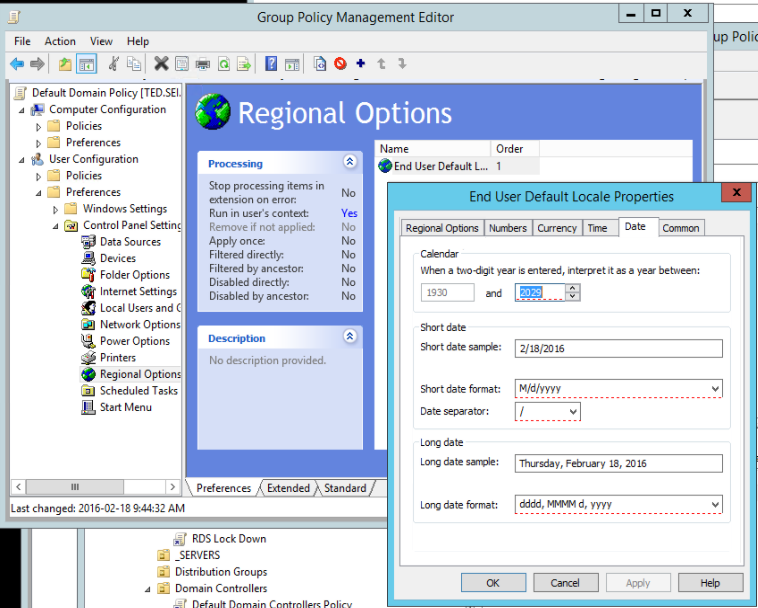
Trying to change the default Regional Settings through the Domain Group Policy Editor to apply a date format of dd-mm-yyyy instead of the default m/d/yyyy
Creating a new GPO called “RegionalSettings” and editing this GPO and saving it. Re-editing the GPO settings, we notice that they have not saved the new format but reverted back to the default.
Trying this on other policies, including the default domain controller policy, all to no avail. No changes are saved.
When changes are made we now see a red box around what was changed, in the past we would click on the apply button, but this no longer saves the changes.
Not sure at what stage this was changed, but now it seems that when changes are made we have to press (F5) before exiting out of the properties page by clicking OK.