Organise your Inbox

Organising your Inbox

How do we keep track of this tool to stay up to date with our daily tasks and messages.

As a professional, we realise that our inbox is an important part of our daily routine.

We’ve all been there, right? After an exciting whirlwind vacation, you come back to work, open Outlook, and find two thousand unread messages waiting for you. It’s enough to make you want to go back on vacation. Or never take a vacation again.

But Outlook is a powerful program, and it can help you tame that inbox quickly—probably a lot faster than you could have imagined.
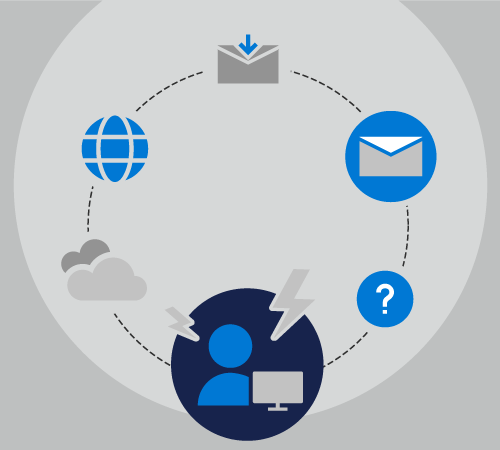
Manage your email after vacation

Preparing for vacation

Let’s follow along with Our self as we prepare to leave for a ten-day vacation.

We handle communication and coordination for five separate projects, we a member of twenty different mailing lists, and we also receives a small number of personal email messages each day.

While We are out of the office, a collogue will be the main point of contact for three of our projects, and another will handle the other two.

The last time You went on vacation, you set your Automatic Replies to let everyone know that you would be back in ten days, but didn’t do anything else. When You returned, your Inbox had grown from 50 messages to 500 messages or possibly many more.

This time, You could spend spend a few minutes the day before you leave with several of Outlook’s key features to help yourself come back from vacation stress-free.

Step 1

To set up your own automatic replies, see Send automatic out of office replies from Outlook.

We all know that setting up an Automatic Reply can head off a lot of questions and confusion for our coworkers. Since we have Microsoft 365, we can Select File Automatic Replies, and types in the following text.

Hi,

Thanks for your message. I’m out of the office between “Start Date” and “End Date”. I will not be checking email while I’m gone.

For assistance with the Contoso, Fourth Coffee, and Tailspin Toys projects, please contact Chester Beane.

For help with the Northwind project, contact Cheryl Jenkins. 

— “Your Name”

Now we can set our automatic replies to turn on the day we leave and turn off the day we get back. This is a great Step 1. However, we all know Outlook has other features we can use to help us keep our inbox under control.

Now, We can can move on to Step 2 Creating rules.

Rules allow us to forward, delete or file mails in folders for any incoming email based on a from email address, text in the subject line or in the mail content.

After Vacation

What if you weren’t as organized as in the example above before you left on vacation?

Let’s follow the scenario without the above replies and rules as we attempt to deal with an overloaded inbox after a ten-day vacation. We did set up an automatic reply, but he didn’t give our coworkers any instructions while we were away.

When we return from our vacation, we have 1243 messages in our inbox. Luckily, we have Outlook as part of our Microsoft 365 subscription, so we can quickly and easily sort, filter, and deal with those messages using a few key Outlook features.

  • Step:
    1. Sort
    2. Filter
    3. Search
    4. Group

First, we sort our messages by priority. This places all of the high priority messages—those we’ll have to deal with quickly—at the top of the inbox.
Sort your messages by importance.

To do this, we select the By Date dropdown at the top of the message list and chooses Importance. This sorts the inbox for us.

We can now spend fifteen minutes answering the five High importance messages, file them into folders, and then change the sort order by clicking the dropdown again and selecting Low on top to bring the Low importance messages to the top of our message list. These messages get only a quick scan, and then we delete all but one of them. “Lunch invitations”, a “fire drill notification”, and a “warning about a power outage” three days ago aren’t messages we need to reply to.

Ethical Considerations

This course is intended for participants who want to improve their skill set even more, or are support staff.

Dozens of States poised to consider privacy legislation

Dozens of states are expected to consider privacy legislation in 2022, as California begins rulemaking for its newly revised consumer privacy law. “It’s no longer a Democrat thing or a Republican thing, and you’re increasingly seeing calls for greater privacy from both,” said Al Saikali, who heads the privacy and data security practice at Shook Hardy & Bacon.

How Secure is your Data?

Get ready for the Windows 11 Insider Preview

Windows 11 Insider Preview

Check out the updated hardware requirements for Windows 11 and find out how Windows Insiders can get started with a Windows 11 Insider Preview build.

Since launching Windows 10 six years ago, a lot of hardware innovation has happened in the PC space. For Windows to move forward and take better advantage of the latest innovations, we need to update the baseline system requirements for modern PCs. As a result, Windows 11 has updated hardware requirements which will be reflected in the Windows Insider Program. This blog post will outline what this means for Insiders new to flighting as well as Insiders who have already been flighting Insider Preview builds.

Microsoft Safety Scanner

Microsoft Safety Scanner

People can download the scanner and check to see if they have any malware and also clean their computers. Check if you have the 32Bit or 64Bit OS, click on the link and select save then click on the view in folder, double click the file and watch what happens

Microsoft Safety Scanner is a scan tool designed to find and remove malware from Windows computers. Simply download it and run a scan to find malware and try to reverse changes made by identified threats.

Windows 11

Windows 11

Microsoft has announced the first Insider Preview for Windows 11.

I was under the impression that Windows 10 was the last version on Windows with half year and annual updates. It seems that this planned pandemic has caused more ructions than we could have imagined. What we have been able to find out that the NSA have been spying on anyone and everyone over the past. They have been working with Microsoft, Linux, Apple and all hard disk and router manufactures to have spyware and backdoors in all operating systems worldwide. They have been the people hat have helped create the internet, all security software being used worldwide.

With the end of the current age and as we head into a new era, there are many changes forecast. One, a new Quantum internet (QI) is being put in place, one where hacking will be eliminated and second a new Quantum Financial system (QFS). This will require many changes to the O/S if we are to retain our current computing power.

So with Microsoft releasing a new OS at this time makes me think that this could be a release that could have everything ready for a switch over to the new QI.

Windows 11 Bug Bash July 7—July 14!

Dealing with Ransomware

Dealing with Ransomware

Coalition to create framework for dealing with ransomware
Major tech firms including Microsoft and McAfee, as well as research groups and other organizations, are creating a coalition to address cyberattacks against entities in government, education, health care and other critical sectors. The Ransomware Task Force will focus on threat reduction, tech solutions and the development of a standard framework for responding to ransomware for all industries to follow.
Full Story: ZDNet (12/22), StateScoop (12/21)

SEO Tips

WordPress Newsletter Article

So you have a terrific online store, and you want it to flourish. One way to increase sales is by driving organic traffic to your site. It’s an effective method for attracting customers without having to spend money on ads. This is why many sites are using SEO to draw customers in, according to Search Engine Journal. Wondering how you can get started? Here are four eCommerce website SEO tips that can help grow your bottom line.

1. Make your site easy to understand and use

First off, make sure your site structure is clear, mobile-optimized, and fairly intuitive. It should be easy for visitors on a variety of devices to understand how to use your site and find what they are looking for. Customers must be able to easily search for and locate the products they want. Using the shopping cart and checking out should be a snap, as well. If visitors find your site accessible and helpful, then search engines will, too — and they’ll boost your search engine ranking, sending more organic traffic your way.

2. Choose relevant keywords

Relevant keywords are essential for your site, particularly if you have an eCommerce blog. You can get started with keyword research using a tool such as WordPress SEO by Yoast, SEMRush, or Google Keyword Planner. First, determine the top two keywords you want to rank on. These should be search terms that your target audience might use when searching for your site. They may be competitive, but you should be able to increase your ranking over time by including them on relevant parts of your site, such as meta descriptions, product pages, blog posts, permalinks, and image names. Consider also including less popular, long-tail keywords that will help customers find you. Once you’ve done this, periodically check the keyword ranking for your site to keep track of how you’re doing.

3. Optimize product images

Images frequently appear in Google search results, presenting you with a golden opportunity to get your products noticed. To do so, optimize your product images and primary category images for SEO. In most cases, especially where product photos are concerned, you’ll want to use a high-quality JPEG image. But make sure that the file size isn’t so large that it’s slow to load. Otherwise, customers may decide to move on and leave the site. If the size of the image file you want to use is too large — say, over 2 MB — you can re-size it with image-editing software.

4. Write great product descriptions

Each product in your store should have a brief, well-written product description that is optimized for SEO. It’s important to include relevant keywords in your product descriptions, but only if they fit naturally. Search engines often penalize sites they think are engaging in keyword stuffing — that is, forcing a particular webpage full of keywords in an attempt to game search engine rankings. Although you can use the manufacturer’s product description, writing your own product description usually produces better results.

With these four eCommerce website SEO tips, you can begin driving more organic traffic to your online store. If you have a WordPress.com Business or eCommerce plan and want to optimize your eCommerce site’s SEO even more, you can explore WordPress.com SEO tools or take a free online course on WordPress.com Business SEO.

Shortcuts to Windows Settings

A simple extension of a brilliant hack by Lucas (@Whistler4Ever), published by Sergey Tkachenko at WinAero, and unearthed by Steven Parker at Neowin gives you a very easy way to put an icon on your Windows 10 Desktop screen that opens to just about any Settings page, where you can change a setting in a nonce.

[ More info: How to fix five Windows 10 headaches ]

Here’s how to make it work:

[ Got a spare hour? Take this online course and learn how to install and configure Windows 10 with the options you need. ]

  1. Right-click or tap and hold any blank place on the Windows 10 Desktop.
  2. Choose New > Shortcut.
  3. Pick one of the ms-settings apps listed below and type it into the input box. For example, to go to the Data Usage app, type ms-settings:datausage in the box marked Type the location of the item.
  4. Click Next, give the shortcut a name, and click Finish.

A new shortcut appears on your desktop. Double-click or tap it, and the Settings app appears.

Settings page App used for the shortcut
Accessibility
Closed captioning ms-settings:easeofaccess-closedcaptioning
High contrast ms-settings:easeofaccess-highcontrast
Keyboard ms-settings:easeofaccess-keyboard
Magnifier ms-settings:easeofaccess-magnifier
Mouse ms-settings:easeofaccess-mouse
Narrator ms-settings:easeofaccess-narrator
Other options ms-settings:easeofaccess-otheroptions
Battery and power
Battery Saver ms-settings:batterysaver
Battery Saver settings ms-settings:batterysaver-settings
Battery use ms-settings:batterysaver-usagedetails
Power and sleep ms-settings:powersleep
Display and user interface
Backgrounds ms-settings:personalization-background
Colors (display) ms-settings:colors
Colors (personaliation) ms-settings:personalization-colors
Date and time ms-settings:dateandtime
Display ms-settings:display
Mouse and touchpad ms-settings:mousetouchpad
Personalization ms-settings:personalization
Region and language ms-settings:regionlanguage
Screen rotation ms-settings:screenrotation
Speech ms-settings:speech
Start ms-settings:personalization-start
Themes ms-settings:themes
Typing ms-settings:typing
Network and radios
Airplane mode ms-settings:network-airplanemode
Bluetooth ms-settings:bluetooth
Cellular ms-settings:network-cellular
Data usage ms-settings:datausage
Dialup ms-settings:network-dialup
DirectAccess ms-settings:network-directaccess
Ethernet ms-settings:network-ethernet
Manage Wi-Fi ms-settings:network-wifisettings
Mobile hotspot ms-settings:network-mobilehotspot
Proxy ms-settings:network-proxy
Wi-Fi ms-settings:network-wifi
VPN ms-settings:network-vpn
Other
For developers ms-settings:developers
Offline maps ms-settings:maps
Optional features ms-settings:optionalfeatures
Privacy
Account info ms-settings:privacy-accountinfo
Calendar ms-settings:privacy-calendar
Camera ms-settings:privacy-webcam
Contacts ms-settings:privacy-contacts
Feedback ms-settings:privacy-feedback
Location ms-settings:privacy-location
Messaging ms-settings:privacy-messaging
Microphone ms-settings:privacy-microphone
Motion ms-settings:privacy-motion
Other devices (privacy) ms-settings:privacy-customdevices
Privacy ms-settings:privacy
Radios ms-settings:privacy-radios
Speech, inking, and typing ms-settings:privacy-speechtyping
System and user
Connected devices ms-settings:connecteddevices
Family and other users ms-settings:otherusers
Lockscreen ms-settings:lockscreen
Notifications and actions ms-settings:notifications
Proximity ms-settings:proximity
Signin options ms-settings:signinoptions
Storage Sense ms-settings:storagesense
Tablet mode ms-settings://tabletmode/
Windows Update ms-settings:windowsupdate
Work access ms-settings:workplace