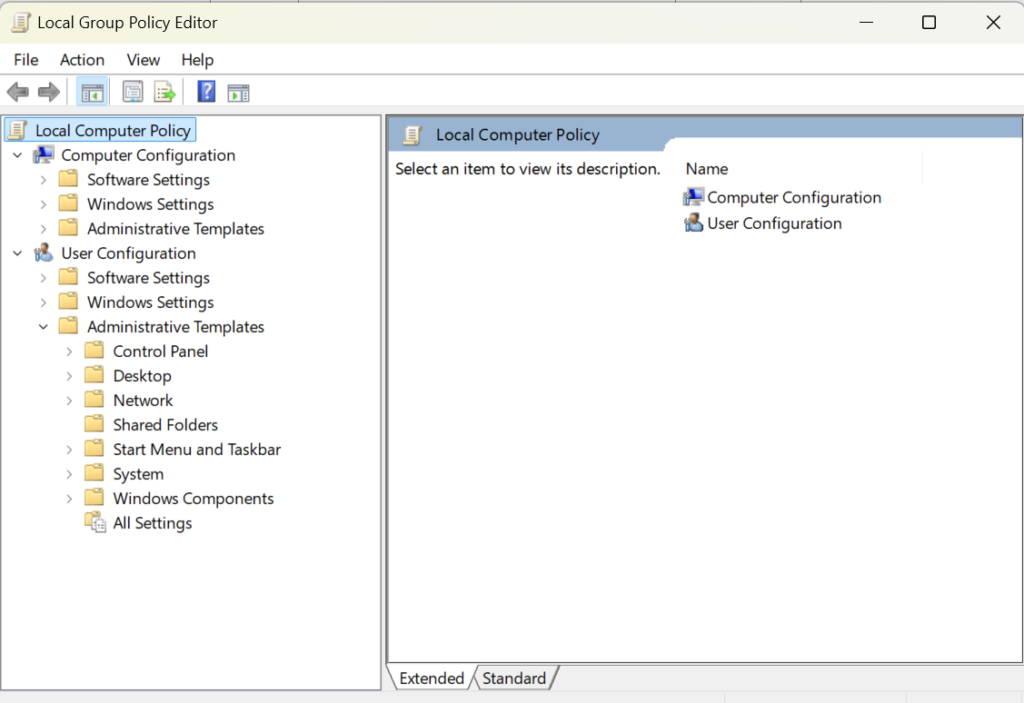
Remove Copilot using the Group Policy Editor, you will need to have Windows 11 Pro, Enterprise, or Education editions. The Group Policy Editor is a tool that allows you to configure various policies and settings for your computer and user accounts. To access the Group Policy Editor, type gpedit.msc in the Start menu or the Run command and hit Enter. Then, navigate to the following folder using the left panel:
User Configuration > Administrative Templates > Windows Components > Windows Copilot.
On the right-side pane, double-click on the policy ‘Turn off Windows Copilot’ and select ‘Enabled’. Then, click ‘Apply’ and ‘OK’.
This will disable Copilot entirely and remove it from the Settings app as well.
How to Rename User Profile Directory in Windows 11, 10, 8 and 7
Renaming a user account in Windows won’t automatically rename the associated user profile folder. In this tutorial we’ll show you how to manually rename user profile directory in Windows 11, 10, 8 and 7, if the name of your user account folder is not what you want.
How to Rename User Profile Directory in Windows 11, 10, 8 and 7?
To make sure your renaming of user profile folder is consistent across the entire installation of your Windows and does not break anything, follow these steps:
Log on to another Administrator account that is not the account being renamed.
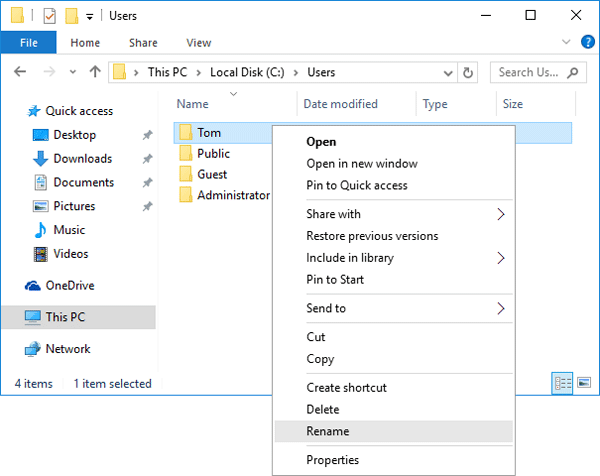
Open the Windows Explorer and browse to the C:\Users folder. Right-click on your user account folder and rename it to whatever you like.
Press the Windows key + R to open the Run box. Type regedit and hit Enter.
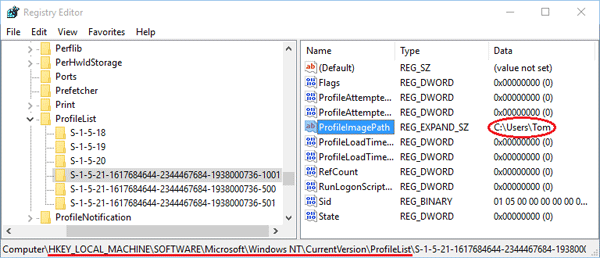
When the Registry Editor opens, navigate to the following registry location: HKEY_LOCAL_MACHINE\SOFTWARE\Microsoft\Windows NT\CurrentVersion\ProfileList\
Under the ProfileList subkey you will find a few subfolders (starting with ‘S-1-5-‘) that are named with the SID of Windows user accounts. Find the SID for your user account whose profile folder you just renamed. You can simply open each subfolder and check the ProfileImagePath path for the correct one.
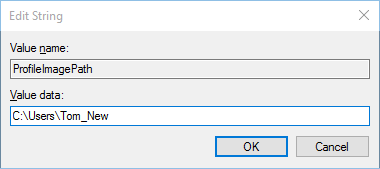
In the right-pane, double-click the ProfileImagePath value and change the user profile path to your desired name. In my example, I renamed the account folder from C:\Users\Tom to C:\Users\Tom_New.
Close the Registry Editor window. Logout of the Administrator account and log in with your user account. Everything should work fine – all your apps and files should be intact and your user folder should have been renamed.
AI Impact: The Future of IT, Tech & Cybersecurity AI is becoming increasingly vital in tech, IT and cybersecurity as businesses are progressively integrating AI into their operational procedures. Tech professionals are turning to AI due to its ability to streamline and automate complex processes and routine tasks. For cybersecurity professionals, AI can facilitate real-time threat detection and response. What you will learn: How generative AI is shaping the future of technology and IT How to deconstruct the promises of AI in cybersecurity An understanding of the need to interact properly with AI Why AI can help us become better professionals Register Now
Windows Explorer shortcuts not working giving Error message:
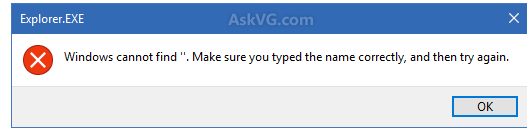
Windows cannot Find, Make Sure You Typed the Name Correctly, and Then Try Again.
Today I encountered a weird issue in Windows 10 operating system. I usually open Windows Explorer by using WIN+E hotkey. When I pressed WIN and E keys together, Windows showed following error message:
[Explorer.EXE]
Windows cannot find ”. Make sure you typed the name correctly, and then try again.
Then I tried to open Windows Explorer by double-clicking on This PC icon on Desktop and it opened fine.
Finally I was able to address this annoying issue and fixed it using a very simple solution.
If you also face this problem ever, you may try following working fix:
1. Open Windows Explorer (or File Explorer or This PC) by double-clicking on its desktop icon or by clicking on its pinned icon on Taskbar. Now click on View tab in Ribbon and then click on Options.
If you are unable to open Windows Explorer and get above mentioned error message, open Control Panel and click on “File Explorer Options” icon.
2. Now check the option “Open File Explorer to:“. It would be set to “Quick access“. Click on the drop-down box and select “This PC” option.
3. Apply the changes and it’ll fix the problem.
Now you’ll no longer receive any error message while trying to launch Windows Explorer.
It seems a “Quick Access” related bug to me and when we disable “Quick Access” option in File Explorer options, it solves the issue.
Copilot is an AI assistant powered by language models, which offers innovative solutions across the Microsoft Cloud. Find what you, a technical professional, need to enhance your productivity, creativity, and data accessibility, and make the most of the enterprise-grade data security and privacy features for your organization.
How to add holidays to your Microsoft Outlook calendar and keep your schedule up-to-date
1. Log in to Outlook.com
2. On the Outlook desktop app, click on the “File” tab.
3. Click on “Options.”
You can find this link in the left navigation bar in Outlook.
4. Click on “Calendar” in the pop-up window, then click on the button labeled “Add Holidays.”
The Calendar menu is the third option down in the Outlook Options window.
5. Scroll through the list until you find the country that observes the holidays you wish to add. 5. Click on that country’s name so that the box next to it shows a checkmark.
You can choose more than one country if you wish.
6. Click “OK” when you are done.
7. Click “OK” again to confirm and close out of the pop-up windows.
Replace a Classic Root Site Collection with a Modern Site using PowerShell
Replacing root site with a new modern site is a two-step process. Make sure you have the latest PowerShell module for SharePoint Online installed (16.0.8812.1200 or later). To get the installed PowerShell module version, use the following:
Create a new modern SharePoint site collection using a communication site template and customize it as per your requirements, such as adding necessary resources like document libraries, navigation, etc. You can also use any existing modern communication site in your SharePoint environment. This will be your new top-level site.
Step 2:
Execute the Invoke-SiteSwap cmdlet to start replacing the old site with the new One Here is the SharePoint Online PowerShell script to swap a new SharePoint site in place of the old site collection. As its name suggests, the Invoke-SPOSiteSwap PowerShell command swaps a site collection with another one, while taking a backup of the source site collection. Also, it creates a site redirect from the source location to the target location (unless you disable it with -DisableRedirection switch!).
Line #
PowerShell Code:
1 2 3 4 5 6 7 8 9 10 11
#Connect to SharePoint Online (Start a new Remote PowerShell tab) #Set Parameters $AdminCenterURL="https://varcitio365-Admin.sharepoint.com" $SourceSiteURL= "https://varcitio365.sharepoint.com/sites/xx"#Newly built intranet $TargetSiteURL= "https://varcitio365.sharepoint.com/"#Existing Intranet Site URL - SharePoint Root site $ArchiveSiteURL= "https://crescent.sharepoint.com/sites/Intranet-archive"#Backup for existing Intranet Connect-SPOService-Url$AdminCenterURL-Credential(Get-Credential) #Start Site Swap Invoke-SPOSiteSwap-SourceUrl$SourceSiteURL-TargetUrl$TargetSiteURL-ArchiveUrl$ArchiveSiteURL
The Root site swap process may take a moment to complete. Please note that the source and target sites can’t connect to an Office 365 group. They also can’t be hub sites or associated with a hub (Remove the Hub site association before swapping and re-associate). Typically, it takes a few minutes to complete. All subsites contained with the source and target sites will be swapped, and this cmdlet takes the following parameters:
SourceURL – New site collection that you want to swap with your old site. The source site must be an existing classic team site (STS#0), Modern Team Site (STS#3), or Communication Site (SITEPAGEPUBLISHING#0)
TargetURL – This is your existing Classic site in the Office 365 tenant.
ArchiveURL – Archival URL is the location to archive an existing site. It must not currently exist (even as a deleted site in Recycle bin). This allows you to roll back your changes if required.
The Invoke-SPOSiteSwap cmdlet doesn’t convert your classic site collection into a modern one. Instead, it replaces the current site collection with another existing one! Moreover, any static link must be fixed manually.
Summary
In conclusion, replacing the classic root site collection with a modern site in SharePoint Online can be accomplished using either SharePoint Admin Center or PowerShell. This process can be useful when you’re looking to modernize your SharePoint Online environment and take advantage of the new features and functionalities available on modern sites. Overall, replacing the classic root site collection with a modern communication site that offers a modern user interface that is more visually appealing, Mobile-Friendly, advanced web parts, and intuitive, responsive user experience helps to increase productivity and collaboration.
Leaders are not infallible, they are men and women who choose to be the support for a team of dedicated individuals to achieve their goals. Teaching, Coaching and guiding the team to great height’s.
Leadership, Mentorship and Support
Leaders, must be aware of any risks that they are taking and reconstruct the scenario in their own heads to be able to use any setbacks or challenges as opportunities to grow. This is the shift that can transform their emotions and outcome experience to overcome pre-performance issues by viewing them as a positive or as an exciting challenge to learn rather than a failure. They have to consider that there is no failure as long as they use any experience to learn and continue to grow, to keep trying again in their quest to achieve not only their personal goals, but also their companies goals. Leaders have to be prepared to take chances and to accept any setbacks based on their choices. It is their responsibility, no matter who dropped the ball. A leader is the end of the line as far as responsibility goes.