Surface Screen Problems

How to Restart Video Driver in Windows 10

Windows 10 comes with a special keyboard shortcut which allows restarting graphics drivers without ending your user session. The method supports NVIDIA, AMD, and Intel drivers.

To restart a video driver in Windows 10, do the following.

  1. Press the Win + Ctrl +Shift + B keys.
  2. The screen will go blank for a second and you will hear a beep.
  3. Everything will go back to normal immediately.

Let’s troubleshoot and isolate this issue together.

  • Will you confirm the Surface device do you have? a Surface Laptop or a Surface Pro?
  • May I know what version of Windows your device is currently running?

Here are some steps you can try:

1. Show Hidden Devices in Device Manager:

  • Open device manager.
  • Go to the View tab and select Show hidden devices.
  • Then, go to the Actions tab and choose Scan for hardware changes.
  • Check if the HID-compliant touch screen appears under Human Interface Devices now.

2. Boot to UEFI and test touch functionality. Unified Extensible Firmware Interface (UEFI) is a type of software that helps Windows communicate with your Surface’s hardware. Because UEFI operates independently of Windows, testing hardware in UEFI will work if you have a hardware issue.

  • Follow these steps to boot to UEFI and test touch functionality:
    1. Go to Start > Power > Shut down.
    2. When Surface is off, press and hold the volume up button and press the power button until a Microsoft or Surface logo appears onscreen.
    3. Once you are in UEFI, touch your Surface screen and see if it responds normally. Try to navigate in UEFI by tapping various menu items
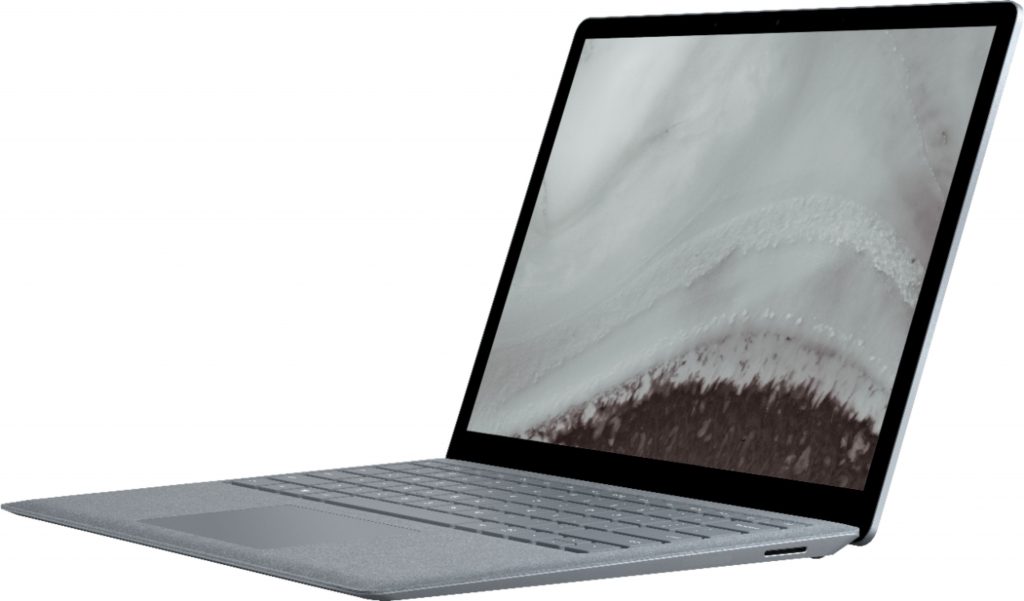
Surface Touch Pad

Surface Touchpad Not Working

Here are some potential causes and solutions for a non-functional Surface touchpad:

  1. Dust or dirt on the touchpad: Check the touchpad for any debris or obstructions. Clean it gently with a soft cloth or a can of compressed air to ensure proper functionality.
  2. Outdated drivers or firmware: Ensure your Surface is running the latest Windows updates and Surface drivers. You can check for updates in Settings > Update & Security > Windows Update (Windows 10) or Settings > Update & Security > Windows Update > Optional updates (Windows 11).
  3. Touchpad settings: Adjust the touchpad settings to see if it resolves the issue. On Windows 10, go to Start > Settings > Devices > Touchpad. On Windows 11, go to Start > Settings > Bluetooth & devices > Touchpad. You can toggle settings like tap delay, gesture recognition, or disable accidental touches.
  4. Connection issues: If your touchpad connects via Bluetooth, try disconnecting and reconnecting it. For Surface devices with a Type Cover, ensure it’s properly attached and detached.
  5. Battery depletion: If your touchpad connects via Bluetooth and stops working, it might be due to low battery power. Check the battery level and recharge or replace the batteries as needed.

Additional Tips

  • If you’re experiencing issues with text selection, try using an external mouse to see if it functions correctly. This can help isolate the problem.
  • If none of the above solutions work, you can try resetting the touchpad settings to their default values or seeking further assistance from Microsoft Support.

Remember to always refer to the official Microsoft documentation and support resources for the latest information and guidance on troubleshooting and maintaining your Surface device.

Fix touchpad problems in Windows 10

If your touchpad isn’t working, it may be a result of a missing or out-of-date driver.

  • On Start Windows logo Start button, search for Device Manager, and select it from the list of results. Under Mice and other pointing devices, select your touchpad, open it, select the Driver tab, and select Update Driver. If Windows doesn’t find a new driver, look for one on the device manufacturer’s website and follow their instructions.
  • If those steps didn’t work, try uninstalling your touchpad driver: open Device Manager, right-click (or press and hold) the touchpad driver, and select Uninstall. Restart your device and Windows will attempt to reinstall the driver.
  • If that didn’t work, try using the generic driver that comes with Windows. Here’s how: in Device Manager, right-click (or press and hold) your touchpad driver > Update driver software… Browse my computer for driver software > Let me pick from a list of device drivers on my computer, select HID compliant mouse, select Next, and follow the instructions to install it.
  • If changing your driver doesn’t help, there may be a problem with the touchpad itself. Contact your PC’s manufacturer for help.

Rename User Profile Directory

How to Rename User Profile Directory in Windows 11, 10, 8 and 7

Renaming a user account in Windows won’t automatically rename the associated user profile folder. In this tutorial we’ll show you how to manually rename user profile directory in Windows 11, 10, 8 and 7, if the name of your user account folder is not what you want.

How to Rename User Profile Directory in Windows 11, 10, 8 and 7?

To make sure your renaming of user profile folder is consistent across the entire installation of your Windows and does not break anything, follow these steps:

  1. Log on to another Administrator account that is not the account being renamed.
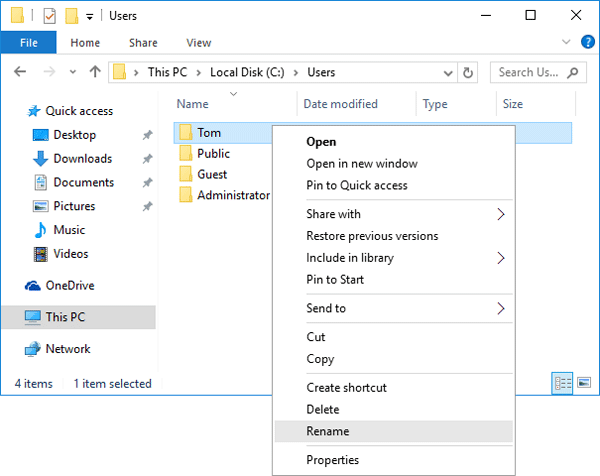
  2. Open the Windows Explorer and browse to the C:\Users folder. Right-click on your user account folder and rename it to whatever you like.rename-user-profile
  3. Press the Windows key + R to open the Run box. Type regedit and hit Enter.
  4. When the Registry Editor opens, navigate to the following registry location:
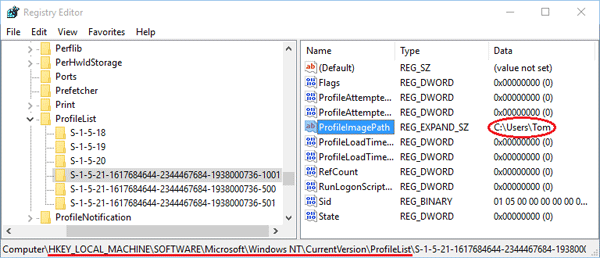
    HKEY_LOCAL_MACHINE\SOFTWARE\Microsoft\Windows NT\CurrentVersion\ProfileList\
  5. Under the ProfileList subkey you will find a few subfolders (starting with ‘S-1-5-‘) that are named with the SID of Windows user accounts. Find the SID for your user account whose profile folder you just renamed. You can simply open each subfolder and check the ProfileImagePath path for the correct one.profile-image-path
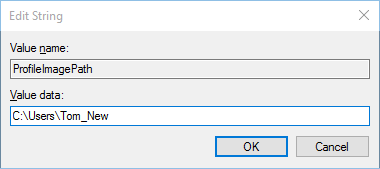
  6. In the right-pane, double-click the ProfileImagePath value and change the user profile path to your desired name. In my example, I renamed the account folder from C:\Users\Tom to C:\Users\Tom_New.change-profile-path
  7. Close the Registry Editor window. Logout of the Administrator account and log in with your user account. Everything should work fine – all your apps and files should be intact and your user folder should have been renamed.

Windows Server Upgrade paths

In-place upgrade from Windows Server 20xx to a different version are shown in the table below. The following upgrade paths are officially supported by Microsoft.

Image

From the table above Microsoft does not support an upgrade from Server 2012 R2 directly to Server 2022, so it would take an intermediate step or people will have to resort to a clean install.

Whether meet the prerequisites for upgrading?

For details about the upgrade steps, please refer to the following steps: Perform an in-place upgrade of Windows Server | Microsoft Learn

What went wrong with the upgrade and can you provide a screenshot?

Best Regards,

Hania Lian

Windows 10 Explorer Fix

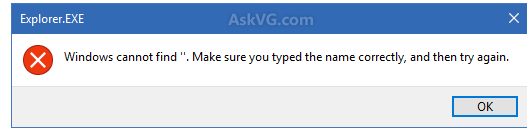
Windows Explorer shortcuts not working giving Error message:

Windows cannot Find, Make Sure You Typed the Name Correctly, and Then Try Again.

Today I encountered a weird issue in Windows 10 operating system. I usually open Windows Explorer by using WIN+E hotkey. When I pressed WIN and E keys together, Windows showed following error message:

[Explorer.EXE]

Windows cannot find ”. Make sure you typed the name correctly, and then try again.

Then I tried to open Windows Explorer by double-clicking on This PC icon on Desktop and it opened fine.

Finally I was able to address this annoying issue and fixed it using a very simple solution.

If you also face this problem ever, you may try following working fix:

1. Open Windows Explorer (or File Explorer or This PC) by double-clicking on its desktop icon or by clicking on its pinned icon on Taskbar. Now click on View tab in Ribbon and then click on Options.

If you are unable to open Windows Explorer and get above mentioned error message, open Control Panel and click on “File Explorer Options” icon.

2. Now check the option “Open File Explorer to:“. It would be set to “Quick access“. Click on the drop-down box and select “This PC” option.

Open_File_Explorer_This_PC_Quick_Access_Windows_10.png

3. Apply the changes and it’ll fix the problem.

Now you’ll no longer receive any error message while trying to launch Windows Explorer.

It seems a “Quick Access” related bug to me and when we disable “Quick Access” option in File Explorer options, it solves the issue.

Copilot learning

Microsoft Learn

Copilot learning hub

Copilot is an AI assistant powered by language models, which offers innovative solutions across the Microsoft Cloud. Find what you, a technical professional, need to enhance your productivity, creativity, and data accessibility, and make the most of the enterprise-grade data security and privacy features for your organization.

Start your Copilot learning journey

Latest Security Issues

Adding Stat Holiday to Outlook

1. Log in to Outlook.com

2. On the Outlook desktop app, click on the “File” tab.

3. Click on “Options.” 

How to add holidays to Outlook calendar 1
You can find this link in the left navigation bar in Outlook.

4. Click on “Calendar” in the pop-up window, then click on the button labeled “Add Holidays.”

How to add holidays to Outlook calendar 2
The Calendar menu is the third option down in the Outlook Options window. 

5. Scroll through the list until you find the country that observes the holidays you wish to add. 5. Click on that country’s name so that the box next to it shows a checkmark.

How to add holidays to Outlook calendar 3
You can choose more than one country if you wish.

6. Click “OK” when you are done. 

7. Click “OK” again to confirm and close out of the pop-up windows.

App Launch

Did You Know

You can launch apps on your on the “TaskBar” by pressing:

  • WIN + 1 (to Launch the first app on your “TaskBar”)
  • WIN +2 (to launch the second App on your “TaskBar“)
  • WIN + X (for additional apps)

Stay tuned for more tips.