Outlook Crash

Microsoft shares workaround for Outlook crash issue

Microsoft has released a temporary fix for an issue that crashes the classic Outlook client when opening or starting emails, which affects users in the Monthly Enterprise Channel who updated to Version 2504. While a permanent fix is being developed, Microsoft has a workaround that involves creating a missing “FORMS2” folder.

Full Story: BleepingComputer

Excel Enhancements

Copilot + Excel = Your Data Superpower

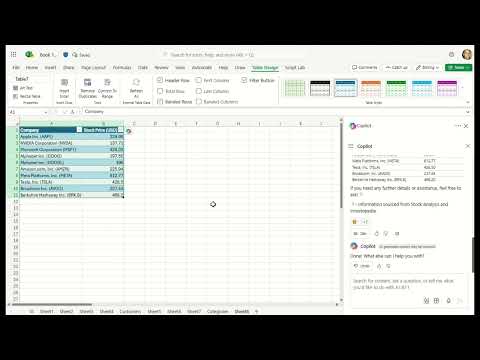
Copilot in Excel simplifies data analysis by enabling you to search for and import data from Word, PowerPoint, PDF documents, or other Excel files into your spreadsheets. Save time and gain insights with this powerful tool.

Search and import data with Copilot in Excel

Data analysis is a critical yet challenging task for many business professionals, as creating and preparing data, then gaining insights from it and conducting advanced analyses, can be time-consuming and complex.

Copilot in Excel can help! We’re thrilled to announce that Copilot in Excel can now reference Word, Excel, PowerPoint, and PDF files, making the entire data collection and analysis process faster, simpler, and more intuitive.

This new capability works for gathering information such as:

  • Web content: You can seamlessly search the web directly within Copilot in Excel to find public information like dates, statistics, and more without disrupting your workflow. For instance, you can look up a list of countries and their exchange rates, and easily paste these results into a table. 
  • Internal content: For example, you can ask Copilot in Excel to list the announcements from a newsletter drafted in Word, and Copilot will respond with a list that you can insert into a new spreadsheet. 
  • Organizational information: You can ask Copilot for all the employees who report to a specific manager and insert this list into a spreadsheet. 
  • Data from another Excel file: One of our top user requests is toimport data from another Excel file. This is possible with Power Query, but doing so takes time and knowledge – not to mention, searching for the right file can be frustrating. Now you can ask Copilot for help finding and importing a table from an Excel file using everyday language. For example, say you want to add budget details from another Excel spreadsheet to your sales team table: You can describe the data that you need, and Copilot will help you import it. Because this import is powered by Power Query, it brings precise data directly from your organization’s data sources as a refreshable connection. As data is updated in the budget file, it also updates in your sales team table.

How it works

  1. On the Home tab in Excel, select Copilot
  2. Ask Copilot a question about the data you are looking for. 
  3. Ask follow-up questions to Copilot’s responses until you’re happy with the results!
Video provider requires cookies to play the video. Accept to continue or watch it directly on the provider’s site.Accept

NOTE: For results that are from external data, make sure you see reference(s) at the end of the response.

Scenarios to try  

Try prompting Copilot in Excel with:

  • “Search the web for an itinerary for a month-long trip to Europe in a table format.” 
  • “Search the web for a list of 15 intermediate-level vocabulary words in Spanish and their translations.”
  • “Show me next week’s meetings and to-do items in a table.”
  • “List yesterday’s emails in a table, with sender, subject line, and importance.” 

Known limitations

  • Importing refreshable data is only supported for Excel files with tables, stored on your SharePoint or OneDrive. 
  • Addressing workbook data and asking for external data simultaneously is not fully supported yet.

Requirements

To use this feature, you must have: 

If Copilot responds that it can’t access your organizational data, verify if Restricted SharePoint Search is turned on (for Enterprise search).

Outlook Offline Address book

Determine whether the Autodiscover service is working, and check access to the Offline Address Book

Check whether Outlook and the computer can access the Offline Address Book file on the server. This action is typically done by Outlook in the background. It also happens when you force a download of the Offline Address Book in Outlook. To do this check, sign in to the Microsoft 365 portal, and then follow these steps:

  1. Start Outlook.
    • Hold down the CTRL key, right-click the Outlook icon in the notification area on the right side of the taskbar, and then click Test E-mail AutoConfiguration.
    • Click to clear the Use Guessmart check box, and then click to clear the Secure Guessmart Authentication check box.
    • Click to select the Use AutoDiscover check box.
    • Type the email address and password, and then click Test.
    • On the Results tab, note the path of OAB URL.
    • Click the XML tab, locate the <OAUrl> and </OABUrl> tags, and then copy the path that’s displayed between the tags. Paste the path into the address box in Windows Internet Explorer, add /OAB.xml to the end of the path, and then press Enter.


The following is an example of what the URL may resemble:

https://autodiscover.contoso.com/OAB/93179f28-4b4d-4e58-aec1-07bb493be4f4/OAB.xml

NOTE: The information that’s displayed in the webpage in Internet Explorer. The webpage should contain lots of XML data.

The figure below depicts an example of the information that should be displayed in Internet Explorer.

Troubleshoot Outlook Offline Address Book

Still need help? Go to Microsoft Community.

Brother HL-4040

I have an older Brother HL-4040CDN that is showing a Print Unable 32 error

I found this video on the tube about the repair process

Teams update

Microsoft Teams new chat and channels AMA (Ask Microsoft Anything)

Streamlined to help you collaborate more effectively

Stay on top of what matters
Bring your chat, teams, and channels into one place. Catch up without switching contexts, integrating both chat and channels into your critical workflows.

Triage efficiently
Filter to unread messages to catch up on conversations across chat and channels or use the new @mention view to access messages directed at you in one interactive list.

Organize your way
A new Favorites section contains your prioritized chat and channels. Create custom sections to organize conversations by projects and topics.

Customize your experience
Choose whether you want chat and channels combined or separate, how to sort conversations, and more. You can optimize with different settings on desktop and mobile.

More blank page tricks

Word for Microsoft 365, Word 20XX

Page breaks tell Word where to start a new page. A manual page break might be making an unwanted blank page in your document.

  1. To see manual page breaks, switch to showing paragraph marks: Press Ctrl+Shift+8.
  2. Now you can select the page break and delete it.

A page break at the bottom of a Word page

Section break problems

In the middle of a document, deleting section breaks can cause formatting problems. In these cases, try changing the section break to one that doesn’t generate a new page. Here’s how:

  1. Double select the section break.
  2. On the Layout tab of the Page Setup dialog box, select the Section start drop down and select Continuous.
  3. Select OK.

Odd, Even, and Next cause blank pages
Next Page, Odd Page, and Even Page section breaks may create a blank page in your document. If the blank page occurs at the end of your document and you have a section break there, place your cursor directly before the section break and press Delete.

Tip: To more easily find section breaks, try switching to Draft on the View tab.

Word Delete Blank Page

Word for Microsoft 365 Word for Microsoft 365 for Mac Word 2021

Word includes a non-deleteable end-paragraph that sometimes gets pushed out to a new, blank page at the end of a document. The way to delete the page is to make the end-paragraph fit onto the preceding page. The most sure-fire way is to make the end-paragraph very small (1 point):

  1. Press Ctrl+Shift+8 to show paragraph marks.
  2. Select the paragraph mark.
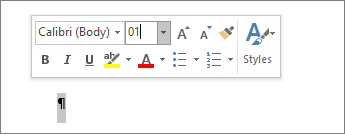
  3. Select inside the Font size box, type 01, and then press Enter .Setting font size to 1
  4. The paragraph now fits on the preceding page, removing the unwanted blank page.
  5. Press Ctrl+Shift+8 again to hide the paragraph marks (⌘+8 on a Mac).

If that paragraph still doesn’t fit on the preceding page, you can make the bottom margin smaller (Layout tab > Margins Custom Margins, and set the bottom margin to something small, like 0.3 inches).

Tip: If the paragraph mark has a square bullet next to it, the paragraph might have the Page break before option turned on. To turn it off, right-select the empty paragraph, select Paragraph Settings (Home tab), and on the Lines and Page Breaks tab of the dialog box, uncheck Page break before.

Word – Delete a page

Word for Microsoft 365 Word for Microsoft 365 for Mac Word 2021

To delete a page that contains text, graphics, or empty paragraphs, select the content to delete, and press Delete. You can also do this:

  1. Click or tap anywhere in the page you want to delete, press Ctrl+G.
  2. In the Enter page number box, type \page.
  3. Press Enter on your keyboard, and then select Close.
  4. Verify that a page of content is selected, and then press Delete on your keyboard.

To remove blank pages in the middle or at the end of your document, see Delete a blank page.