Excel Enhancements

Copilot + Excel = Your Data Superpower

Copilot in Excel simplifies data analysis by enabling you to search for and import data from Word, PowerPoint, PDF documents, or other Excel files into your spreadsheets. Save time and gain insights with this powerful tool.

Search and import data with Copilot in Excel

Data analysis is a critical yet challenging task for many business professionals, as creating and preparing data, then gaining insights from it and conducting advanced analyses, can be time-consuming and complex.

Copilot in Excel can help! We’re thrilled to announce that Copilot in Excel can now reference Word, Excel, PowerPoint, and PDF files, making the entire data collection and analysis process faster, simpler, and more intuitive.

This new capability works for gathering information such as:

  • Web content: You can seamlessly search the web directly within Copilot in Excel to find public information like dates, statistics, and more without disrupting your workflow. For instance, you can look up a list of countries and their exchange rates, and easily paste these results into a table. 
  • Internal content: For example, you can ask Copilot in Excel to list the announcements from a newsletter drafted in Word, and Copilot will respond with a list that you can insert into a new spreadsheet. 
  • Organizational information: You can ask Copilot for all the employees who report to a specific manager and insert this list into a spreadsheet. 
  • Data from another Excel file: One of our top user requests is toimport data from another Excel file. This is possible with Power Query, but doing so takes time and knowledge – not to mention, searching for the right file can be frustrating. Now you can ask Copilot for help finding and importing a table from an Excel file using everyday language. For example, say you want to add budget details from another Excel spreadsheet to your sales team table: You can describe the data that you need, and Copilot will help you import it. Because this import is powered by Power Query, it brings precise data directly from your organization’s data sources as a refreshable connection. As data is updated in the budget file, it also updates in your sales team table.

How it works

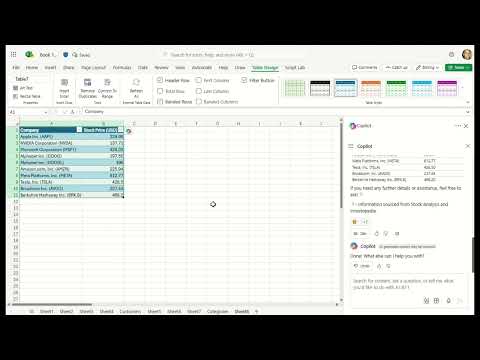
  1. On the Home tab in Excel, select Copilot
  2. Ask Copilot a question about the data you are looking for. 
  3. Ask follow-up questions to Copilot’s responses until you’re happy with the results!
Video provider requires cookies to play the video. Accept to continue or watch it directly on the provider’s site.Accept

NOTE: For results that are from external data, make sure you see reference(s) at the end of the response.

Scenarios to try  

Try prompting Copilot in Excel with:

  • “Search the web for an itinerary for a month-long trip to Europe in a table format.” 
  • “Search the web for a list of 15 intermediate-level vocabulary words in Spanish and their translations.”
  • “Show me next week’s meetings and to-do items in a table.”
  • “List yesterday’s emails in a table, with sender, subject line, and importance.” 

Known limitations

  • Importing refreshable data is only supported for Excel files with tables, stored on your SharePoint or OneDrive. 
  • Addressing workbook data and asking for external data simultaneously is not fully supported yet.

Requirements

To use this feature, you must have: 

If Copilot responds that it can’t access your organizational data, verify if Restricted SharePoint Search is turned on (for Enterprise search).

New Paint in Windows

Paint now makes it easier to create

Paint now comes with new AI-powered tools to help you edit images like a pro and create art like a visionary. Included in the latest version of Windows 11, Paint is your new creative partner.

Paint Features now available:

This is a huge update from the previous versions that was difficult to remove backgrounds, but working with layers was never possible. I am eager to try it and see how it works.

Windows 11 Insider Preview

New features gradually being rolled out to the Beta Channel with toggle on*

Making sharing files in Windows easier

Sharing files in Windows is getting a lot easier and quicker with our new drag tray feature. When you start dragging a local file with mouse (or touch) from File Explorer or your desktop, a handy tray appears at the very top of your screen allowing you to drop the file into one of the displayed apps or choose “More…”  to open the Windows share window.

Changes and Improvements gradually being rolled out to the Beta Channel with toggle on*

[Start menu] 2 Versions

Microsoft is introducing two new views to the “All” page in the Start menu: grid and category view. Grid and list view shows your apps in alphabetical order and category view groups all your apps into categories, ordered by usage. This change is gradually rolling out so you may not see it right away. We plan to begin rolling this out to Windows Insiders who are receiving updates based on Windows 11, version 24H2 in the Dev and Beta Channels soon.

Threat Modeling

Threat Modeling

Threat modeling is a core element of the Microsoft Security Development Lifecycle (SDL). It’s an engineering technique you can use to help you identify threats, attacks, vulnerabilities, and countermeasures that could affect your application. You can use threat modeling to shape your application’s design, meet your company’s security objectives, and reduce risk.

There are five major threat modeling steps:

  •  Defining security requirements. 
  •  Creating an application diagram. 
  •  Identifying threats. 
  •  Mitigating threats. 
  •  Validating that threats have been mitigated. 

Threat modeling should be part of your routine development lifecycle, enabling you to progressively refine your threat model and further reduce risk.

Microsoft Threat Modeling Tool

The Microsoft Threat Modeling Tool makes threat modeling easier for all developers through a standard notation for visualizing system components, data flows, and security boundaries. It also helps threat modelers identify classes of threats they should consider based on the structure of their software design. We designed the tool with non-security experts in mind, making threat modeling easier for all developers by providing clear guidance on creating and analyzing threat models. 

The Threat Modeling Tool enables any developer or software architect to:

  • Communicate about the security design of their systems. 
  • Analyze those designs for potential security issues using a proven methodology. 
  • Suggest and manage mitigations for security issues. 

The SDL Threat Modeling Tool plugs into any issue-tracking system, making the threat modeling process a part of the standard development process.

Speach Recognition

To start voice dictation in Windows 11, you can press the Win+H keys together to open the Voice typing tool. Alternatively, you can go to Settings > Accessibility > Speech, and turn on the switch for Windows Speech Recognition. Once enabled, you can click the microphone icon to start dictation in any application where you can type text.

This article is for people who want to control their PC and author text using their voice with Windows. This article is part of the Accessibility support for Windows content set where you can find more information on Windows accessibility features. For general help, visit Microsoft Support home.

Voice access is a feature in Windows 11 that enables everyone to control their PC and author text using only their voice and without an internet connection. For example, you can open and switch between apps, browse the web, and read and author email using your voice. For more information, go to Use voice access to control your PC & author text with your voice.

Voice access is available in Windows 11, version 22H2 and later. For more information on Windows 11 22H2 new features, and how to get the update, see What’s new in recent Windows updates. Not sure which version of Windows you have? See: Find Windows version.

Dictate punctuation marks

To insert thisSay this
.“Period”
“Full stop”
,“Comma”
?“Question mark”
!“Exclamation mark”
“Exclamation point”
‘s“Apostrophe-s”
:“Colon”
;“Semicolon”
” ““Open quotes”
“Close quotes”
“Hyphen”
“Ellipsis”
“Dot dot dot”
‘ ‘“Begin single quote”
“Open single quote”
“End single quote”
“Close single quote”
( )“Left parentheses”
“Open parentheses”
“Right parentheses”
“Close parentheses”
[ ]“Open bracket”
“Close bracket”
{ }“Left brace”
“Open brace”
“Right brace”
“Close brace”

Dictate symbols

To insert thisSay this
*“Asterisk”
\“Backslash”
/“Forward slash”
|“Vertical bar”
“Pipe character”
_“Underscore”
“Paragraph sign”
“Paragraph mark”
§“Section sign”
&“Ampersand”
“And sign”
@“At sign”
©“Copyright sign”
®“Registered sign”
°“Degree symbol”
%“Percent sign”
#“Number sign”
“Pound sign”
+“Plus sign”
“Minus sign”
דMultiplication sign”
÷“Division sign”
=“Equals sign”
< >“Less than sign”
“Greater than sign”
$“Dollar sign”
£“Pound sterling sign”
“Euro sign”
¥“Yen sign”

Manage voice access and microphone

To do thisSay this
Get voice access to listen to you.“Voice access wake up”
“Unmute”
Put voice access to sleep.“Voice access sleep”
“Mute”
Turn off the voice access microphone.“Turn off microphone”
Close voice access.“Turn off voice access”
“Stop voice access”
“Close voice access”
“Exit voice access”
“Quit voice access”
Find out what command to use.“What can I say”
“Show all commands”
“Show command list”
“Show commands”
Access voice access settings menu.“Open voice access settings”
Access voice access help menu.“Open voice access help”
Access the voice access tutorial.“Open voice access guide”
Switch to commands only mode.“Commands mode”
“Switch to command mode”
Switch to dictation only mode.“Dictation mode”
“Switch to dictation mode”
Switch to default mode (command and dictation).“Default mode”
“Switch to default mode”

Interact with apps

To do thisSay this
Open a new app.“Open <app name>”
“Start <app name>”
“Show <app name>”
Close an open app.“Close <app name>”
“Close window”
“Exit <app name>”
“Quit <app name>”
Switch to an existing app.“Switch to <app name>”
“Go to <app name>”
Minimize a window.“Minimize window”
“Minimize <app name>”
Maximize a window.“Maximize window”
“Maximize <app name>”
Restore a window.“Restore window”
“Restore <app name>”
Open task switcher.“Show task switcher”
“List all windows”
“Show all windows”
Go to desktop.“Go to desktop”
“Go home”
“Minimize all windows”
Search on the browser, where “search engine” can be Bing, Google, or YouTube, and “x” is what you’re looking for.“Search on <search engine> for <x>”
Snap window to a specific direction, where “direction” is left, right, top-left, top-right, bottom-left, or bottom-right.“Snap window to <direction>”
“Snap the window to <direction>”
To search for an entity (Entity can be a file or an application) on your windows PC.“Search <Entity>”
“Search Windows for <Entity>”
“Search for <Entity>”

Interact with controls

To do thisSay this
Select an item.“Click <item name>”
“Tap <item name>”
Double-click an item.“Double-click <item name>”
“Mouse double-click”
Put focus on an item.“Move to <item name>”
“Focus on <item name>”
Expand a list.“Expand <item name>”
Toggle between states.“Toggle <item name>”
“Flip <item name>”
Scroll in a specific direction.“Scroll <direction>”
Start scrolling in a specific direction.“Start scrolling <direction>”
Stop scrolling.“Stop scrolling”
“Stop”
Move a slider in a specific direction by a certain distance, where “direction” is up, down, left, or right and “value” is the distance.“Move slider <direction> <value> times”

Edge Workspaces

Sharing Edge Workspaces in Chrome

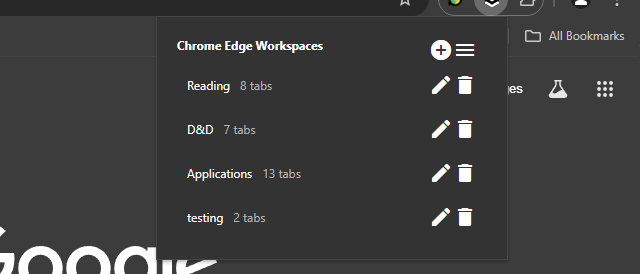
Microsoft Edge Workspaces are natively available in Microsoft Edge, but you can use a third-party extension to replicate this feature in Google Chrome. One such extension is “Edge Workspaces,” which is available on the Chrome Web Store. This extension allows you to organize and manage multiple projects or tasks by saving and restoring entire browsing sessions.

To use Edge Workspaces in Chrome:

  1. Install the extension from the Chrome Web Store.
  2. Open the extension popup by clicking the icon in the toolbar.
  3. Click the “+” icon to open the new workspace modal.
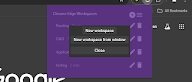
  4. Select either “New workspace” or “New workspace from window.”
  5. A new Chrome window will open with the New Tab page.
  6. As you work, all tabs in the current window will be saved to the workspace.
  7. Close the window when finished.

The extension also supports managing workspaces, such as renaming or deleting them, and saving workspaces as bookmarks. However, it’s important to note that changes to the bookmarks will not be reflected in the workspaces themselves, as they are just a copy.

Using Edge Workspaces on Chrome

Chrome extensions: Edge Workspaces

Overview

Effortlessly organize and manage multiple projects or tasks by saving and restoring entire browsing sessions.

Edge Workspaces empowers Chrome users with advanced tab management: * Preserve context: Save and restore entire browsing sessions * Reduce clutter: Keep your browser organized by project or task * Improve focus: Easily switch between different work contexts * Automatic saving: Never lose your place with continuous workspace updates * Keep in sync: Your workspaces stay in sync across computers via Google sync Install Edge Workspaces to take control of your tabs and boost your productivity. Ad-free and free to use, forever!

This extension is open source. Check out the GitHub repository: https://github.com/Elec0/chrome-edge-workspaces

## How to Use ##

## Creating a Workspace ##

  • 1. Open the extension popup by clicking the icon in the toolbar (pinning the extension is recommended).
  • 2. Click the “+” icon to open the new workspace modal.
  • 3. Select either “New workspace” or “New workspace from window”.
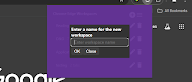
  • 4. Enter a name for the workspace.
  • 5. Click “OK”.
  • 6. A new Chrome window will open with the New Tab page.
  • 7. All tabs in the current window will be saved to the workspace as you work.
  • 8. Close the window when finished.

## Opening a Workspace ##

  • 1. Open the extension popup.
  • 2. Click on a workspace to open it.
  • 3. The saved tabs will be opened in a new Chrome window.

## Managing Workspaces ## – Click the trashcan icon to delete a workspace. – Click the pencil icon to rename a workspace.

## Saving Workspaces as Bookmarks ##

– Ensure “Save workspaces to bookmarks” option is checked in Settings. – Workspaces will now be copied to “Other bookmarks -> Edge Workspaces (read-only) -> [Workspace Name]”. – Note that changes to the bookmarks will **not** be reflected in the workspaces themselves, as they are just a copy. – When installing a new version, make sure to open old workspaces at least once to allow for them to be saved as bookmarks.

## Importing/Exporting Workspaces ##

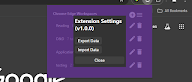
  • 1. Open the extension popup.
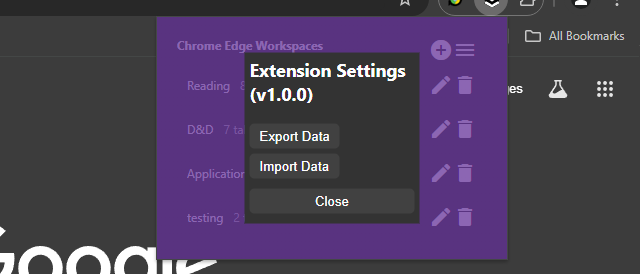
  • 2. Click the hamburger icon to open the settings window.
  • 3. Click “Export” to save all workspaces to a file.
  • 4. Click “Import” to load workspaces from a file.

### Changelog ###

## v1.2.0 ##

– Add syncing of workspaces across computers, when signed in to Google sync

## v1.1.0 ## – Add ability to save a copy of workspaces as bookmarks

Outlook Offline Address book

Determine whether the Autodiscover service is working, and check access to the Offline Address Book

Check whether Outlook and the computer can access the Offline Address Book file on the server. This action is typically done by Outlook in the background. It also happens when you force a download of the Offline Address Book in Outlook. To do this check, sign in to the Microsoft 365 portal, and then follow these steps:

  1. Start Outlook.
    • Hold down the CTRL key, right-click the Outlook icon in the notification area on the right side of the taskbar, and then click Test E-mail AutoConfiguration.
    • Click to clear the Use Guessmart check box, and then click to clear the Secure Guessmart Authentication check box.
    • Click to select the Use AutoDiscover check box.
    • Type the email address and password, and then click Test.
    • On the Results tab, note the path of OAB URL.
    • Click the XML tab, locate the <OAUrl> and </OABUrl> tags, and then copy the path that’s displayed between the tags. Paste the path into the address box in Windows Internet Explorer, add /OAB.xml to the end of the path, and then press Enter.


The following is an example of what the URL may resemble:

https://autodiscover.contoso.com/OAB/93179f28-4b4d-4e58-aec1-07bb493be4f4/OAB.xml

NOTE: The information that’s displayed in the webpage in Internet Explorer. The webpage should contain lots of XML data.

The figure below depicts an example of the information that should be displayed in Internet Explorer.

Troubleshoot Outlook Offline Address Book

Still need help? Go to Microsoft Community.

Rename User Profile Folder

Rename User Profile Folder in Windows 11

If your computer becomes disjointed from a Domain, and you need to rejoin it to the domain, it will create a new profile folder with additional information in the folder name. Here is a way to change the folder name back to the original.

To rename the user profile folder in Windows 11, you’ll need to follow these steps:

  1. Create a new administrator account: This will allow you to modify the registry and rename the user profile folder without affecting your current account.
  2. Activate the built-in administrator account: Go to Computer Management > Local Users and Groups > Users > Activate built-in admin.
  3. Sign out and log in to the new administrator account: This will ensure you’re using the correct account for the renaming process.
  4. Rename the user profile folder: Go to the C:\Users\ folder and rename the subfolder with the original user name to the desired new name. Make sure to follow these guidelines:
    • No spaces within the new name.
    • Use only alphanumeric characters (letters and numbers).
  5. Update the registry: Go to HKEY_LOCAL_MACHINE\SOFTWARE\Microsoft\Windows NT\CurrentVersion\ProfileList and update the registry entries associated with your user account to reflect the new folder name.
  6. Restart and log in to your original account: After updating the registry, restart your computer and log in to your original account. The renamed user profile folder should now be reflected.

Important Notes:

  • Renaming the user profile folder can cause issues with some Microsoft Store apps. Signing out and signing back in may resolve these issues.
  • If you encounter problems, consider creating a new local account (without spaces in the name) and moving your files from the old account to the new one. This may be a safer and more straightforward approach.
  • The workaround mentioned in KB article 2454362 (applicable to Windows 7 and Server 2008 R2) is not applicable to Windows 11.

Additional Tips:

  • Be cautious when modifying the registry, as incorrect changes can cause system instability.
  • It’s recommended to create a system restore point before making changes to the registry or user profile folder.
  • If you’re experiencing issues with the renamed user profile folder, try resetting the folder name to its original value and then renaming it again.

By following these steps and guidelines, you should be able to successfully rename your user profile folder in Windows 11.

Group Policy Editor

Regional Date Format: Setting Does Not Save

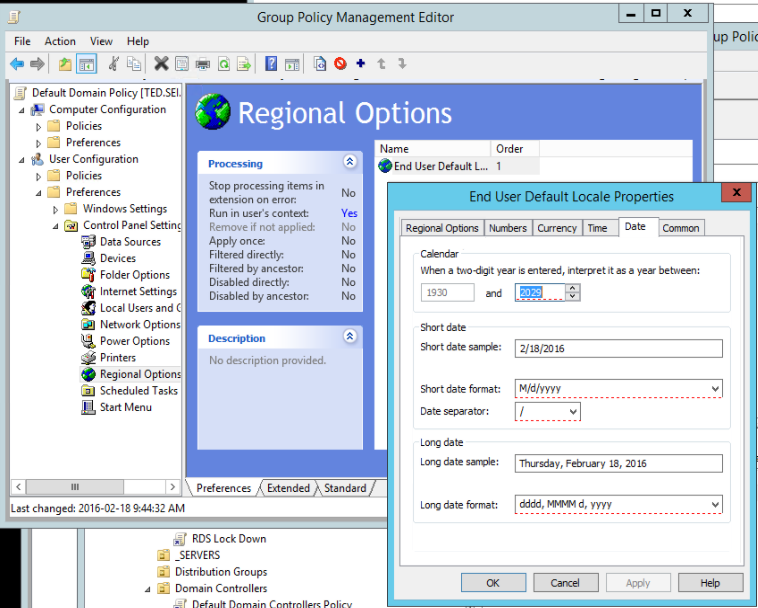
Trying to change the default Regional Settings through the Domain Group Policy Editor to apply a date format of dd-mm-yyyy instead of the default m/d/yyyy

Creating a new GPO called “RegionalSettings” and editing this GPO and saving it. Re-editing the GPO settings, we notice that they have not saved the new format but reverted back to the default.

Trying this on other policies, including the default domain controller policy, all to no avail. No changes are saved.

When changes are made we now see a red box around what was changed, in the past we would click on the apply button, but this no longer saves the changes.

Not sure at what stage this was changed, but now it seems that when changes are made we have to press (F5) before exiting out of the properties page by clicking OK.